



Original Light
Friends of LSPDFR
-
Joined
-
Last visited
Everything posted by Original Light
-
For prebuilt, I went with CyberPower. It was a decent price, and had balanced specifications. I just simply updated the hardware as time went on, and added a few extra fans to the case. The only complaint I have is constant blue screens. At least one every week, sometimes longer if I'm lucky. But prebuilt is a good choice if you don't want to assemble it yourself, or if you don't know how to assemble it (like me).
-
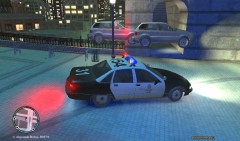 Am I seeing this? Are those cars floating?
 -
-
I really wish they would make another Bad Company. That's all.
-
MODERATOR NOTICE Topic moved to Content Modifications
-
Support section seems to be open now. I unlocked your topic, and moved it to the LCPDFR Support Requests section.
-
MODERATOR NOTICE Topic moved from Random to Content Modifications
-
MODERATOR NOTICE Moved topic to Content Modifications
-
I love you too. *Reverting back to manly mode* It would be cool to know where we'll be in five years. Who knows...
-
He doesn't need it, but it would most likely be more desirable. The minimum requirement is 512 MB.
-
Well... It could run it, but on lower settings.
-
I agree completely. We're growing very fast. We also seem to be creeping up on GPM in total members. Not to make it a competition or anything, but we have 62317 members, they have 63,488. We're not far behind, and I think that says something.
-
Okay, since you fixed the issue, I'll close this topic. If you need it reopened, please report this post Nothing to see here! This topic has been closed by G17 Media staff. If you feel that this topic has been closed in error, please report this post.
-
I just saw it today, it was one of the better episodes, I must say. The part where John saw Dewey in the hospital was funny, you know, the sexual references Dewey made? That had me laughing, but John was quite pissed, since he was making fun of gay people in a way (John is a homosexual himself). But he definitely doesn't act like it, or look like it.
-
Do you plan on buying it?
-
Heck yeah, you'll have no problem at all. You'll be able to max it out no problem. Nice specs by the way.
-
MODERATOR NOTICE Topic moved to Gameplay/Misc Modifications
-
Do you have room for upgrades in your current computer case?
-
Make sure it will be able to run it before you buy it. Many people buy the game, only to find out it won't run on their computer. It happens more than you might think. But yeah, once you find out the rest of the specs, post 'em here, and we'll tell you if it's powerful enough to run the game. Nick
-
So far it looks okay, but if I was you, I wouldn't get a laptop. A desktop would be a much better choice overall; more performance for the price.
-
WIP = Work in progress
-
MODERATOR NOTICE You created another thread after your last one was locked: I'll let this one stay, as long as you don't advertise your clan.
-
http://www.youtube.com/watch?v=9Kp_hbG1Yg0 The link to the mod is in the video description.
-
Well... you can't use the PS3 version copy on your PC, and there isn't really a way of porting the files over. Even if you did, it wouldn't run. You'll have to buy GTA IV for PC. Before you do that, make sure your computer is powerful enough to run it. It's a very hardware demanding game.
-
MODERATOR NOTICE Moved topic to Grand Theft Auto IV/Support
