Iconography
Members
-
Joined
-
Last visited
Everything posted by Iconography
-
This same exact thing happened to me once and I'm trying to remember what ended up fixing it... I seem to recall a mod interfering with it but I have no idea what exactly caused it... I'll try and think about this some more and see if I can get an answer.
-
Simple Native Trainer has a cruise control setting. However, the hotkeys interfere with LCPDFR and typically have to be disabled. The function should still work by accessing the main SNT menu, however. http://www.gtaforums.com/index.php?showtopic=464416 <-- found that
-
Can you be more specific? SMPA60? Something else?
-
-
-
Various snapshots taken of dumb and crazy criminals (and cops) in Liberty City.
-
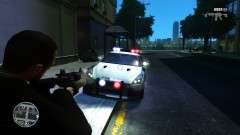 PREVIEW: New Coronas
-
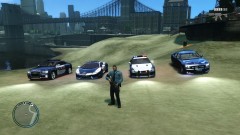 Full Car Lineup
-
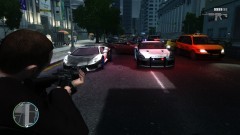 The LCPD Has some new rides!
-
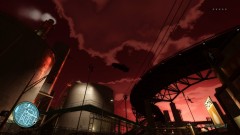 Chasing a Fugitive Pt 2
-
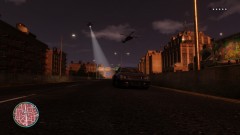 Chasing a Fugitive Pt 1
-
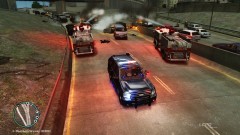 Multiple Car Pile-Up / Fire
-
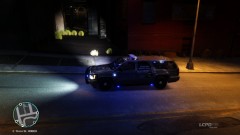 Caption me :D
-
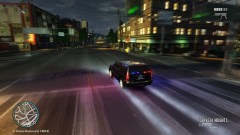 Code 3 on a Rainy Day
-
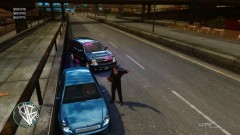 ENB and Tahoe
-
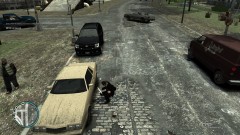 LCPD Public Service Annoucement
-
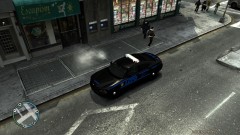 Chief is on Duty
-
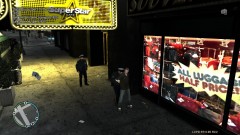 Patrick McReary is Under Arrest
-
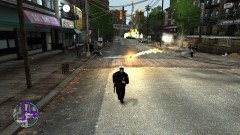 When society breaks down....
-
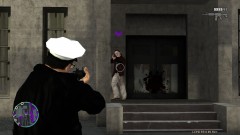 Those crazy preachers finally got guns!
-
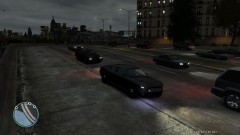 RealityIV test
-
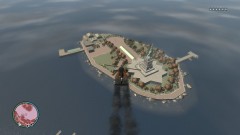 Annihilator down!
-
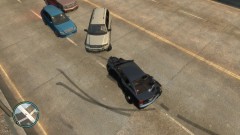 Hey, chief.....
-
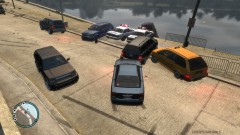 Follow the leader...
-
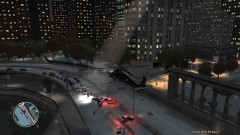 Pursuit shot from a Helicopter
-
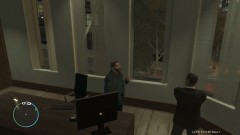 Time for a talk.
-
-
From the album: Psychology of Liberty City
Gone are the days of small, wimpy non-ELS lights. I'll hold details until next release, but this is a teaser of what I'm planning. -
*wipes tear from eye* Probably is the best LCPD video I've seen yet. Also seems (somewhat) realistic too.
-
For car mods: EDIT: weapons work in a similar fashion as well, except you just navigate to a different archive.
-
I never even noticed that.
-
From the album: Psychology of Liberty City
All of LCPD's new cars. Not including a Suburban and the Stockades. Left to right: Audi A5, Lamborghini Aventador, Nissan GT-R, Dodge Charger. All Non-ELS. -
From the album: Psychology of Liberty City
Decided to try using a Lamborghini Aventador and a Nissan GT-R for my police + police2 collection. Links: GTR ---> http://www.gtainside.com/en/download.php?do=comments&cat=371&start=63&id=32478&orderBy= Lambo (pack; non-ELS and ELS versions)--> http://www.gta4-mods.com/vehicles/lamborghini-aventador-lp700-4-police-elsepm-f14086 -
Change mouse sensitivity in GTA's settings.
-
You will need to use ELS.ini and ELS.asi. I would recommend using the files from this mod rather than the visualsettings.dat from the ELS folder. Both ELS.ini and ELS.asi should go in your main GTA folder, the same folder that contains gtaiv.exe (the readme file should explain it). Once installed, edit the .ini file so that the car you installed is set to active. So if you installed a car into the police2 slot, set active = 1. If it's in the Police slot, then set active = 1 under the [ POLICE ] heading.
-
That might be the problem then. I know for sure that EVGA Precision and MSI afterburner can cause ENB to crash on startup. I also tried a free game recorder once that also crashed it. You might have to just launch the recorder post-launch.
-
Are you running an ENB, by any chance? Some applications will cause ENB to crash on startup. Never used Dxtory before, so I don't know if it's one of those applications that can interfere with ENB.
-
You probably installed an ELS-Enabled vehicle. You will need this mod to use the lights correctly. Alternatively, look for non-ELS vehicles.
-
No, I do not believe it's currently possible. Unless there's an option in the ini file I'm not seeing.
-
Remove els.asi from your GTA folder, and see if the crashing persists.
-
From the album: Psychology of Liberty City
Late on Monday night, authorities tracked down Karl Svensson for attempted murder, human trafficking, and the sale and possession of drug paraphernalia. He promptly engaged in a radical police chase, and authorities dispatched two Annihilator helicopters to try and apprehend him. Unfortunately for Mr. Svensson, he missed a turn and fell off Plumber's Skyway. The car caught on fire, and quickly became a ravaging fireball. A memorial service will not be held, though, for Mr. Svensson. -
From the album: Psychology of Liberty City
Late on Monday night, authorities tracked down Karl Svensson for attempted murder, human trafficking, and the sale and possession of drug paraphernalia. He promptly engaged in a radical police chase, and authorities dispatched two Annihilator helicopters to try and apprehend him. -
It means you need to direct SparkIV to the correct installation folder where GTA is installed. This is the root GTA folder, so it should be steamsteamappscommongrandtheftautoivGTA IV since you have Steam.
-
Fixed the problem by doing a Steam file validation, and placing all my mods back in. Seems to work fine now. Thanks everyone, for your help.
-
Already responded here:
-
Sounds like you installed an ELS (Emergency Lighting System) enabled vehicle. You need to have the ELS mod installed in order to use the car. You can either use the ELS car, or use non-ELS cars (they use the stock lighting system).