Iconography
Members
-
Joined
-
Last visited
Everything posted by Iconography
-
Hello and welcome! In order to conduct a traffic stop, you need to press Shift while in a police car and facing the suspect car.
-
As far as I know, selecting Play Offline when starting the game makes no difference in how stable the game is. However, playing multiplayer decreases stability.
-
I'm going to chime in here and add that setting PreloadAllModels to true in FirstResponse.ini sometimes fixes this.
-
If ELS 7 is anything like ELS 6 than the ELS keyboard binding for siren control is likely messing you up. Try going to the ELS configuration and change the key binding.
-
There is. Inside the texture file for the police car, there is an image with all of the ELS lights mapped. Just extract it, edit them blue and then replace the original. I believe there's also a file in the D/L section that has alternate ELS lights.
-
All you need is a Games for Windows Live account an a Rockstar Gaming Social Club account. You should be prompted for them as you load the game. Once in game you can just open your cell phone (up arrow) and navigate to multiplayer.
-
Already a tutorial about this in the Tutorial section. http://www.lcpdfr.com/page/tutorials/index.action/_/vehicle-modification-tutorial/basics-of-converting-a-car-from-gta-sa-to-gta-iv-r3
-
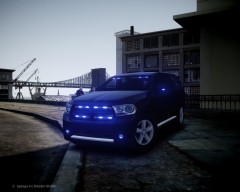 Looking good.
 -
This ^ but it's also such a tease knowing we'll have to wait extra long for the PC version (which they luckily never denied).
-
It sounds like you use Xlive.dll so your savegames will only be in your documents folder. You will likely have to delete the entire folder called "save games" to fix the problem. You could also cut and paste / move the folder to a backup location if so desired.
-
Try backing off the emissive settings a little bit in visualsettings.dat. I remember I had them up too high once and I had a lot of bloom. It doesn't take much, maybe setting them down a little bit will be enough for the lights to still be bright but without the excessive bloom.
-
Where did it add the GTAIV.exe to? Try extracting the patch files right to your main GTA folder and try again.
-
Ah, I see. Let's get the most obvious possible solutions out of the way first. Try going into ENBseries.ini and look for this: [EFFECT] EnableBloom=true Then set it to false. If that doesn't work, try setting ambient occlusion to false.
-
A lot of people have been having issues patching their game, Try watching this youtube video and see if it helps you: https://www.youtube.com/watch?v=FCi7q5CPy8s Then after patching (if it works) see if your original problems are resolved.
-
I would personally restore a backup of all of the visual settings files you modified, remove your ENB and then try an ENB meant specifically for ELS. I have heard that Game4Video ENB works very well for ELS, but it's hard to say what the performance hit will be. '?do=embed' frameborder='0' data-embedContent>>
-
It sounds like your screen resolution isn't set correctly in your GTA settings. When you start up the game (before you hit play), see if you can get to the Options tab and try and change the resolution.
-
Can you elaborate please?
-
You should try what James3000117 said. To add to that, some people have issues editing files that are in the Program Files. What some people have had to do is edit the file they want, do a Save As... And then name it like ELS2.ini and then delete the original ELS.ini and then rename ELS2.ini (which has your changes) to ELS.INI.
-
A list of groups can be found here (http://www.lcpdfr.com/page/clans/) but you will have to apply to join. There actually aren't any real "servers" for GTA IV multiplayer, only games created between computers. There's no list of all current games and no one can technically "host" a game completely on their computer. In other words, all games are hosted on Rockstar's servers, or so I have been told.
-
What error does it come up with? The patch usually has two files, a .msi file and a .exe. Try running the other file if one of them doesn't work.
-
Have you tried patching the game to the latest version (1.0.7.0)? Disk versions generally are always at 1.0.0.0 and that could be causing problems. Click here for a link to the Rockstar site.
-
For your second question, no, lcpdfr only allows traffic stops when in a vehicle. For your first question, you're referring to vehicles.ide, correct? There isn't a file named vehicles.dat. Now, what do you mean by having "two types in vehicles.dat?" Do you want to have the same exact car be used for both the Admiral slot and the police 2 slot? If so, why not just use SparkIV / OpenIV and use the same vehicle files for both cars? I'm not sure I quite understand what you want to do.
-
Good to hear. I personally use OpenIV as well.
-
The reason your GTA works without scripthook is because scripthook loads LCPDFR modules and without it, lcpdfr won't load, meaning this is likely a lcpdfr problem.
-
It sounds like you might have made an error when importing the police2 wft and wtd files. Try importing them again and instead of going on duty, press the ~` key (below the Esc key on your keyboard) and type spawn police2 then press enter and `~ again and see if it spawns.