NickieB
Members
-
Joined
-
Last visited
Everything posted by NickieB
-
Yea, due to there being like zero equipment and that simple lightbar it can be done fast and easily. No one is going to make a Ultima from scratch for a "challenge" lol. You might already find an unlocked one for GTA IV by just looking through the files on other modding sites. I've found cars that are unlocked already that have been released so if you find a Ultima for IV, download it and try and import it. It'll be a lot faster than converting one if you find one unlocked.
-
Find an unlocked Altima and any modeler could make that car in a half hour
-
I've noticed the same thing but I've been in there a few times where a lot of the Staff has been around like Sam and some other people. The staff is mostly the only people I see in there whenever I pop in. Occasionally there will be some random people in there though. You have to keep in mind too that not everyone may be in the same place as you so times will vary.
-
Read through the ELS User Guide for ELSv7, it explains everything in there. The setting is in the config file for the respective car
-
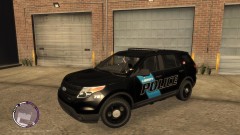
From the album: NickieB Upcoming Releases
Coming soon! Currently in BETA and were just working out the issues -
If you open the ELS.ini and find the slot you have the vehicle installed under, then look whats next to "FILE =", whatever is after = is the config file. Now go into the ELS folder within the GTA or EFLC folder and find the config file that corresponds to the name after "=", open it and scroll down and find [ SECL ] and see what it says next to "TYPE" - it should either say "leds" which would be the random patterns or "drct" which would be the traffic advisor patterns, ie left, right, split, etc. BTW all of this is in the ELS user guide... Also it could depend on how the author setup the secondary's since not everyone sets it up to be a traffic advisor
-
There are some fogs in the download section
-
Not at this time, no, but I might clean some inactive's out and in that case I would open it up again for a few new people. Well, thats what you have to do, it attach them together. I understand your saying it doesn't work but thats the only way. you don't have selected mode on do you?
-
attach them together - just modify>attach
-
You should never have a situation where you should have to name something extra_1_a1. You should always just attach things together or rename them to something else (when it comes to actual police parts) but the actual lights should never have to be named anything besides extra_1_L0, extra_1_L1, extra_1_L2. If you have duplicates then something isn't right. Everything you want to flash as extra 1 should be attached together. If your having issues attaching things and your getting an error like cannot attach parent to child or something like that then move the 2 objects into the same folder and then they should attach. For instance you can't attach something outside of the hierarchy to something inside or it will throw that error.
-
ouch - that hurt my eyes. I don't care for it but I know I've seen it around before. I'll try and find the name
-
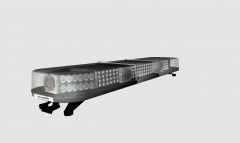 the end corner modules need a better texture. Using a XT6 texture just doesn't look right IMO
 -
Exactly what c13 said, you can make literally every single car thats released have all red lights with just a simple edit in photoshop or a editing program. You would just copy/pase the red texture and move it on top of the blue.
-
The window bars need to be within the hierarchy of the respective door and attached to that door so that when you open the door the cages move with it
-
That belongs to Voodoo's Charger and goes with this car http://gtapolicemods.com/downloads.php?do=file&id=2204 . There have been changes to it that will take effect on the next release with minor template changes due to it now having the correct police bumper.
-
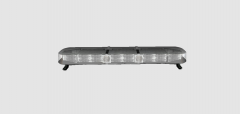 Plus the glass isn't round on the ends like that. It should look like this '>
 -
what lightbar is it suppose to be? Just saw the title, a Javelin. Looks like you've got some whelen mounting feet on there now? The javelins have used both the old and new style Code 3 mounting feet which you should be able to find somewhere or make fairly easily
-
exactly, thats what I was trying to say before. do that for each extra, 1,2,3,etc attach them together respectively. I don't know what hooves and derpy correspond to, are they the lightbar modules/feet are they the glass or what? glass usually stays separate from everything but mostly all the other modules can be attached together unless its on a door mirror or a part that moves then it need to be attached to that respective part so it moves with it
-
You can't name the ELS extra_1_a_L0, ELS can't recognize that as the extra so it makes it a steady burn. All the extras should look like this (dummy)extra_1>extra_1_L0 and then extra_2_L0, 3_L0,etc. you can't have the a and b in there. Plus you need to attach all the lights you want to flash as extra_1 together and everything together that you want at extra_2 and so on. The only lights that get setup differently are 5,6,and 9. they get setup with a extra dummy and a minor change in the name. it goes (dummy)extra_5>(dummy)extra5>extra5_L0 and the same for 6 and 9. You don't type dummy in there I'm just putting that there so you know that its not a actual mesh, just a dummy. Plus your lightbar is setup way to far forward IMO, you should move it back and remove the luggage rack. Look at pictures of police tahoe's from the side and you'll see where the bars are placed. There are other problems with your hierarchy setup besides just the ELS setup like all those extra_a,b,c,d,e,etc... what is that? also "hooves" and "derpy" should all be renamed or attached together depending on what they are. Usually Bugs would name it however it was like "glass" or whatever but thats not the case for this bar.
-
haha exactly! I haven't flown in awhile either and its been on my mind to do it again but I always end up spending my time doing GTA stuff
-
The partition in this Charger is my version of BxBugs123's bodyguard partition. I edited it quite a bit. It will not be released though, what I did to it anyone can do in 20 minutes in zmodeler
- 20 comments
- 13 reviews
-
and make sure your exporting whatever the name of the car is, if its police.wft then you export police.wft. You can't export noose.wft if the car is named police2.wft, just look at the top of the hiearchy for the name and like Tunes said, you need to look at the bottom because most likely you have duplicates of something
-
Forgot to add my addons - PMDG 737 - 800/900/700/600 expansion, PMDG 747, PMDG JS4100, PMDG B1900D and 1900C, Aerosoft F-16, Aerosoft Twin Otter, Ceranado C90 King Air, Ceranado C208B Caravan, IRIS F-14, IRIS F-15 Mudhen Driver, IRIS F-20 Tigershark, IRIS F22 Raptor, Douglas DC3, DC4, C47, DC6B, B-1B Lancer. Thats not everything but its most of my payware stuff as far as aircraft goes plus I have a lot of freeware stuff not really worth mentioning. Then there is FS2Crew for the 737 and 747. Scenery - REX, Aerosoft Chicago, Las Vegas, Anchorage, Dangerous Airports v1, San Fransisco, Tahiti, Venice, Gilbraltar, FlyTampa Hong Kong Kai Tak and St Maarten, Lukla, and Madeira. There might be more but thats the most of it
-
Nice job! Especially for a first model! I forgot I even gave you those wheels, lol, that was a long time ago wasn't it
- 21 comments
- 14 reviews
-
make sure that whatever format you import in, (.PNG, .DDS) that you select that format when importing the car. When you click file>import and find the model, and click on it(don't double click), then in the bottom left hand corner of that window it will ask you for something like preferable import format or preferable textures and select whatever format you imported the textures as. Most likely that will be .PNG