
Will
Management Team
-
Joined
-
Last visited
Everything posted by Will
-
It changes the frequency that callouts are spawned, so it affects all types of callouts.
-
That I don't know. Sounds like an issue with the carcols file, or maybe a rogue ytd file acting as a replacement in a dlc loaded later than whichever you're working in.
-
That's the point of RagePluginHook. LMS develops both RPH and LSPDFR. We can't just steal development of ScriptHook from Alexander Blade. All ScriptHookV mods should be .asi files. Note this does not mean all .asi files rely on ScriptHook (Heap Limit Adjuster and OpenIV.asi are two examples that do not rely on ScriptHook - they just need the asi loader, dinput8.dll). The most common ScriptHook dependent mods are ELS and most trainers. LSPDFR does not and LSPDFR plugins should not rely on ScriptHook (if an LSPDFR plugin does, I wouldn't recommend using it).
-
No, you only need the asi loader, dinput8.dll.
-
There are actually quite a few activities that do work with an LSPDFR character. You just need to test them (for instance, I've played an entire round of golf with Chop as my LSPDFR character).
-
See:
-
There's this: https://docs.fivem.net/docs/game-references/data-files/ Also, the content.xml of every dlc.rpf will have the data file types for any data files in that dlc. Just to explain your initial attempts, and why they didn't work: Attempt 1 (auto generated by LML) <Addons> <Addon> <DataFile>ambientpedmodelsets.meta</DataFile> </Addon> </Addons> This may or may not need the type="AMBIENT_PED_MODEL_SET_FILE" depending on if LML can autodetect. My money would be on "need" for this file. This should be used to add a new ambientpedmodelsets.meta though, not replace the existing one. Attempt 1 (manually removed type tag as it was unknown to me) <Replacements> <Replacement name="Ambient Ped Changes"> <FileEntryReplacement>ambientpedmodelsets.meta</FileEntryReplacement> </Replacement> </Replacements> This would only be to replace a single entry in the ambientpedmodelsets.meta file. I'm not sure how this file works, but with vehicles.meta, you would only use the FileEntryReplacement to replace a single vehicle entry (so, only replace "police" and nothing else). Attempt 3 <Replacements> <Replacement> <DataFile>ambientpedmodelsets.meta</DataFile> </Replacement> </Replacements> This isn't how file replacements work, the correct way is how you figured it out in the end. Attempt 4 <Addons> <Addon name="Ambient Ped Changes"> <DataFiles>data</DataFiles> </Addon> </Addons> This does the same as Attempt 1 (the first one) but reading all files in the "data" folder instead of just the single file.
-
Your topic has been moved to LSPDFR 0.4 Support. Please post in the correct location in the future.
-
Disable anything related to "ignore player" in whatever trainer(s) you are using.
-
Looks like an issue with your ini file. Make sure all your "true" and "false" are spelled correctly.
-
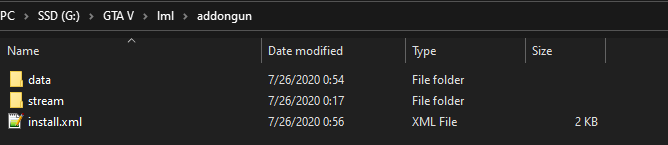
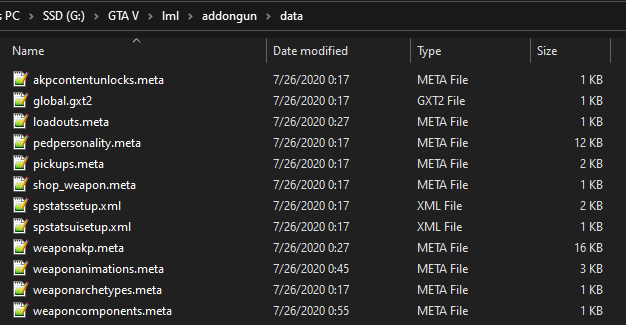
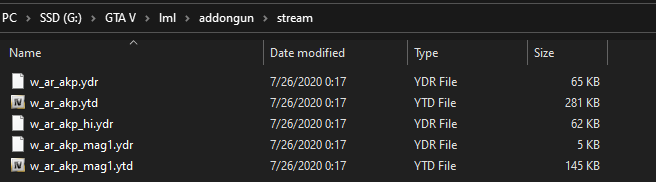
I know this is late, but I saw this and was curious. I managed to successfully convert this: https://www.gta5-mods.com/weapons/ak-pistol-add-on-dlc It's pretty simple really, if you know what you're doing. Basically, LML just creates a dlc.rpf, so if you mimic the dlc.rpf included with that file, you can easily convert it. First, I extracted all model files from weapons.rpf to a "stream" folder in LML. Then, I extracted all data files to a "data" folder. Next, I took all of the information from content.xml (which tells you what each data file is - I excluded ones that are not actually in the archive) and used it for the data file types in the LML install.xml. How many of these files are actually needed just to make an addon gun work, I do not know. Note that the global.gxt2 file is pulled from the lang file in the archive and also loaded with LML but is not in content.xml (the game loads lang files from the direct path within x64/data/lang instead of reading content.xml for the location). Unfortunately, the author did not include a weaponcomponents.meta file with the download, meaning the magazine did not show, so I created one myself. They also included a weaponanimations.meta file with ALL of the weapons, instead of just their addon weapon, so I edited that. You can find both those files and the LML install.xml attached below. This is ultimately the file setup: install.xmlweaponanimations.metaweaponcomponents.meta I have put all this information in hopes that you, or other users finding this topic, will find it useful in using LML to install addon weapons yourself, however if you post a specific file here I can attempt to convert it when I have time.
-
 Yes it is. You just need to know how to create the install.xml. I just contributed one.
 -
 Apparently, this lady got locked out of her boat trailer. Good thing I was there to help her! Couple other things with that one: I got the callout from Downtown station...was a bit of a drive, maybe add a distance check? Also, taking over complete control to "unlock the car" is not very player friendly in my opinion, for instance the car you see waiting for the woman to get out of his way ran me over during that "scene."
- 21 comments
- 1 review
-
-
This thread has run its course and the OP got his answer long ago. If you feel this topic has been closed in error, please report this post.
-
The extras work perfectly fine for me. Are you sure it isn't ELS like I said earlier? In my experience you need to repair the vehicle after activating the extras for them to show up, even on Non-ELS cars. And just so you know, if you are loading the resource.lua, you don't need to load the models and data files manually. For example, I just installed the impala like this, keeping the same folder structure in download with the install.xml in the "2011 Impala" folder: <?xml version="1.0" encoding="utf-8"?> <EasyInstall> <Name></Name> <Author></Author> <Version></Version> <Link></Link> <AutoGen></AutoGen> <AutoGenTime></AutoGenTime> <Metadata></Metadata> <Addons> <Addon> <ResourceLua>11impala/__resource.lua</ResourceLua> </Addon> </Addons> </EasyInstall>
-
Do you still have ELS installed? I know I've had issues with that even on vehicles ELS shouldn't be touching. My workaround was always to repair the car after activating the extra. Other than that I have no clue why they wouldn't work.
-
Maybe try the other way and make each vehicle its own install.xml?
-
I get the feeling it's because each vehicle has its own data files. You'll need to either separate each vehicle to its own mod with its own install.xml, or combine the data files so there is only 1 vehicles.meta, etc. Basically, each folder with an install.xml gets a new dlc.rpf created internally. You can't have multiple of the same data files within a single dlc.rpf.
-
These two statements are conflicting. You installed something that broke your game, if you figure out what that is you can just remove that mod.
-
That's debug text, pretty sure it's supposed to be disabled in the release version.
-
What exactly does your folder look like? It's hard to figure out what the issue is without knowing how you organized it. Screenshots of your folders for the mod would be best.
-
Your thread has been moved to GTA IV & LCPDFR Support as it isn't a LSPDFR Support Request.
-
Try disabling any in-game overlays (including GeForce Experience and Xbox Game Bar, which I can see are both running) and make sure you have all of the RPH dependencies: http://ragepluginhook.net/Requirements.aspx (reinstall them, just in case).
-
You should report the crashes to the authors, so (if they're still active) they can fix them.