



Pipeline
Members
-
Joined
-
Last visited
Everything posted by Pipeline
-
 Thank you. And a new Ragehook version was released? I can't seem to see it on the site.
- 200 comments
- 22 reviews
-
I think that you're a bit confused, because the way I read it, the easter egg is the thing in LSPDFR 0.2, Steve Haines mode, and in LSPDFR 0.3 we'll have the "All the game's police being controlled by LSPDFR during a player wanted level" feature.
-
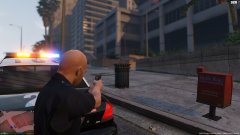 Why are you trying to arrest a waste bin?
 -
When I walked up to the building, it said "press E to enter Steve Haines mode". Every time I press E LSPDFR crashes. I can't go through the doors. Edit: The crash is caused by Arrest Manager. Removing it from the Plugins/LSPDFR folder fixes it.
-
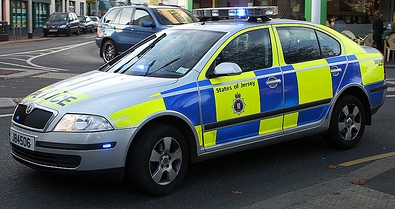
.thumb.jpg.54f04afcd6ae69e17f1388b62a696d8b.jpg) Having an issue with textures. I modified all of them to be Highway Patrol skins (except for the completely unmarked one and the Ranger) and put the new files in police4.ytd but only the first texture loads and none of the others do. What have I done wrong? I can provide screenshots of files and such if required.
Having an issue with textures. I modified all of them to be Highway Patrol skins (except for the completely unmarked one and the Ranger) and put the new files in police4.ytd but only the first texture loads and none of the others do. What have I done wrong? I can provide screenshots of files and such if required.- 68 comments
- 29 reviews
-
I use x360ce, and I trick the game into thinking the wheel is a 360 controller. What buttons on a controller are free to use as "indicators" then? I don't want to be pressing any buttons that do anything else. Edit: Or alternatively, how do I make the Logitech Profiler stop stop working when I alt tab out of the game for whatever reason? Edit 2: Well, I found a solution of sorts. I've set the GTA profile to "persistent" so that even when I tab out of the game it'll stay active and allow me to still use the indicators even if the profile would deactivate because the window had lost focus.
-
As the title says, I've got a racing wheel to work with GTA V. One of the mods I run is More Control V. It has an indicator script, with the keys assigned as the left and right arrow. So far, what I'm doing is using the Logitech Profiler (The wheel is a Logitech Formula Force EX) to assign the left and right indicators on the wheel as being the left and right arrow on the keyboard. But it doesn't always work, for instance if I alt tab out of the game at any point it will stop working. So how do I figure out what the "codes" for the buttons are? I want to be able to put those button codes in More Control V's .ini file in the controller section so that instead of having the profiler tell the game the left and right indicators on the wheel are actually left and right arrow keypresses, it's actually direct.
-
I... don't remember...
-
 I see, so like ELS for the people who don't actually want the complete ELS package? Just the ability to manually change the siren tones?
 -
Nice. What is it that you're making? What else will the mod do? Or is this the only feature for immersion's sake?
-
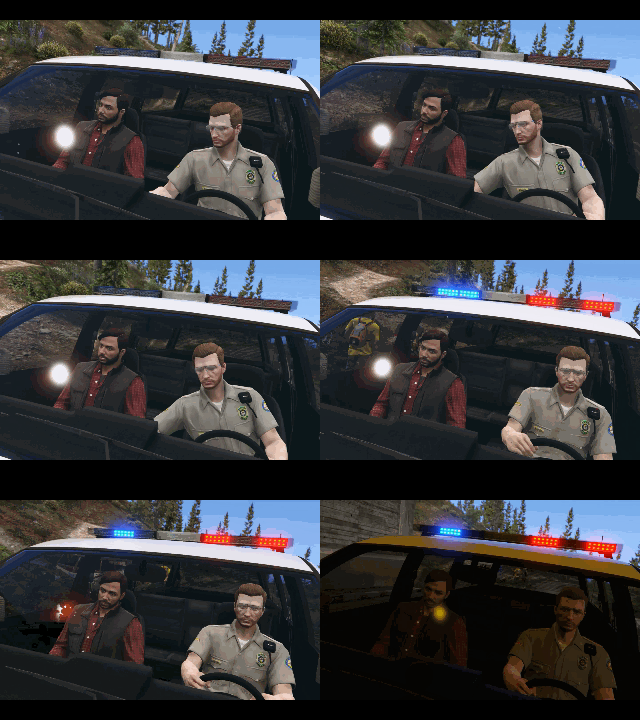
This is the radio tuning animation, right? Seems to work quite well as a "turning on the sirens" kinda thing.
-
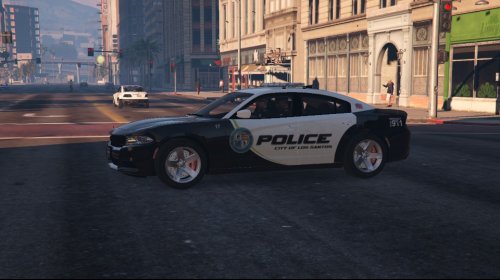 I've also created my own version of the Impala texture by editing yours. Would you like me to send the files to you? You can use them in your pack if you give me credit.
- 18 comments
- 6 reviews
-
I only had a look at the Impala skin, which is the only one I need, and there are some issues: 1. Despite this being an LSPD skin pack, the number plates say "CA Exempt" instead of "SA Exempt". 2. The badge on one side of the vehicle is reversed. Therefore I would say I neither liked or disliked it. I'm neutral on the skin.
- 18 comments
- 6 reviews
-
You need to redo the textures in an editing program that can save as .dds and generate mipmaps. Otherwise the quality is lower.
- 18 comments
- 6 reviews
-
I appreciate your attempt to help me but I can guarantee that if I install Scripthook with Ragehook already installed I will screw my game in some way. I'm not sure how the person in the video you linked does it without problem, because I certainly can't.
-
Could you send me a private message with instructions on how to properly set up Scripthook V so that it works with Ragehook?
-
Nice. Thanks for sharing. Personally not a fan of the Dodge Charger but the livery, lightbar and bullbar is nice.
-
I've been posting new topics a lot it seems. Anyway! Got back into LSPDFR recently. I was waiting for the 0.3 update, but at this point I decided it wouldn't do any harm to play some more 0.2, even with the bugs that will (hopefully) be fixed in 0.3. I know first person view has speedometers. But sometimes they're obstructed by the steering wheel, and in any case they're too vague - a small dash on a circle means nothing to me. Someone recommended this script to me: https://www.gta5-mods.com/scripts/simple-metric-speedometer but the problem is I can't use both Scripthook V and Ragehook in my game. They just don't work together. Could someone convert this script over to Ragehook? And if not convert, "recreate" it? If it can't be converted and must be recreated I don't mind it not having functionality like being able to change its position on the screen or anything. All I really need is a visible (with a background so if that part of the screen is brightly lit I can still see it) speedometer in MPH. Is anyone able to do something like that? Thanks.
-
Ouch.
-
 I reported it. So if it stays up, we'll know it's fine.
 -
Is this against the rules?
-
Hey, I can have my own lore, dammit! The police in my version of San Andreas are, like most police officers, not corrupt. They're just uh... not very good drivers. At all. STOP RAMMING ME OFFICER MCKENZIE!
-
Yeah, I can't use that. Scripthook doesn't work with Ragehook for me, so I can't use any Scripthook mods in my game.
- 200 comments
- 22 reviews
-
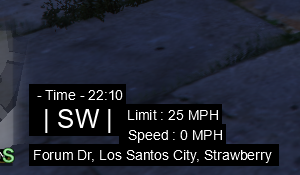
Would it be possible to add a value for your own vehicle's current speed? I know we have speedometers in first person view but they're usually obstructed by the steering wheel and only give a rough estimate of speed. I would prefer an actual number somewhere on the HUD. The only other plugin I can find that does this is Dashcam V, and I don't really want to be in dashcam view just to know my speed.
- 200 comments
- 22 reviews
-
-

- 1
-
-
 Perhaps they'll figure out a way to make traffic respond to traffic advisors. You never know. It's not really about the traffic advisors anyway. What I'm looking for in ELS is more control over my lightbar.

.thumb.jpg.54f04afcd6ae69e17f1388b62a696d8b.jpg)
