
Cj24
Members
-
Joined
-
Last visited
Everything posted by Cj24
-
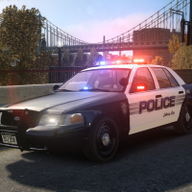
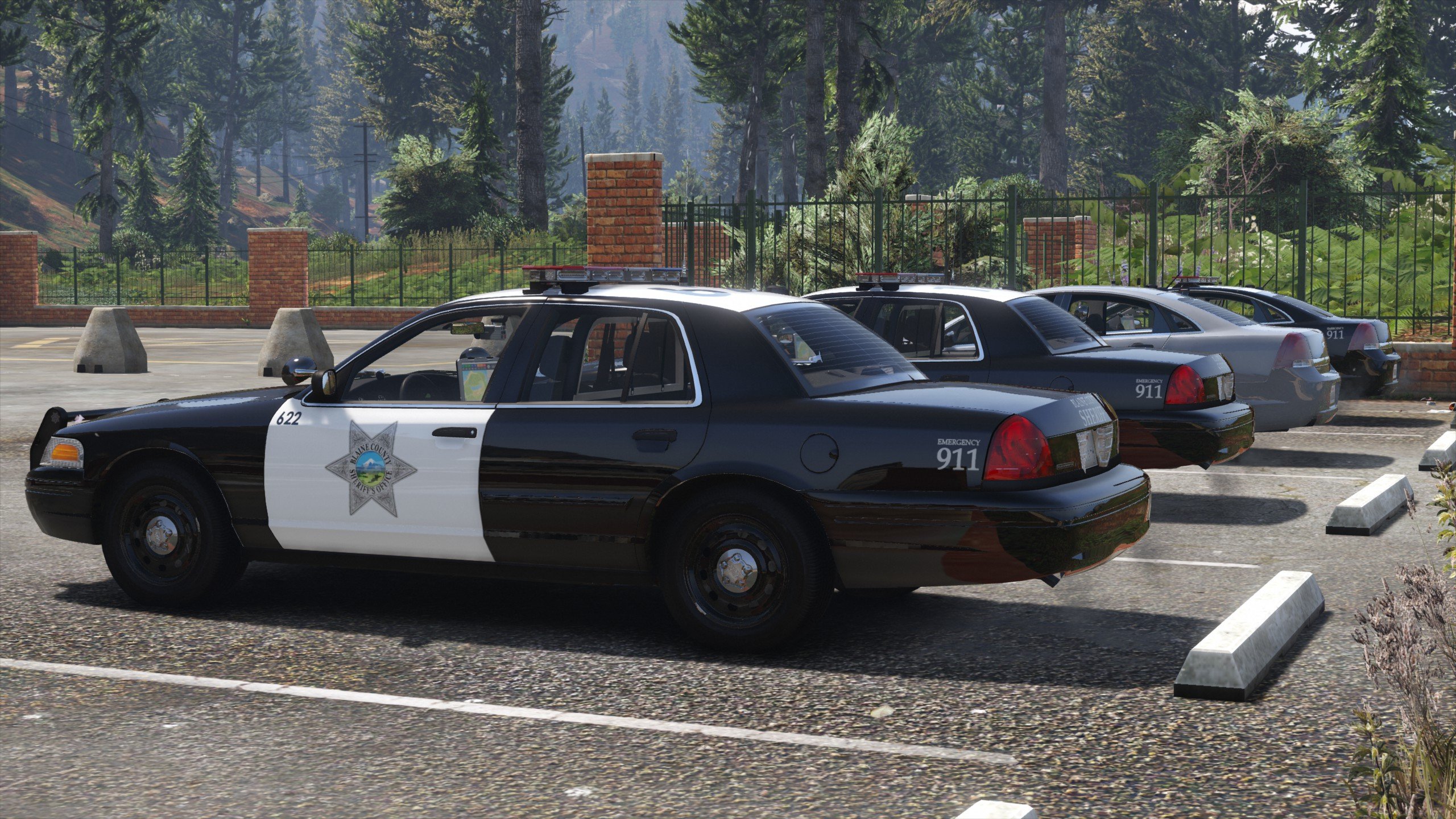
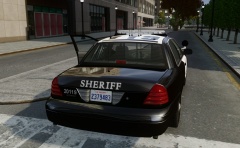
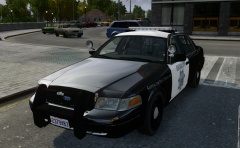
 A sightly improved version of the already released SDSO Crown Victoria, the original request can be found here. Installation Use SparkIV or OpenIV to import the police.wft and the police.wtd into GTAIV\pc\models\cdimages\vehicles.img. Copy the provided “sdso.ini” into the GTAIV\ELS folder and replace the “file” line value associated with the model in the “_SLOTCONTROL.ini” with sdso and ensure the “status” value is on. Files included police.wtdpolice.wftReadmeTemplatesELS ConfigPicturesTerms of use You may replace or edit texture and redistribute modified variants of this modification as long as correct credits and a link to the original download are provided. You may not circumvent any protecting measures to edit models or use any of the work included in this archive for your own financial gain.
- 14 comments
- 5 reviews
-
-

- 1
-
-
It's public. Since it's done, there you go: https://www.mediafire.com/?xaoq95ufcp2ya85 If there're any issues or other inaccuracies just post in here, I'll see what I can do then.
-
I've finished my own skins now and added the antennas. Unless there's anything else you'd like to have added or changed, it should be ready now.
-
From the album: Cj24's pics
-
From the album: Cj24's pics
-
From the album: Cj24's pics
-
The guns and the badge are no problem, that's already fixed. The antennas are technically no problem either, although I used the same setup I've seen on all of the pictures I found, for example, >this, >this and >this. Are you sure their recent vehicles use the setup you showed? Concerning the models of the antennas, I'd rather stick to those I'm using currently. The quality is almost the same, yet they are not as high poly as those. If you'd like to work on a skin, the template I'm using is included for example in >here. I guess I'll try to continue to work on my skin anyways, though we'll see.
-
Pattern 17 has the same flashing speed like the one I'm using, it wouldn't make a difference with that car. Basicly two of the possible extras are used for LSTG2, in LSTG3 the other two are used for the complete lightbar. I just took a small video showing all of the pattern: So far I haven't continued to work on the skin, I believe everything else works fine now.
-
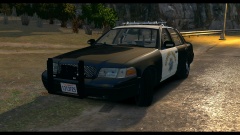 Definitly a very nice pattern. Though it seems like you created a few bugs when you modified that CVPI, I already noticed that on your latest release. You're using an old version of the CV_Interior texture, your headlights and taillights look a bit weird. For example, the bulbs in the headlights are dark grey. The grill material seems to have a wrong specular map (same with the lightbar, btw), it reflects way too much.
 -
I've been trying to do this car for some days now, I'm sorry for posting only now, but I simply didn't want to say I'll do it without finishing it later. What I got now is basicly a finished version, just without decals. Antennas, spotlights and rambar are added, I also added the interior cages as well as a console. Unfortunately it's not possible to do follow your wishes 100%, since ELS is still quite limited. A few explainations: - The flash pattern of the lightbar are simple on/off flashes, double flashes were not possible. It seemed like at least the stage 3 only had single flashes anyways, so I hope that's no problem. - Your mentioned lightstages 0, 1 and 3 are done with the normal ELS 8 lightstages, 2 can only be achieved by using LSTG3 and turning the takedowns off. - In stage 3, the rear lights flash in the same way as in stage 1. The only possible for a left/right alternating flash on both sides would be to do the same in stage 1, I could change that easily, that would depend on your choice. It's hard to explain the pattern, I hope you understand what I mean. Managed to find a way around that. - The strobes are done using the ELS coronas. That means the reverse light strobes have to be white instead of blue and they're automaticly turned on with LSTG2, your stage 1. Unfortunately there's no other possibility, I didn't have enough extras available to create normal ELS lights. If that sounds good to you, that's great, I'll upload it then as soon as possible. If there're any things you'd like to have in a different way, just let me know, I can also show some pictures or upload the model if that helps you to decide. I've been thinking about that setup a lot, but as it's quite unusual, it seems to be impossible to get something completely exact.
-
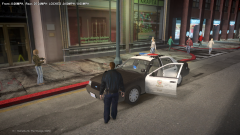 ALPR is nothing new nor are correct antenna setups, even rambar or dashlight versions are released. I believe there's no LAPD car not already released at least once. If you really want people to like your work, you should try something more unique. This looks just like any other LAPD Crown Vic, especially since it seems like you simply used the textures from my pack.
 -
Looks exactly like the hundred other LAPD CVPIs already released.
-
Apart from renaming will you also need to change the setup of the material. Interior2 as mentioned above for example only requires the base texture and the specular map, it's usually the second and the fourth texture you need to remove from the original lightemissive material.
-
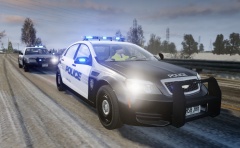 North Yankton: http://www.gta4-mods.com/maps/north-yankton-iv-north-yankton-converted-to-g-f28219
 -
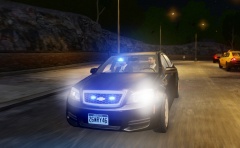
From the album: Cj24's pics
Two detectives in their unmarked Caprice responding to a reported homicide in Alderney. -
>This Tahoe has the same setup like the Suburban in Criminal Minds.
-
-
The default cars in GTA don't have any templates, the decals are just mapped to a single texture. Whether the template is the same totally depends on the person who maps the car.
-
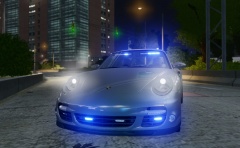
From the album: Cj24's pics
Found the unlocked model and somehow couldn't resist turning it into an unmarked car. -
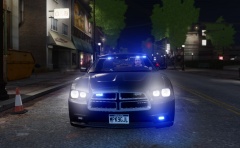
From the album: Cj24's pics
-
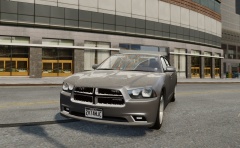
From the album: Cj24's pics
Work in progress. Any suggestions for the rear setup? -
You need to create a collision.
-
From the album: Cj24's pics
-
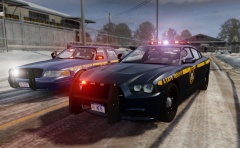
From the album: Cj24's pics
Now that the Charger and the Slicktop CVPI are also done, the originally planned vehicles for the pack are finished. Possible additions are Explorer, Slicktop Impala, Interceptor and Caprice. These, or at least some of these, will be done depending on the community's interest. -
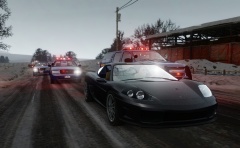
From the album: Cj24's pics