


Vehicle Modification Tutorials
All sorts of vehicle modification related tutorials can be found here, such as how to apply templates and lighting equipment.
40 tutorials in this category
-
-
First Find a Car you like Download it from the LSPDFR page or a website of your choice. Extract it (Personally I Use WINRAR) Youube videos on how to use that Once you have extracted your folder open, openIV (download from internet) Once you have your vehicle folder and open iv open go into edit mode. Button on the top. Use the read me in the vehicle folder to tell you where to go! E.G Update/X64/DLCpacks (in the read me its should tell you what dlc pack to g
-
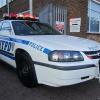
FCVP71_2011_LAPD_CVPI_V2.2.3.rar
-
[GTA IV] ZModeler - How To Assemble A Police Car
-
Hello And Welcome To How To Install LCPD:FR British packs Links: LCPD:FR = http://www.lcpdfr.com/files/file/4607-lcpd-first-response/ ELS = http://www.lcpdfr.com/files/file/2985-emergency-lighting-system-iv/ SparkIV = http://www. .com/gta-4/programs/13768-sparkiv-070-beta-1-for-gtaiv-eflc.html Double Doppler ¬ British Pack = http://www.lcpdfr.com/files/file/6210-ultimate-british-police-pack/ Taxi Pack = http://www.lcpdfr.com/files/file/6027-london-taxi-mod-lti-tx4/ Thanks To: Double Doppler's
-
Introduction: Hello everyone! Welcome to my first ever tutorial. My goal is to run through, step by step, the basics of converting a car model from another game into a GTA IV vehicle which will be fully functioning. I will be linking my videos below as I make them so at the moment, this tutorial is a work in progress but I am planning on completing the whole tutorial in about 5-8 parts (hopefully). Please feel free to leave any and all comments, questions, or critique. I look forward to help
-
here's a tutorial on how to attach lights to each other so you can as many lights on a car you want
-
1. download model open the rar file and locate either extras or paintsign(1-3etc) 2. Open thoses files and once you are complete editing the paintsign with paint or any paint app 3.open Spark IV (or Open IV) locate your car and go to its wtd file oplen make sure you are in editor mode 4. locate paintsign and replace it with your new paintsign do it to all if you want them all to be like that if not just do one and you can change paint jobs with trainer Any question I can help PM me I have a n
-
Hello, I've seen this come up many times, so i figured I would help ya out with this video tutorial, the only thing I forgot was to make sure that GTA IV is selected in the drop down box from the Export menu.
-
NickieB's Basic Zmodeler Import/Export Tutorial I took this down a long time ago for a long list of reasons. I won't go into those reasons since they aren't important anymore. After receiving a lot of PM's requesting it to be sent to them or put back up again I decided I would once again make it public and share it with everyone. I know there are others like it but apparently there was something about mine that people liked since I've had so many requests for it. Everything you need to
-
A lot of people have seemed to enjoy and find my tutorial video useful judging by the likes. Only one thing I did not show is move the L1's with the L0's. So here we go -
-
-
-
https://www.youtube.com/watch?v=KRRKCgMJccU&feature=youtu.be In this GTA IV tutorial I cover how to install vehicles, and change vehicle liveries using SparkIV and OpenIV. If you don't understand how to mod, or add/change something in GTA IV and you would like me to do a tutorial, comment below. ▬▬▬▬▬▬▬▬▬▬▬▬ ▼ Download OpenIV or SparkIV ▼ OpenIV ➡ http://www.gta4-mods.com/tools/openiv-15-f21438 SparkIV ➡ http://www.gtainside.com/en/download.php?do
-
HI i am going to show you how to edit gta4 handling lines today go to Grand Theft Auto Iv folder Then common/Data Then find handling.dat Rigth click and Make sure Read-Only is not check. If so uncheck Read-only Apply and ok Now download Notepad++ if you dont have it. After That go to the handling.dat and rigth click and Find edit with notepad++ Now it is time to change the handling line POLPAT delete every thing in that one line. NOw go find a handling line a copy i
-
This tutorial only applies to vehicles with multiple extras. Once we have the vehicle setup to our liking, we'll want to attach the extras together so ELS will actually work in-game. First things first, check to see if the lighting equipment has any "helper" (or similar) folders within the main folder itself. As you can see, there are two helper folders here. Drag these helper folders out of the main equipment folder (in this case WhelenEdge and Whelen_Talon) above the vehic
-
http://www.youtube.com/watch?v=WwNZRVslpBg
-
Here are some simple steps for ELS setup. Extra_1 (Primary Flash) Color- Usually blue Extra_2 (Secondary Flash) Color- Usually red Extra_3 (Secondary Flash) Color- Usually blue Extra_4 (Primary Flash) Color- Usually red Extra_5 (Wig_wag 1) [ will activate to take-down 1) Color- Usually white Extra_6 (Wig_wag 2) [ will activate to take-down 2) Color- Usually white Extra_7 (Traffic Advisor 1) Color- Usually orange/yellow Extra_8 (Traffic Advisor 2) Color- Usually orange/yellow
-
Are you having problems installing vehicles? Does it not work when you replace the files? Don't worry! Simply use this: Vehicle Mod Installer v1.3 Step One: Download the desired vehicle. Step Two: Open the Installer and find your GTA directory in the top browse box. Step Three: Browse to the main folder of the vehicle in the bottom box. Step Four: Click the 'Next' button in the bottom right Step Five: Check all files are correct. (NOTE: The installer detects ReadMe.txts f
-
In this tutorial, I'm gonna show you how to get lights and sirens on a police vehicle which is added in a civilian vehicle slot. This tutorial requires some of the basics of modding vehicles by using OpenIV. Requirements: ELS V7 or 8 Legal copy of Grand Theft Auto IV - 1.0.7.0 or EFLC 1.1.2.0 OpenIV A text editor, for example, Notepad++ or GetDiz. A vehicle modification. WinRAR or 7Zip. Alright, first off, we need to download a car mod. Whatever car of your choice. ELS en
-
http://youtu.be/W6j4zpSjfqs Requested by a friend!
-
Here's a quick tutorial on how to install a vehicle into GTA IV using Open IV. This is also the same way to install weapons and peds. Go full screen to see everything clearly.
-
basic simple way to uninstall a vehicle http://www.youtube.com/watch?v=BhoToUjoToY Back up your files.
-
-
Eat up, young ones.


.jpg.06b7eca40f086ad18cf9d3f5a9e29c6d.thumb.jpg.22e8dbccf13adb04bae39d88dfc22a86.jpg)




















Recently Browsing 0
- No registered users viewing this page.