


NickieB's Basic Zmodeler Import/Export Tutorial
I took this down a long time ago for a long list of reasons. I won't go into those reasons since they aren't important anymore. After receiving a lot of PM's requesting it to be sent to them or put back up again I decided I would once again make it public and share it with everyone. I know there are others like it but apparently there was something about mine that people liked since I've had so many requests for it.
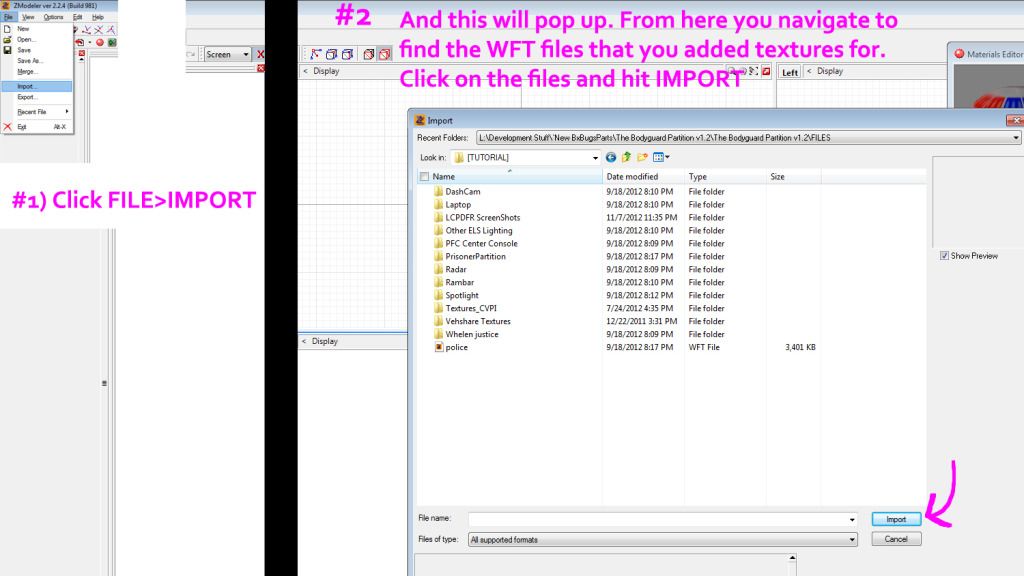
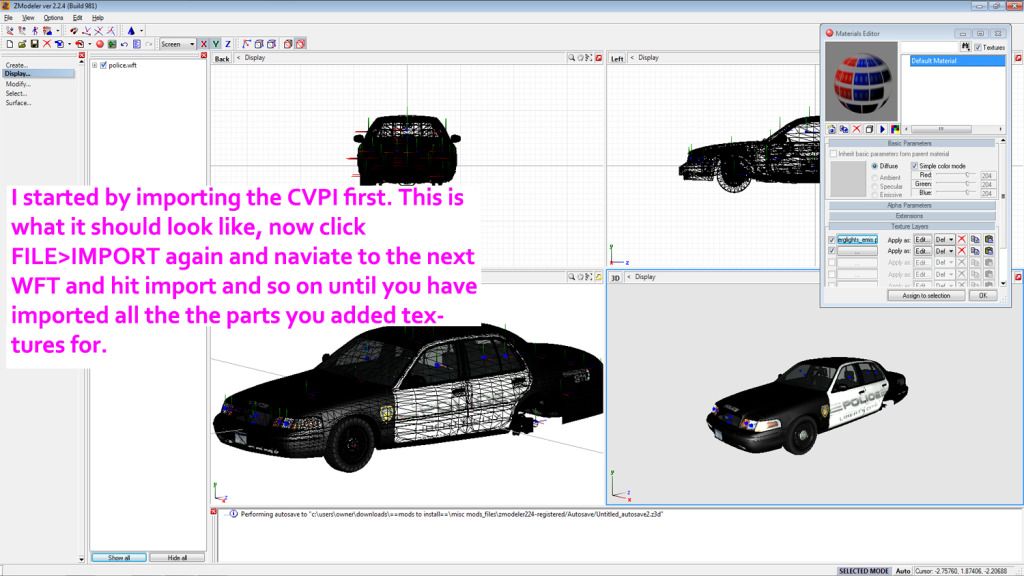
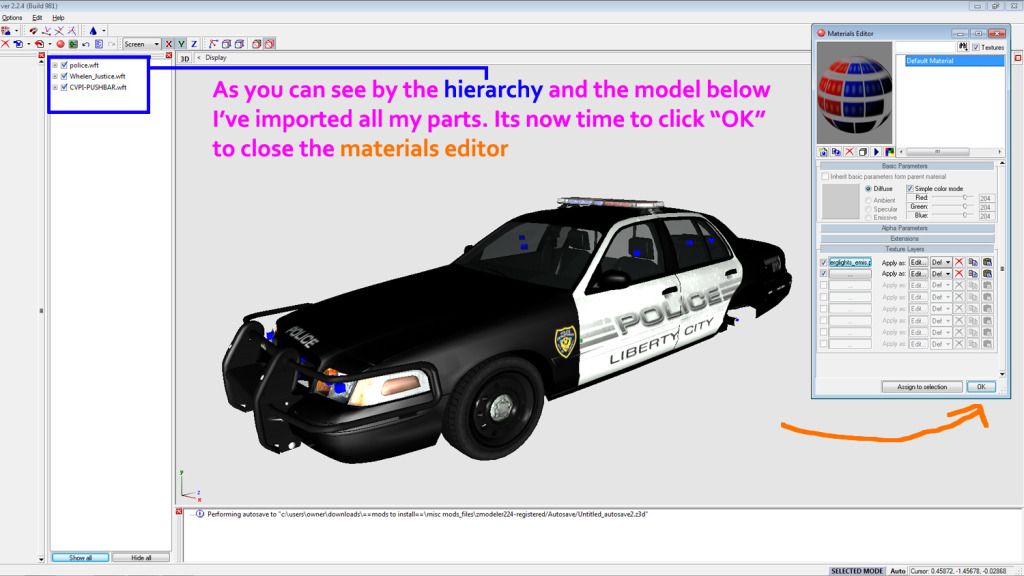
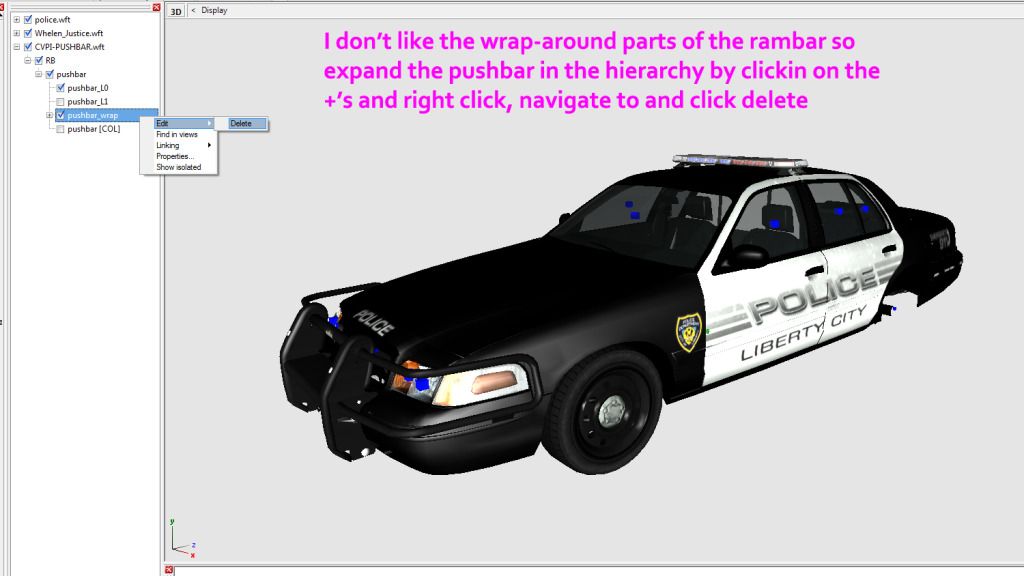
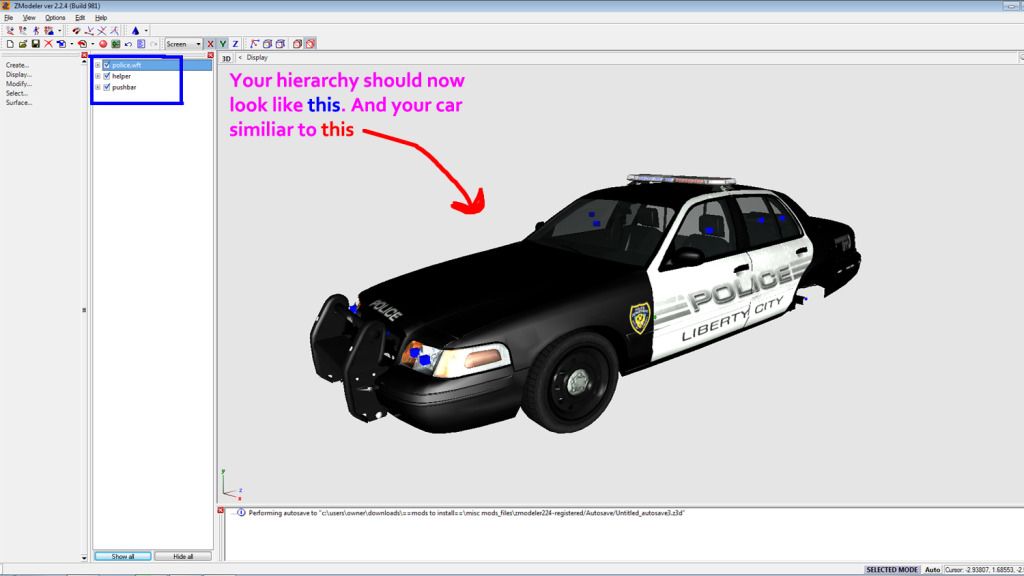
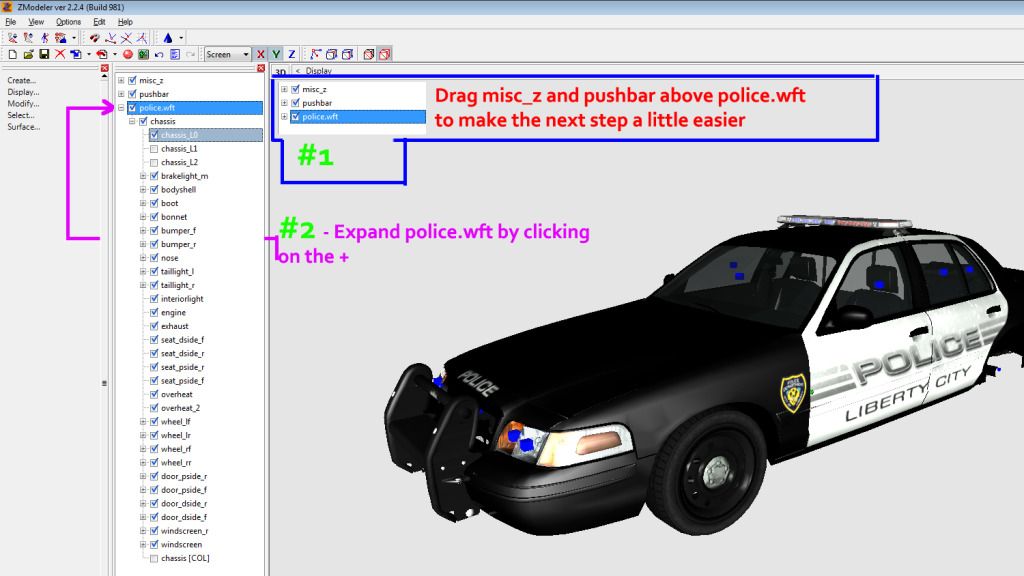
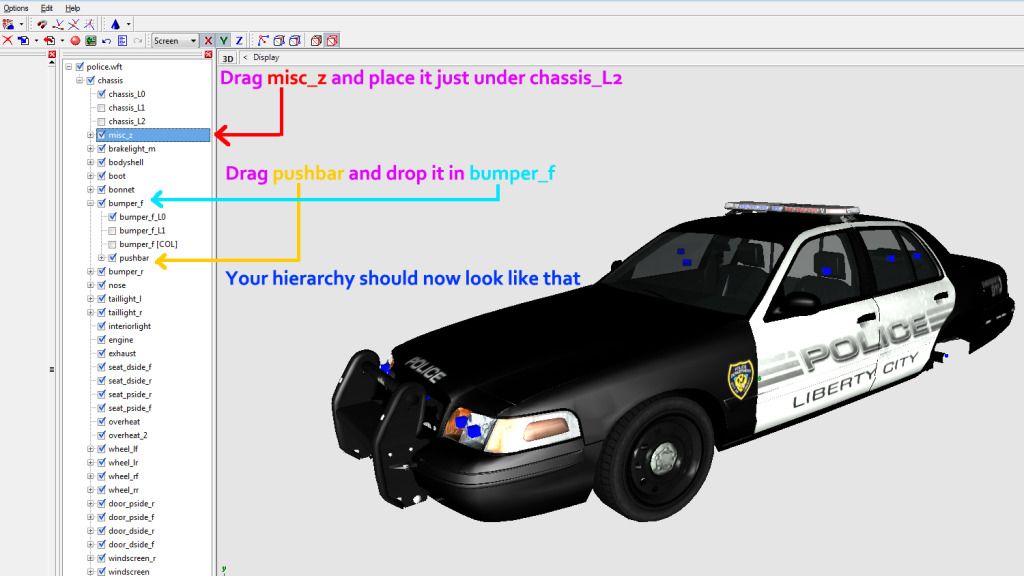
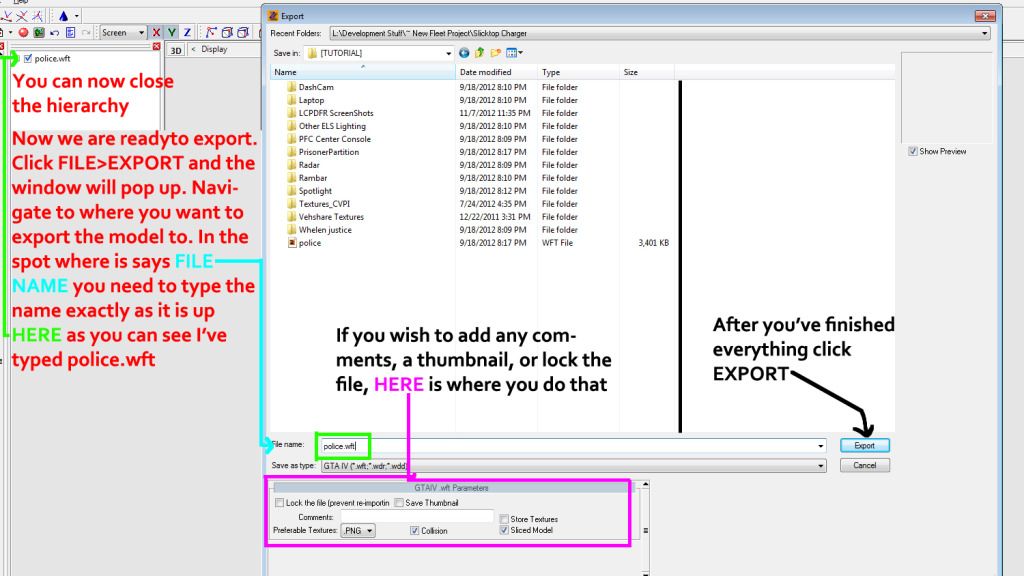
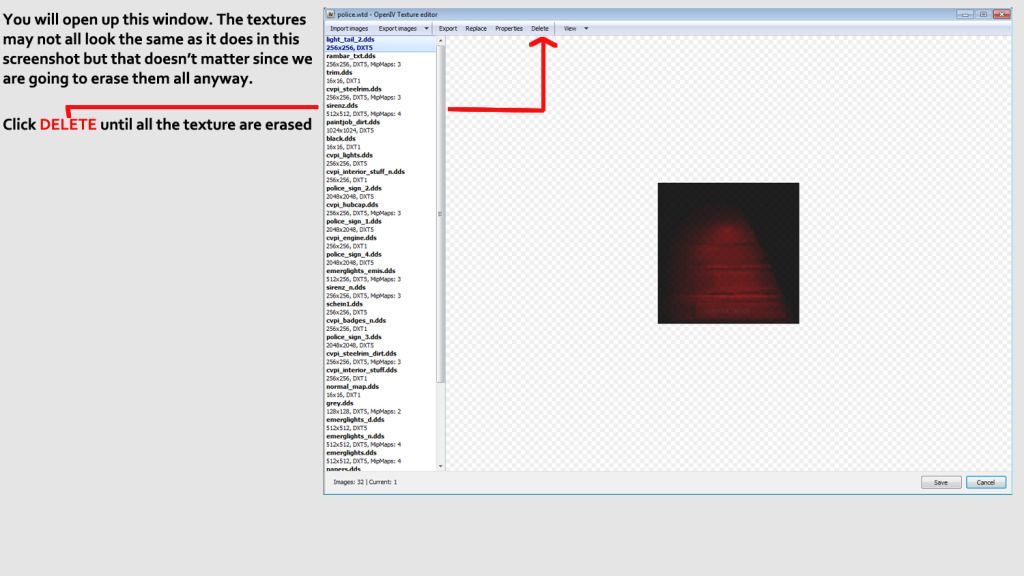
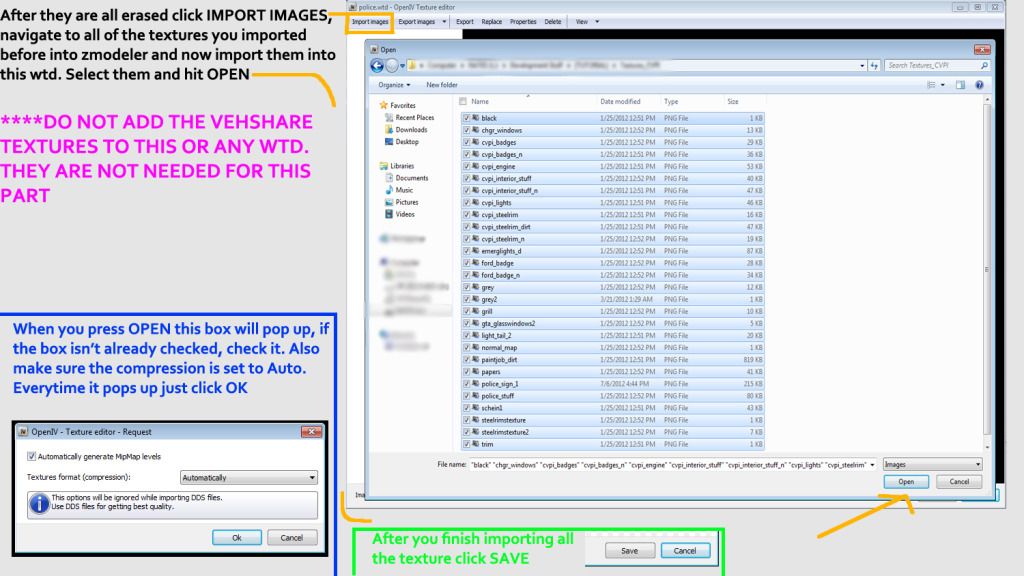
Everything you need to know is contained within these 24 photo collages. If you want to actually follow it step by step you'll need BxBugs123's CVPI, Whelen Justice, Go Rhino Pushbar, and Code 3 XT6's. Otherwise all the steps apply to every other WFT you'll ever have to import. Once again this is just a basic guide to import and export a model. As far as support goes, please either comment below and maybe someone can help or try going over the tutorial again since I know everything that you need to know to get models into Zmod is covered in this guide. *I won't reply to PM's for support*
If you want to download the archive as a ZIP, the link is below. Comment/Concerns comment below or PM me. Thanks
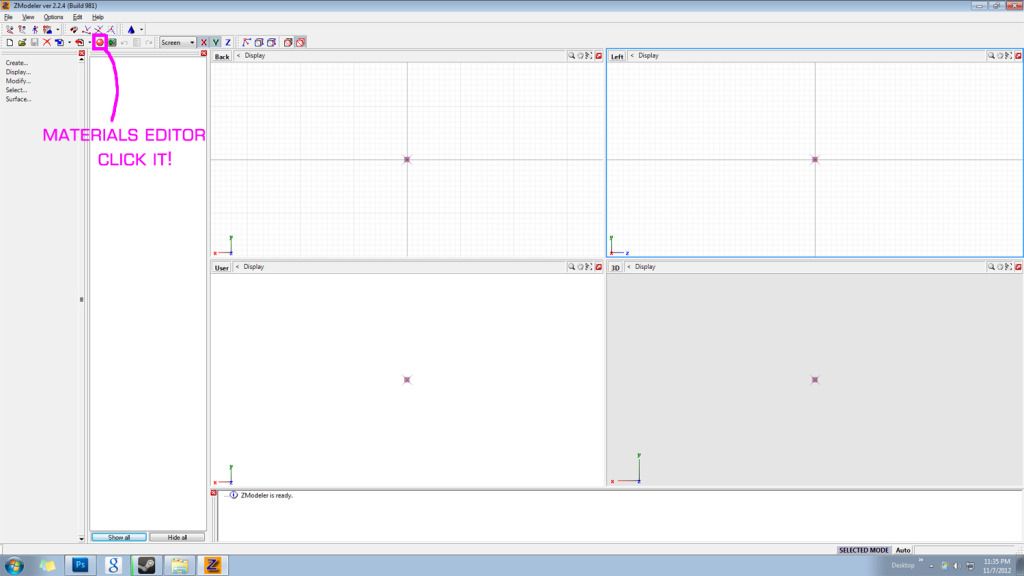
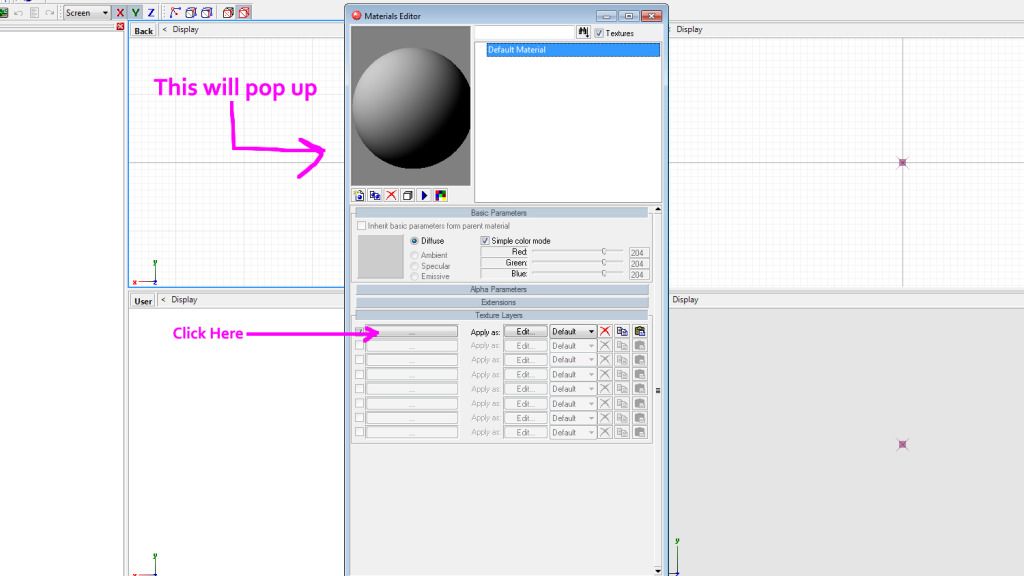
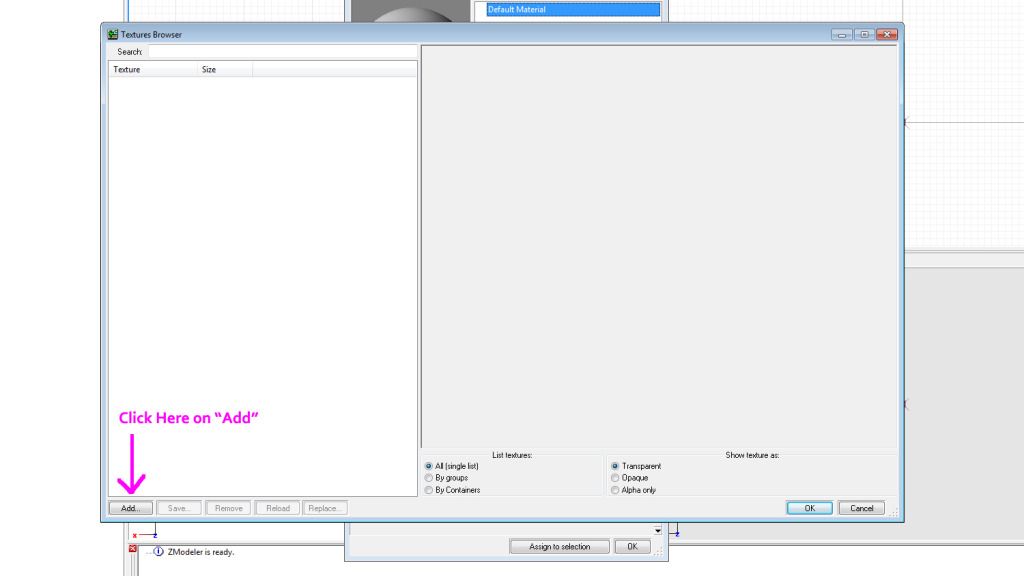

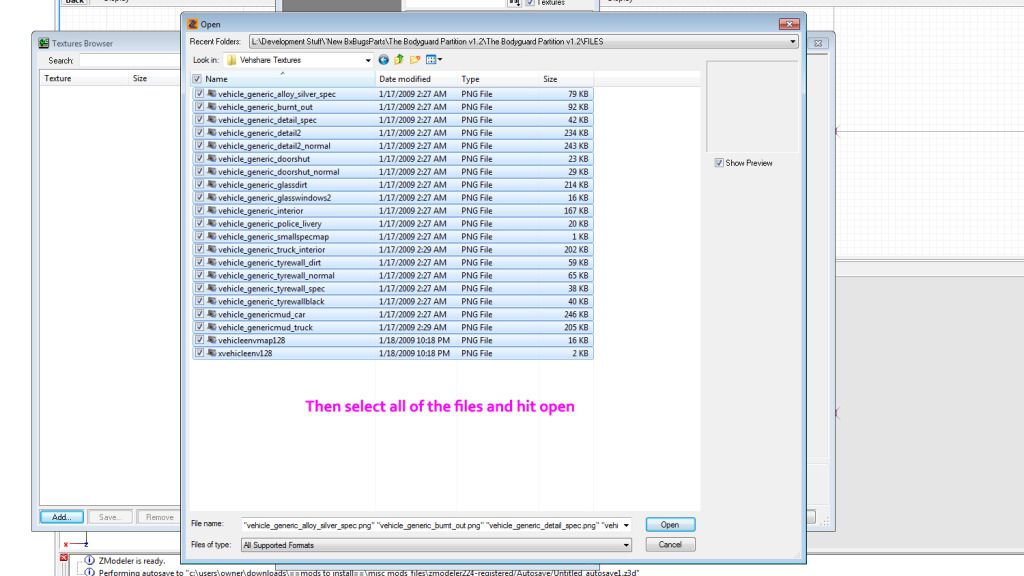
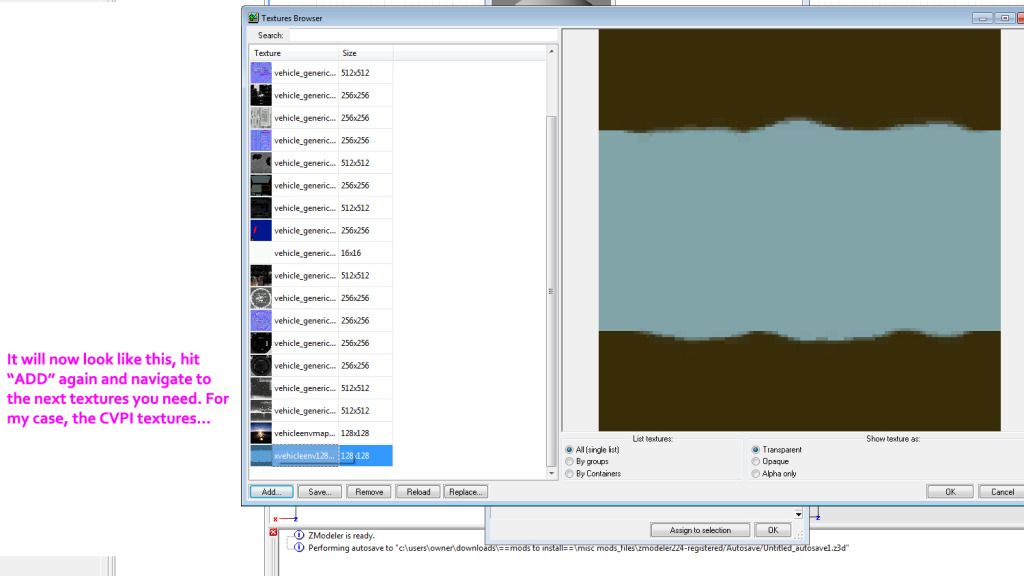
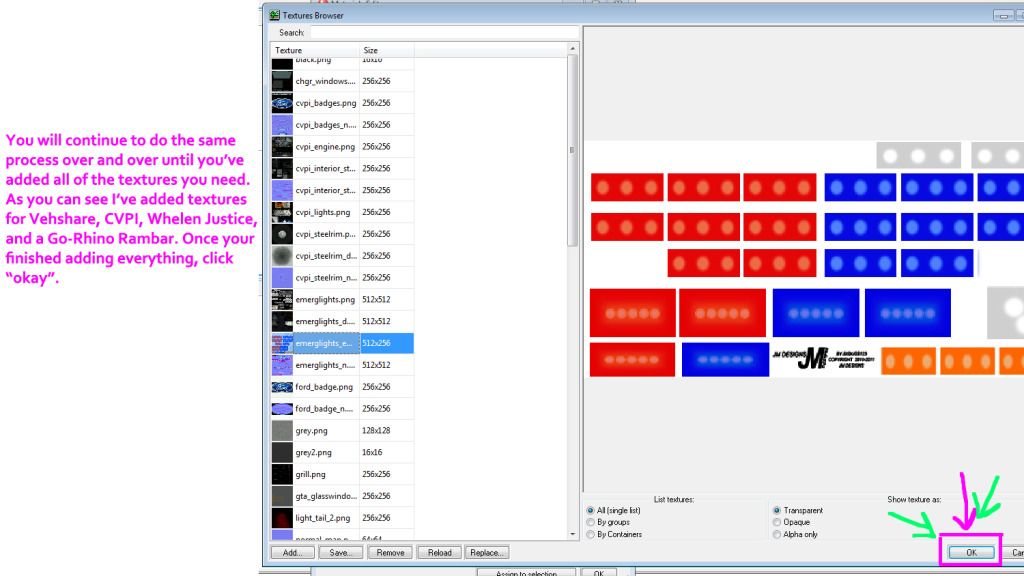
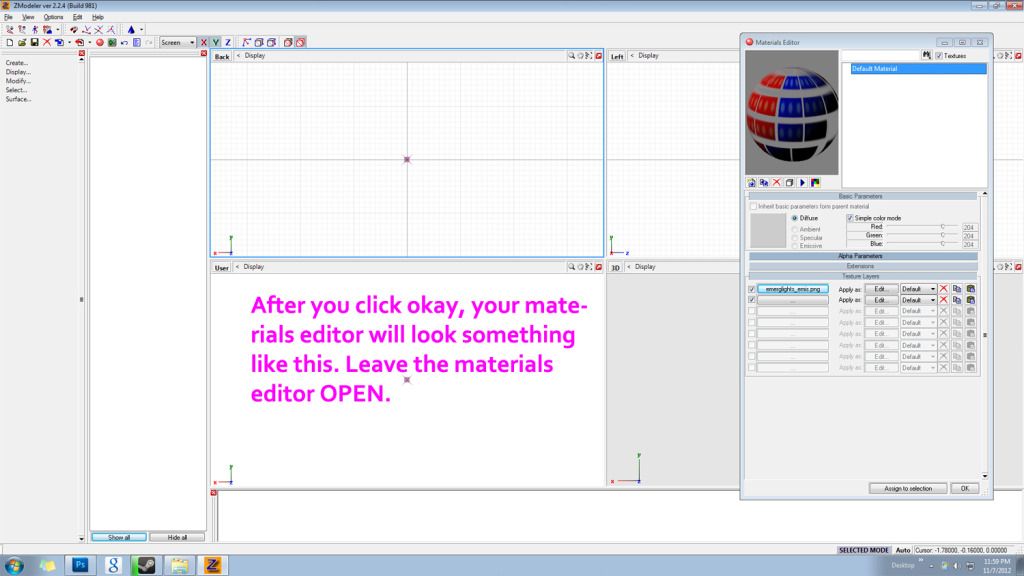





All credit goes to NickieB for the creation of this tutorial. Please don't upload or distribute this to other sites.
DOWNLOAD: http://www.mediafire.com/download/8889j5zsh2wzve8/NickieB_ZMOD_TUTORIAL.ZIP
Recommended Comments
Join the conversation
You can post now and register later. If you have an account, sign in now to post with your account.