

Illusionyary
Members
-
Joined
-
Last visited
Everything posted by Illusionyary
-
The font in the first picture is good, the other one I'm not sure really fits an emergency vehicle. Nice work though.
- 3 comments
- 2 reviews
-
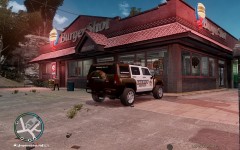 "Gimmie a uh, liter a cola"
 -
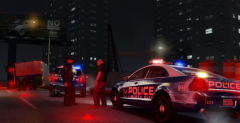 None, they are the textures that come with KevinDV's Chevrolet Caprice and Ford Explorer.
 -
I've only ever had retrievers so I'm going to be biased towards them, but they are one of the worlds most popular dogs. 1) Retriever - I used to have a Chocolate Flatcoat Retriever; he passed away a few months ago. He was 13 years old. Now I have two Golden Retriever pups and they are both massive softies and I love them both very much. 2) Newfoundland - Always wanted one, but I think the poor thing would melt in the heat over here, plus they are hard to get. 3) Cocker Spaniel - Was going to get one, but got two retrievers instead, haha.
-
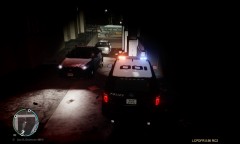 He's on the hunt for the mysterious Rat Man.
 -
I bet that Nerd3 video had something to do with it... Anywho, congratulations again. LCPDFR has seriously grown since I first joined, it's amazing...
-
-
That was quite possibly one of the funniest videos on his channel!
-
 "Ma'am do you know how fast you were going?"
 -
Low Poly vehicles generally cause less issues, for example they cause less crashes in multiplayer.
-
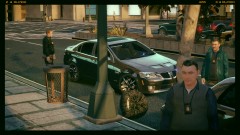 Nice Holden Monaro you got there.
 -
I used to be a hardcore Flight Simmer and then GameSpy went and shut down the multiplayer servers, I haven't played it since then. I had so many add-ons that I can't remember most of them but I remember having the QualityWings 757 collection (The only payware aircraft I bought). I also have a Saitek Pro Flight Cessna Yoke that I ordered from FlightSim and had shipped over to Australia.
-
Yep it's a beaver. I'm surprised the number 69 isn't on it somewhere though. http://www.youtube.com/watch?v=zhyCL-ELRxg *VIDEO CONTAINS CRUDE HUMOR*
-
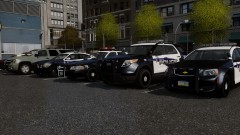 My front license plates scared them away lol Thanks guys, but dloo deserves some credit as he took the epic screenshot! :D
 -
I think the files are called xLive and xLiveless, but basically just delete anything with xLive in it.
-
They should be in your main Grand Theft Auto IV directory (Program FilesRockstar GamesGrand Theft Auto IV).
-
Just delete the xLiveless files, xLiveless literally blocks access to Games for Windows Live. Dsound does the same thing that xLiveless does, but it doesn't block access to GFWL; meaning you can play online if you use Dsound.
-
It's a mod that makes emergency lights much more realistic at the cost of a few glitches ('?do=embed' frameborder='0' data-embedContent>>). Yes, install the asiloader (scripthook), LCPDFR and Dsound. Remove xLiveless.
-
-
As I said before, give it some time and try again. It's a common issue which could be caused by a lot of things, in the meantime just play Offline.
-
It happens quite a lot. Either keep spamming the Play button until it works it or give it half an hour or so and then try to log in again.
-
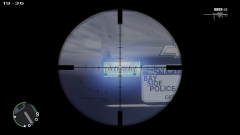 Nice .50 cal you got there.
 -
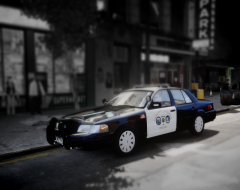 I believe so, it has the D:SF headlights.
 -
Open SparkIV Click Browse Navigate to PC/Models/CDimages Open Vehicles.img Find vehicles .wtd file (Ex. police.wtd) Click it once to highlight it Click Edit Find the vehicles paintjobs on the lefthand side (Ex. police_sign_1) Click it once to highlight it Click Import Find the new textures and Import them Click Save And Close Click Save and then click Rebuild
-
It's Bxbugs123's CVPI-V5.8E-ELS on GTAPoliceMods. http://gtapolicemods.com/downloads.php?do=file&id=592
- 3 comments
- 9 reviews
-
-

- 1
-