

Illusionyary
Members
-
Joined
-
Last visited
Everything posted by Illusionyary
-
You need to match the frequencies of the original siren created by Rockstar otherwise (most of the time) the tones just won't work, I know this because I make sirens GTA IV and I've had my fair share of problems. I've had to ditch a few sirens because the tones just wouldn't work properly no matter what I did. No, I probably won't use it myself but I just thought I'd let you know just in-case you were unaware of that.
-
It's been in their for quite a while... I'm not entirely sure if a silent sound file will work since you need to match the frequencies, I suppose you could mute the siren file and keep the frequency. I've never tried it though. My biggest gripe with this idea is that you would either have to go through 3 tones before getting to the silent tone or you'd have to move the tones down in order (Silent is the wail tone, wail is yelp, yelp is phaser, ect.) which I'm not sure will work, it might, but as I said before I've never attempted anything like this.
-
Seems a bit pointless to me since LCPDFR has a lighting mode option which forces the AI to pull over without the siren having to be turned on. Press the / button on the numpad to activate the lighting modes, I believe that only two of those three lighting modes work though (Pull over AI).
-
Alright cool, I didn't want you to think I was stealing your thunder or anything that's why I asked haha. I have a third video but that one didn't turn out as well as these two. Both videos are sped up the fit the song length (about 9-10x normal speed). http://www.youtube.com/watch?v=v4vd9476ZvY http://www.youtube.com/watch?v=clXEEOGL5dE
-
Very nice, good work. I have a few texturing speedart videos myself, so instead of creating a new topic can I post mine here too?
-
The AI won't always respond to your siren, and AFAIK there is no way to change that in the ELS.ini file. However, I found that the AI will pull over if you change siren tones near them or blast your airhorn at them.
-
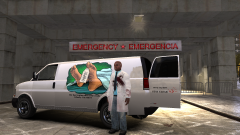 Your skins are so comical haha, nice work.
 -
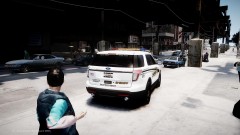 My skins look so sexy on that Explorer :D
 -
As mentioned above, some of those would be the takedowns but not all of them. To get all the lights to come on at once you need to change the ELS flash patterns, there's a steady-burn setting for each mode (Primary, Secondary, Warning). The patterns are a little difficult to find in ELS V7, but I know in V6 they were the H patterns.
-
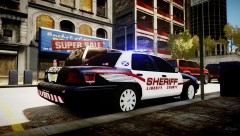 I was rather intrigued when you said you would be making Sheriff skins based off the Waterloo Regional Police Service but it came out quite nicely. Nice work.
 -
No worries, sorry if I came across like a jerk too. I really should add more smilies to my posts so they come across friendlier. Haha.
-
Yes I do realize that, and they work fine. That's why I was confused to why the OP's weren't working properly, so I just posted mine (default) in an attempt to help.
-
Way too much for what you get. I think it's like $800 for CS6.
-
What do you mean by "it won't update"? Are the installers not working or is the game just refusing to update? Make sure you extract the installers before running them and also be sure to run them as an administrator. If the game is refusing to update, make sure your installation paths are correct on the updater and check to see if the GTA IV folder is set to read only or not.
-
You're Grand Theft Auto IV is way outdated. You need to update to patch 1.0.7.0. for LCPDFR to work. http://updates.rockstargames.com/patches/gtaiv/title_update_7_EN.zip
-
If you're using ELS V7 you need to open up the ELS.ini file and edit the numbers beneath the [ ENV LIGHTING ] tab. I have mine set to this and it works pretty well: [ ENV LIGHTING ] Range_PRML = 40 Inten_PRML = 7 Range_SECL = 3 Inten_SECL = 7 Range_WRNL = 4 Inten_WRNL = 6 EnvMult_Morning = 0.2 EnvMult_Evening = 0.5 EnvMult_Night = 1.0
-
 My bad, double posted.
 -
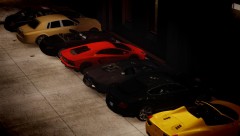
Back when I lived in Dubai our apartment's parking garage looked like this everyday. Haha.
-
You cannot spawn a helicopter with LCPDFR itself, what you can do is spawn it separately through a console command. Press the ~ key below the escape button to open up the console, and once inside type "spawn polmav" without the quotations. That should spawn a police helicopter.
-
The sniper rifles are called w_psg1 and w_rifle in the weapons.img. The PSG1 is a semi-automatic sniper and the Rifle is a bolt action. There's a bunch of nice sniper rifles on GTA4Mods, I myself use a Barrett M82 for the bolt action and a SCAR-H Sniper for the semi-automatic.
-
^ I think he is more worried about the hateful comments rather than the dislikes. I know how you feel, I get this crap all the time. I delete the comments and ultimately block the user if they continue to post more rude or hateful comments towards myself or anyone of my viewers. Don't let those kind of idiots wind you up, the more wound up you get about it the more those idiots win.
-
As mentioned, the first one is the Trainer. As for the second issue, you can use the trainer to fix that by changing your character model to a police officer.
-
 "Liter is French for give me some f*ckin' cola before I break vous f*ckin' lip!" Hehe.
 -
I'm assuming he means this one: '?do=embed' frameborder='0' data-embedContent>> Thanks for adding me on the list too!
-
Check out GTAPoliceMods, there's a bunch of Australian cars there and there's also a massive thread about all things Australian. I'm currently waiting on the WAPOL fleet, which is coming out soon.