
brenden.iannetta
Members
-
Joined
-
Last visited
Everything posted by brenden.iannetta
-
Never saw this; looks like a pretty bad way to display the version though. Not gonna bother making a detection for it.
-
You can get the file from your non-mods folder.Click the link below. Once downloaded, open the .zip file, and drag RAGENativeUI.dll into your root GTAV folder. https://github.com/alexguirre/RAGENativeUI/releases/download/1.9/RAGENativeUI.zip If the crashing persists after the previous, send another log.
 This crash was caused by an invalid model. Have you modified any meta's for police cars recently? Also:
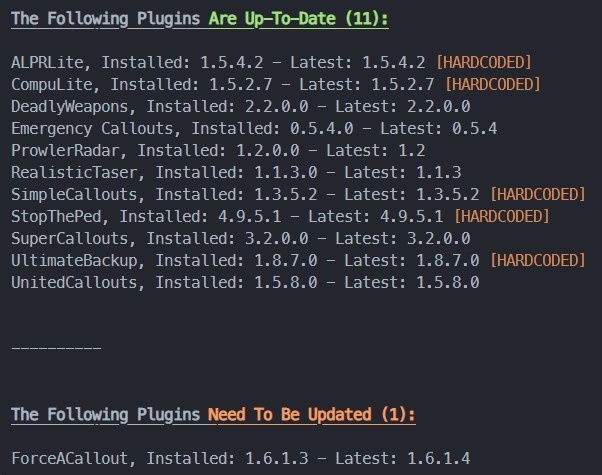 You are actually missing RNUI. Click the link below. Once downloaded, open the .zip file, and drag RAGENativeUI.dll into your root GTAV folder. https://github.com/alexguirre/RAGENativeUI/releases/download/1.9/RAGENativeUI.zip Also:
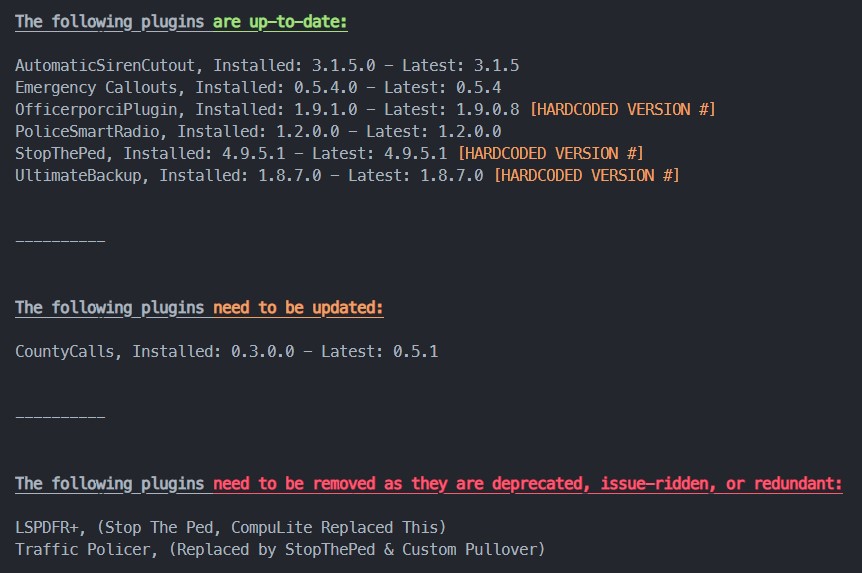 The 2699 update for RPH was released 3 months ago. Download it here:No... You cannot delete the files that GTA5 uses. If you have a mods folder, you only need to copy the RPF's that you change however.Looks like you played for ~45 mins. Seems to be working swell. LSPDFR has it's quirks, and sometimes it will just randomly crash. No fix here.Just realized you are talking about LCPDFR... This is not the correct forum. Post your issue here: https://www.lcpdfr.com/forums/forum/906-gta-iv-lcpdfr-support/Have you looked in the "Wardrobe" section of EUP Menu? They might be buried.Click the link below. Once downloaded, open the .zip file, and drag RAGENativeUI.dll into your root GTAV folder. https://github.com/alexguirre/RAGENativeUI/releases/download/1.9/RAGENativeUI.zip If that doesn't work, try re-installing it. Also, follow this:
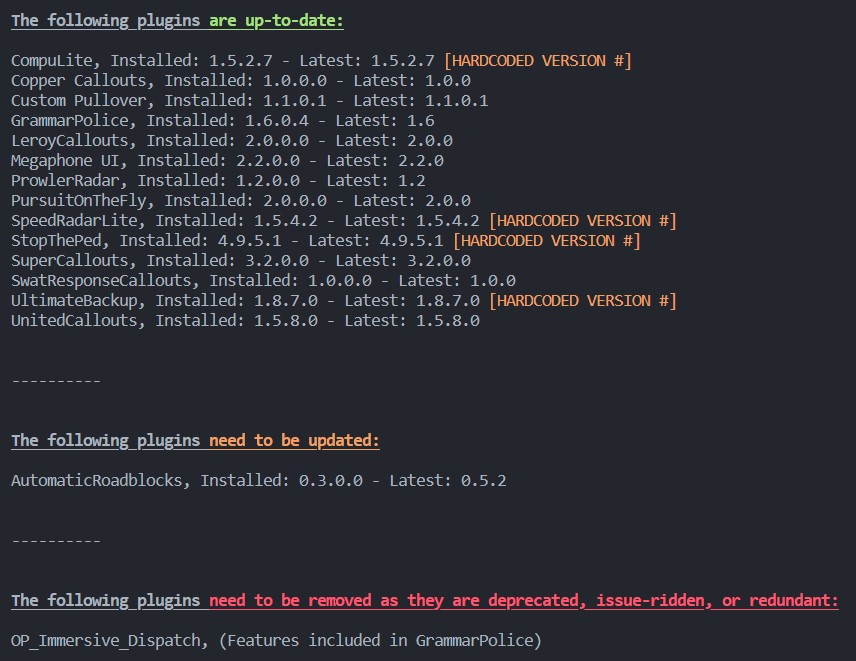 Please follow this: All of your plugins are outdated.
 This was released almost 3 months ago. The latest version of GTA is 2699; make sure to update everything.This is a very very old tool -- don't use this.Yea I should've been a bit more specific... This is what you're looking for: https://www.bejoijo.com/post/stop-the-ped The author that made the above mod also makes some other great plugins. They can be found here: https://www.bejoijo.com/Can you send the RAGEPluginHook.log file from your GTAV root. Also what software are you using to get these issue reports? Curious if it's old as i've never seen it.Just delete the ChillCallouts files from your plugins\LSPDFR folder. Nothing will break. Have you properly installed them through the OIV installer that each of these mods provide? This is an issue on your end. You will find these in the "Wardrobe" section of EUP Menu assuming you installed the clothes correctly.Lmao. Just right click the file, click "Open With", and choose what application you would like to open the file with.How are they not working? have you tried looking through EUP Menu in-game?Download the ELS files, then drag just AdvancedHookV.dll into your GTAV root folder.All of these plugins are amazing: https://www.bejoijo.com/Going to sum this up for you. First, follow this: ... Next, follow this: ... If you are still experiencing texture loss after this, follow this:Adding onto this: ... This was an issue with BetterEMS. There might be a config issue. Also it looks like you have an issue with StopThePed. "Exception on Loading VehicleItems.xml: System.Xml.XmlException: The 'Item' start tag on line 185 position 6 does not match the end tag of 'item'. Line 185, position 26.". There is a missing XML start/end tag.