
brenden.iannetta
Members
-
Joined
-
Last visited
Everything posted by brenden.iannetta
-
I'm glad this solved your problem.
-
Just wanted to make sure that you have added the flags to the correct car slot.
-
Hmm, that's unusual. Are you positive they've been added to the right car and are all spelled correctly? I have a limited knowledge of flags and issues alike this so I'm unfortunately not sure.
-
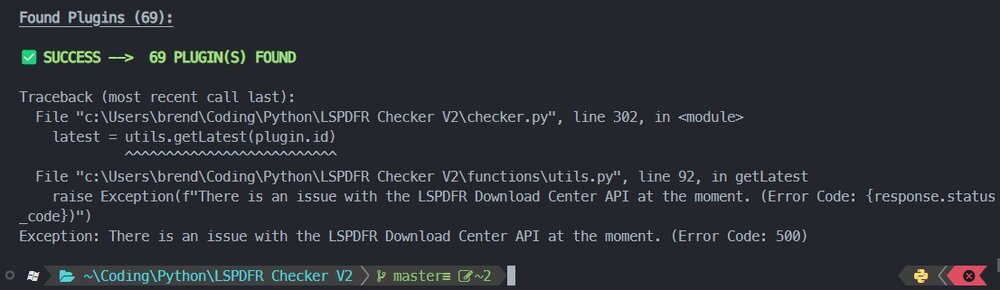
Besides the fact that you rate-limited my API calls for a little, this is just a one-off crash and looks like nothing to worry about. You do however have an old version of RAGENativeUI. Click the link below. Once downloaded, open the .zip file, and drag RAGENativeUI.dll into your root GTAV folder. https://github.com/alexguirre/RAGENativeUI/releases/download/1.9/RAGENativeUI.zip
-
Your log indicates that you possibly have an outdated RAGENativeUI. Click the link below. Once downloaded, open the .zip file, and drag RAGENativeUI.dll into your root GTAV folder. https://github.com/alexguirre/RAGENativeUI/releases/download/1.9/RAGENativeUI.zip
-
Re-install this XML that comes with UltimateBackup. You have an error in it. Also follow this:

-
Very common issue. You just need to load them independently, or use the LSPDFR + NVE.bat launcher file in your GTAV root.
-
What I think you need to do is add the emergency vehicle flag to the cars. This is because sheriff3 > are not official cars - they are custom. See:
-
Well the current version of GTA is 2802, so all you have to do is delete the gta5.exe file and then verify your files. Also make sure to update RAGE using the file provided in the LSPDFR manual installer:
-
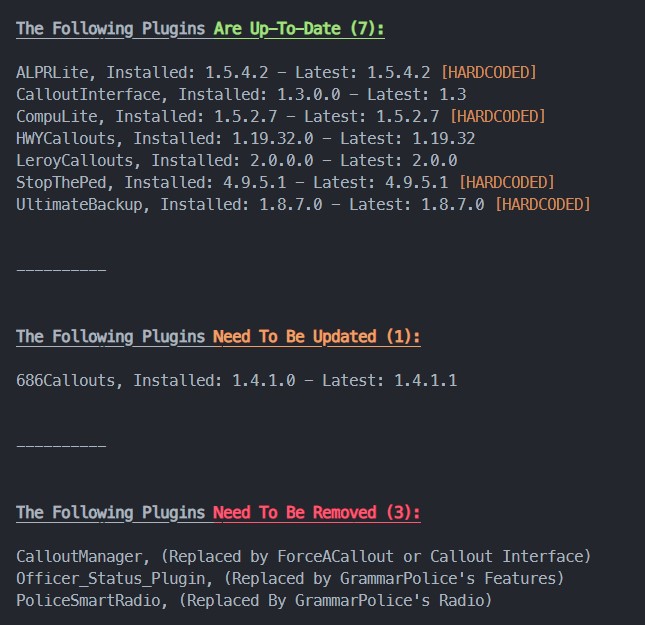
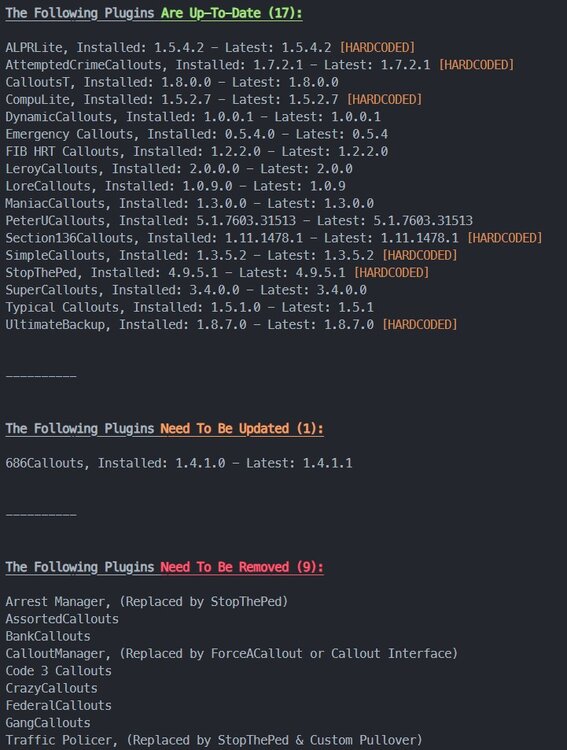
https://darkvypr.com/checker
-
Update.

-
This will help. Make sure to also install these before you go through that trouble: https://www.gta5-mods.com/tools/resource-adjuster https://www.gta5-mods.com/tools/heap-limit-adjuster-600-mb-of-heap https://www.gta5-mods.com/tools/packfile-limit-adjuster
-
Rename your mods folder to "_mods", then try again.
-
Have you modded any meta files for them? If so, copy over the default sheriff2 files as well as the meta lines from your non-mods folder.
-
And how have you determined this?
-
Go into your lspdfr.ini and set "Main.PreloadAllModels" to false. Also install this: https://www.gta5-mods.com/tools/resource-adjuster
-
What mods have you installed.
-
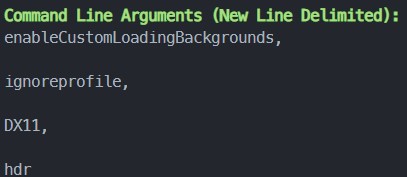
Follow this: Also, delete everything in your GTAV/commandline.txt. Seems like there is a lot of unnecessary stuff.
-
Send the RAGEPluginHook.log file from your GTAV root folder -- not the one from your logs folder.
-
This issue is common, yet random. The crash report indicates that a plugin tried to call on a segment of memory which was already in use by another event. One of the best ways to avoid similar crashes would be to end callouts and events before you dismiss entities. For example, if you are calling a tow truck for a vehicle that was involved in a callout, end the callout with the "End" key before calling the tow truck.
-
This is an issue with one of your vehicle's meta lines. Specifically, your sheriff2. Revert any vehicles.meta changes to this car.

-
Delete the file called: C:\Program Files\Epic Games\GTAV\lspdfr\stats.dat Download the LSPDFR manual installer, then replace the file from that into the file you deleted.
-
Thought of making this as soon as i found out plugins were in the log... 😭
-
Log.
-
Revert any meta changes you have made to the police4 slot.