

Everything posted by brenden.iannetta
-
See my edited reply.
-
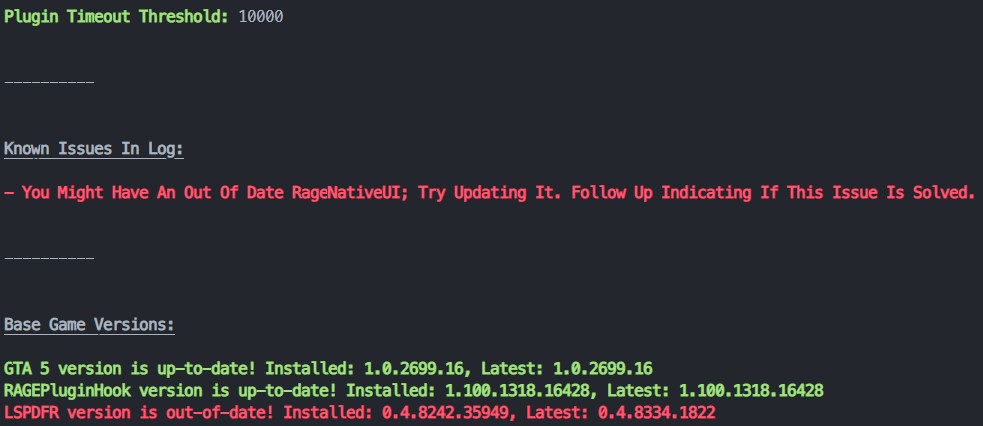
As @OfficerChris1 stated, you have an old LSPDFR version. Please make sure that you are copying all of the new files over to your current LSPDFR install. Next, follow this: Click the link below. Once downloaded, open the .zip file, and drag RAGENativeUI.dll into your root GTAV folder. https://github.com/alexguirre/RAGENativeUI/releases/download/1.9/RAGENativeUI.zip Lastly, increase your plugin timeout threshold to 60000. Launch RPH, then immediatly hold SHIFT. Change Plugin Timeout Threshold to 60000. Click Save and Launch.
-
Deleting court cases saves virtually zero space. These court cases individually use up about 2.3 KB of data. To put this in perspective, a 500 GB SSD converts to 500 million KB. Assuming you have about 50 cases stored, deleting them would only yield about 0.00000023% of space on your hypothetical 500 GB SSD. TLDR: It's useless to delete the cases, and it would be better to save them to reminisce. 🤷♂️
-
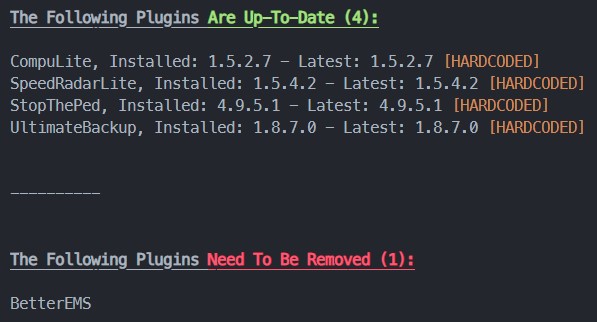
Reinstall CompuLite. Also:

-
Nah just saying that 60 000 milliseconds is only 1 minute.
-
Launching through RAGE? Might want to try re-installing LSPDFR + RAGE.
-
What do you mean only story mode loads? Can I see a video.
-
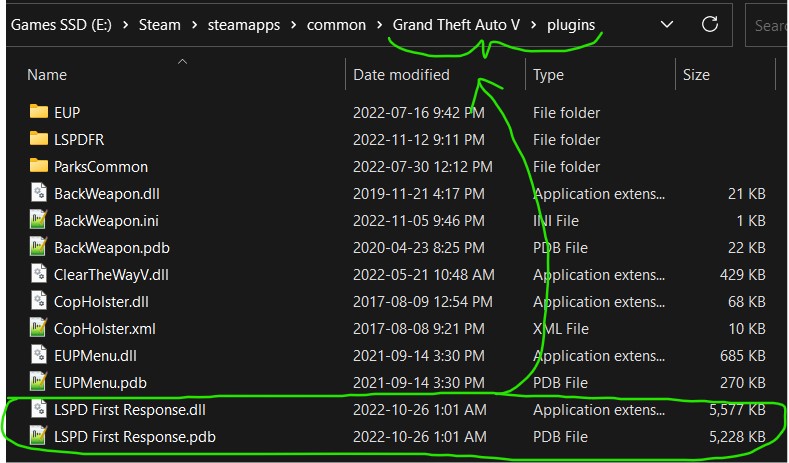
Uhhh.. Well LSPDFR plugins are supposed to go in plugins/LSPDFR. These plugins are supposed to go here although: You might need to do some heavy overhauling to your plugins folder. Make sure to read the readmes when installing plugins. Once again restating this:
-
Jeez
-
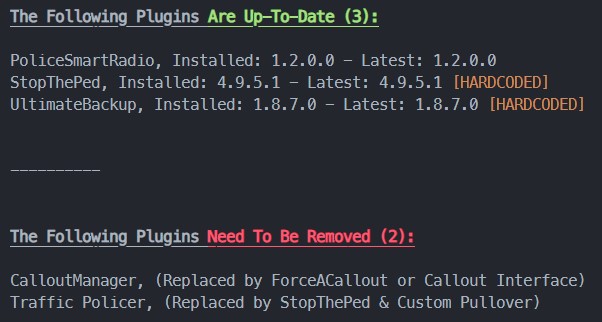
It's actually just pulling the version from here. According to this, it's 1.2.0.0. I've just changed the JSON to show this as a deprecated plugin however. No point in really having it lol.

-
You installed CompuLite, and all of your other plugins wrong. You'll need to re-install all of your plugins into the proper directories. The README's are there for a reason. Also, these types of plugins are not RAGE plugins, they are LSPDFR plugins. This means that you don't need to manually load them. They will be loaded upon going on-duty.
-
Other post. Also that is not how you upload files. That'd make hacking much easier although...
-
Was gonna mention this but I figured the old LSPDFR version might be causing this issue in turn. May as well try this tho 🤷♂️Have you tried launching normal GTA, then launching RPH when GTA gets to the menu?Click the link below. Once downloaded, open the .zip file, and drag RAGENativeUI.dll into your root GTAV folder. https://github.com/alexguirre/RAGENativeUI/releases/download/1.9/RAGENativeUI.zip

 😖 painYou have some very old versions. Click the link below. Once downloaded, open the .zip file, and drag RAGENativeUI.dll into your root GTAV folder. https://github.com/alexguirre/RAGENativeUI/releases/download/1.9/RAGENativeUI.zip
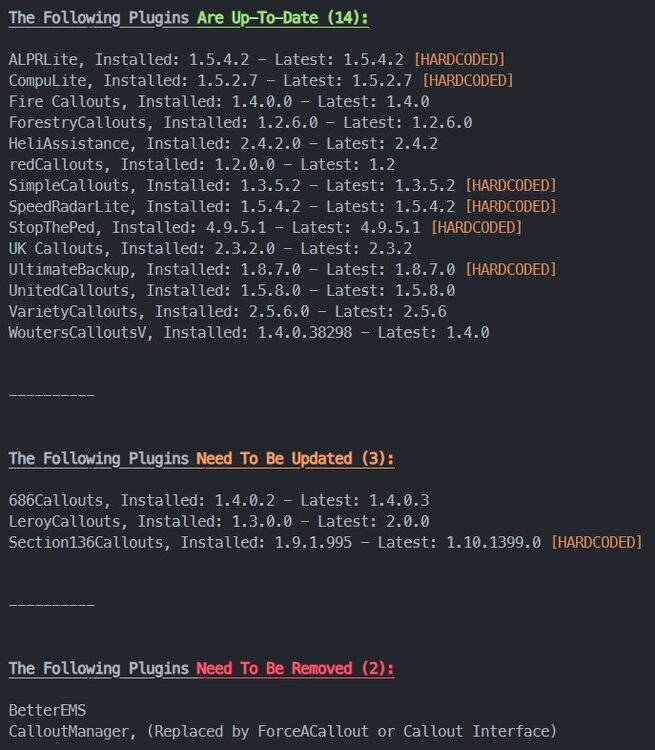
 Do you have the updated LML and Coastal Callouts?First, follow this: Next, follow this: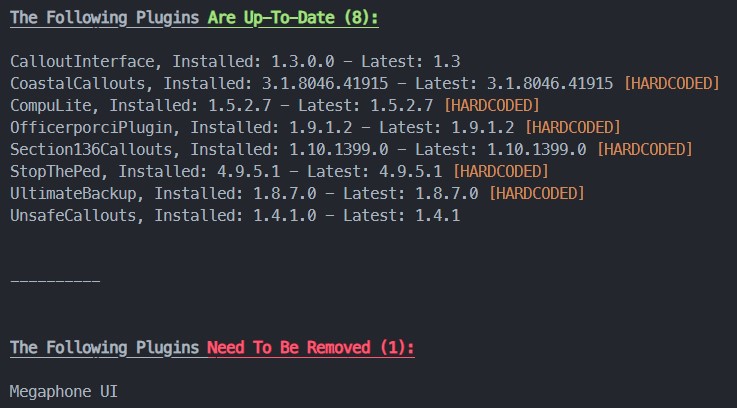
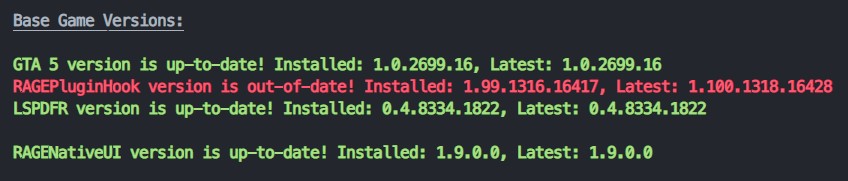 Not allowed. You'll need to delete gta5.exe and verify files.Follow this: Just want to add one more thing, Click the link below. Once downloaded, open the .zip file, and drag RAGENativeUI.dll into your root GTAV folder. https://github.com/alexguirre/RAGENativeUI/releases/download/1.9/RAGENativeUI.zipThis personally didn't work for my game, but give it a shot. Also see this, this is a common issue:Reading is hard.
 Delete gta5.exe and verify your GTA files.