
brenden.iannetta
Members
-
Joined
-
Last visited
Everything posted by brenden.iannetta
-
-
Can't you just get the one from your non-more folder? Not sure if sharing files of that nature is allowed...
-
Ignore that. This appears to be an issue with SlimDX.dll. Delete that file, it should be in your root GTAV directory. Download this: https://files.darkvypr.com/SlimDX.dll. Place that file into your GTAV root folder. Let me know if the issue appears again.
-
That means you have an issue in your mods folder. The reason it worked is because adding a "_" disables the folder. Revert any of your mods folder changes, and make sure to rename it back to "mods".
-
Try renaming your mods folder to "_mods".
-
Can you send the RAGEPluginHook.log file from your GTAV root.
-
TRY RENAMIN YOR MODS FOLDR TO "_mods".
-
Click the link below. Once downloaded, open the .zip file, and drag RAGENativeUI.dll into your root GTAV folder. https://github.com/alexguirre/RAGENativeUI/releases/download/1.9/RAGENativeUI.zip
-
Get rid of the meta. Use the one from your non-mods folder. The meta provided with that pack is probably broken.
-
This is the very first pin on this forum...
-
Make your own topic if you want help.
-
Mods placed in GTAV/mods will not show up there. Plugins that you have in the GTAV/plugins/LSPDFR folder won't show up there either. This is because those are not RAGE plugins, they are loaded by LSPDFR itself. When you go on duty in game, you will notice that all of the plugins you installed will show.
-
Have you modded any of the weapon meta files? This is an issue within GTAV/lspdfr/data/duty_selection.xml. Also make sure that that file is not modded. Also this is kinda funny:

-
Click the link below. Once downloaded, open the .zip file, and drag RAGENativeUI.dll into your root GTAV folder. https://github.com/alexguirre/RAGENativeUI/releases/download/1.9/RAGENativeUI.zip
-
350??
-
Building on the above, this error suggests that you have broken the outfits.xml file through any which way. Download the LSPDFR Manual Installer, open the .zip, navigate to the "lspdfr" folder, then drag the "data" folder from the Manual Installer into your "GTAV/lspdfr" directory.
-
Oh..?
-
For the XSerializer one, download these files once again, and copy just XSerializer.dll into your root GTAV folder.

-
Send the RAGEPluginHook.log file from your GTAV root folder -- not the one from your logs folder.
-
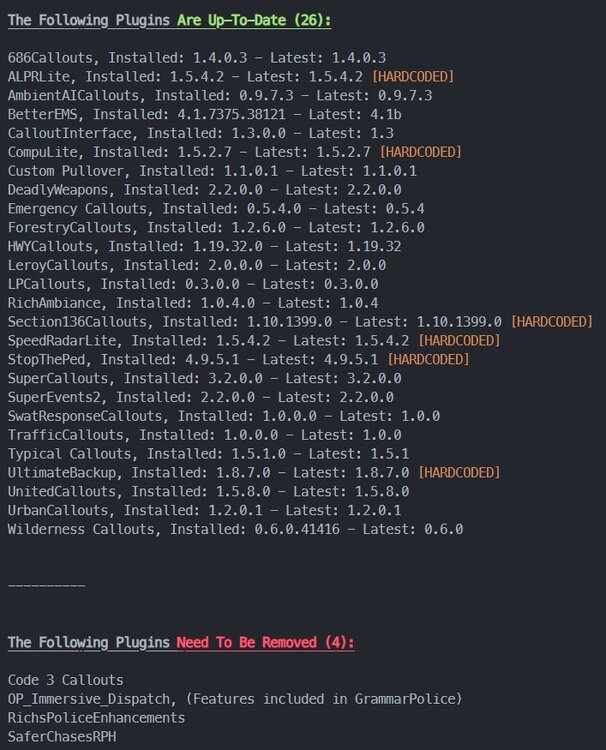
GrammarPolice is the right one. VocalDispatch is old. These are now included in GrammarPolice.
-
Send the RAGEPluginHook.log file from your GTAV root folder -- not the one from your logs folder.
-
Download this: Next: Also have you modded any of Callout Interface's files?

-
Does this happen all the time? If so, send another log the next time it crashes.
-
Just gonna butt in here; you have an old RAGENativeUI: Click the link below. Once downloaded, open the .zip file, and drag RAGENativeUI.dll into your root GTAV folder. https://github.com/alexguirre/RAGENativeUI/releases/download/1.9/RAGENativeUI.zip
-
Oh my bad, I think I got this mixed up with another crash... Please follow this: