
brenden.iannetta
Members
-
Joined
-
Last visited
Everything posted by brenden.iannetta
-
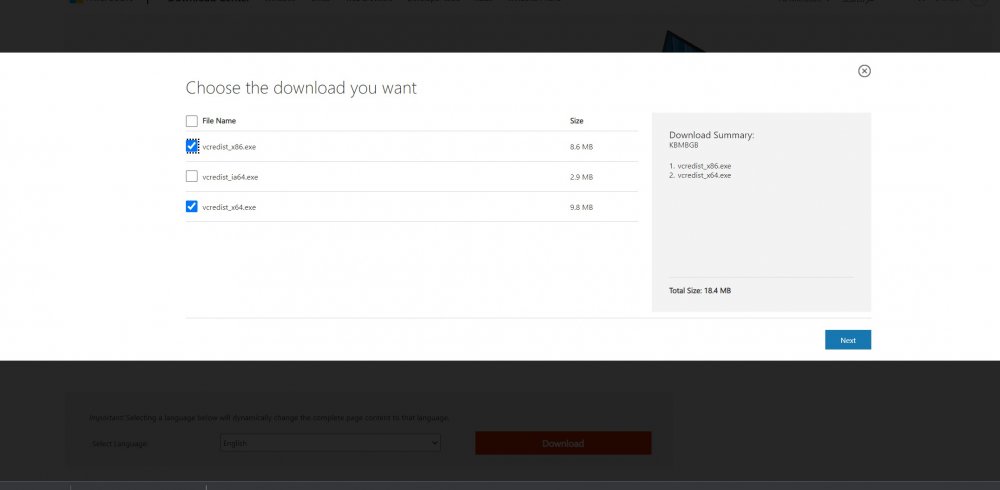
Try installing both of these. Worth a shot. https://www.microsoft.com/en-ca/download/details.aspx?id=26999
-
I mean correct me if i'm wrong but it is an EXE installer. All you need to do is open/run it.
-
I can tell you that SirenMastery is extremely old and not supported, so start with removing that. Also please send the RAGEPluginHook.log file from your root GTAV folder.
-
Interesting. I've seen so many errors with it recently. Maybe have a peek @sEbi3
-
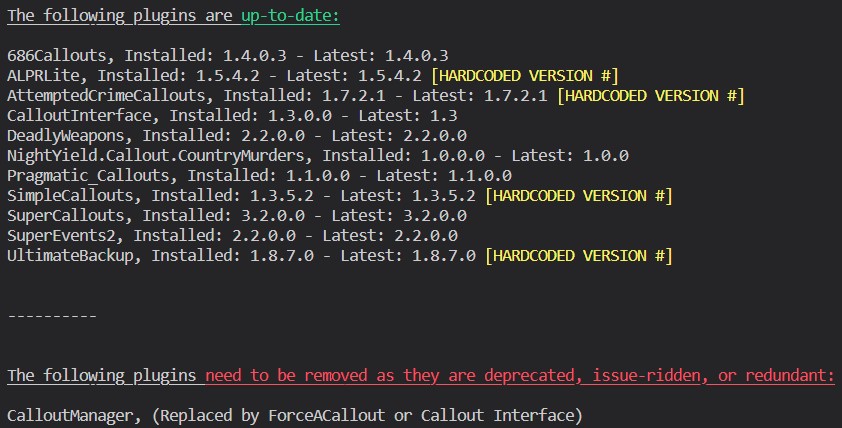
Download this zip, then drag RAGENativeUI.dll from it into your root GTAV folder. https://github.com/alexguirre/RAGENativeUI/releases/download/1.9/RAGENativeUI.zip Also:
-
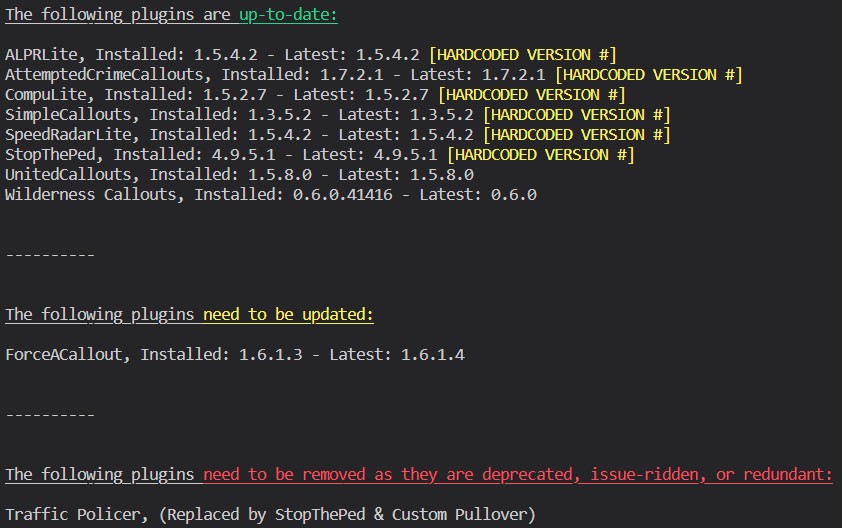
Well, you have an issue with something in relation to SlimDX.dll. Bad news is I have no clue. Maybe someone with more knowledge would be able to help. Good news is i'm not entirely useless, you need to do some things which are unrelated to this crash (possibly). Move ClearTheWayV from Grand Theft Auto V\plugins\LSPDFR into Grand Theft Auto V\plugins. Next, delete Albo1125.Common.dll from your Grand Theft Auto V\plugins\LSPDFR, and your root, if it is there. Also, follow this:
-
Cool uncle. Anyways, I think you answered your own question. You used the mods folder from a previous install. Try removing the mods folder and making a fresh one. (Callouts shouldn't be in the mods folder?)
-
Please send the RAGEPluginHook.log file from your GTAV root.
-
Try renaming your mods folder to "_mods" Mr. Fring.
-
Please send a screenshot of the issue.
-
Not sure what that is.
-
Sorry, forgot to mention that this needs to be the log that was made when it crashed. Nevermind. Does this crashing happen consistently?
-
Send the RAGEPluginHook.log file from your GTAV root.
-
That troubleshooter is very, very outdated, and should not be used. Remove d8input.dll from your GTAV root, as well as ScriptHookVDOTNET.
-
Launch RAGE, then immediately hold shift. Change Plugin Timeout Threshold to 60000.Did you install RAGE into... System32?There won't be any police cars in these patchday's unless you put them there yourself. Please use the latest patchday to replace any of your vehicles.This is a one-off crash, and might, albeit unlikely, happen again.Try making sure that you haven't broken the police slot. It seems to be having trouble. The meta's may have been messed with or the model may be invalid. He is saying to rename your mods folder to "_mods".Adding onto this, I saw that your Plugin TImeout Threshold was at 10000. Try this: Launch RAGEPluginHook, then immediately hold shift. In the popup, change Plugin Timeout Threshold to 60000. https://github.com/alexguirre/RAGENativeUI/releases/download/1.9/RAGENativeUI.zip Next, download this .zip file, open it, and place RAGENativeUI.dll into your root GTAV folder; Your's is outdated: Also please delete the RAGENativeUI.dll that you put in your plugins folder..... Lastly:

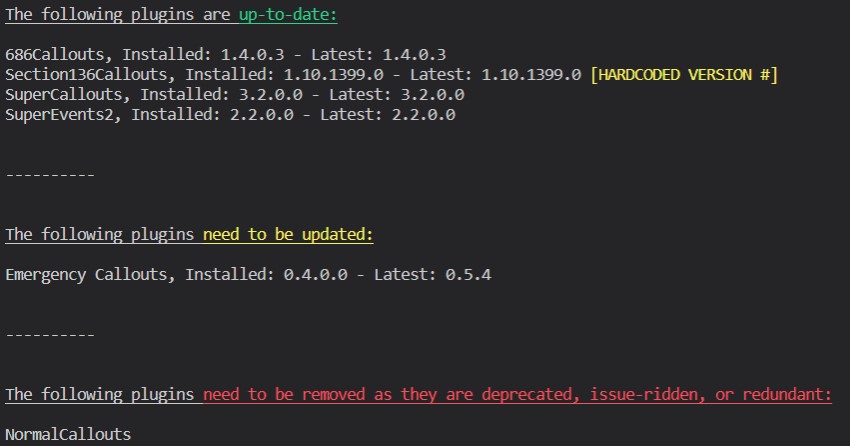 Launch RAGEPluginHook, then immediately hold shift. In the popup, change Plugin Timeout Threshold to 60000. Next, please update this: https://github.com/alexguirre/RAGENativeUI/releases/download/1.9/RAGENativeUI.zip Next, download this .zip file, open it, and place RAGENativeUI.dll into your root GTAV folder; Your's is outdated: Lastly, follow this:

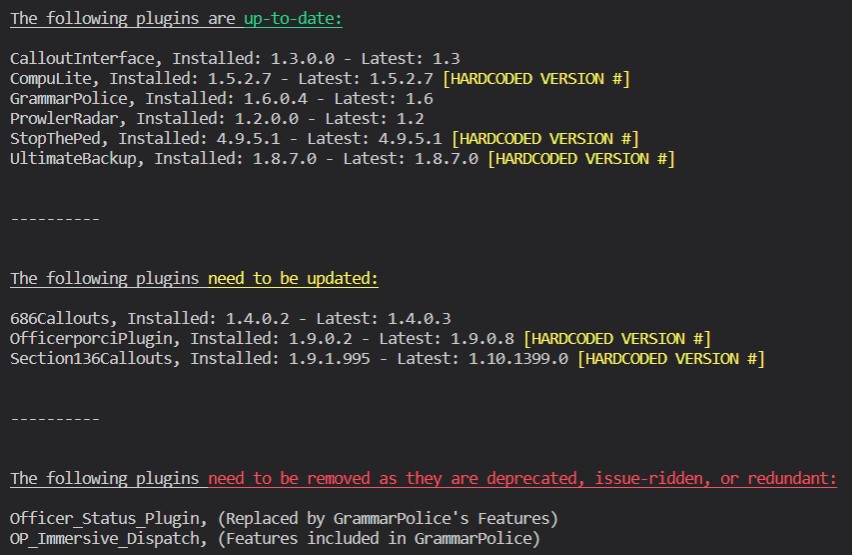 It's where GTA is installed. The base game folder.Try removing the EUP Law and Order pack.You installed RAGE completely wrong. Please remove all its files and use this to install RAGE: