
brenden.iannetta
Members
-
Joined
-
Last visited
Everything posted by brenden.iannetta
-
This was a script I made. It won't tell you why your game is crashing 100% of the time due to how simple the checking process is, but if you'd like to take a shot at setting it up the code can be found here: https://darkvypr.com/checker I'm not offering support on installing VS code and setting up the basics of it as this script is oriented at people who already know how to do just that (hence the fact that there isn't a GUI). As to your crashes, they both look pretty random. Try following this first though: Note that not all files that come with a plugin are intended to go in your GTAV/plugins/LSPDFR directory. There are some files that need to be in your GTAV root, as the ones above do. @Shiner edited my reply. Check out the new version.

-
In addition to this: Your crash was caused by More Radio Chatter. You are missing NAudio.dll. Try re-installing it:
-
Unrelated: I never knew you used to be able to downvote a comment. They really need to bring that back for some of the stuff I see on some threads. Related: You actually had an out of date RAGENativeUI, I don't think this was caused by RA. Download this zip, open it, then drage RAGENativeUI.dll into your root GTAV directory. https://github.com/alexguirre/RAGENativeUI/releases/download/1.9/RAGENativeUI.zip Next, install this: (Make sure to install ZPHDevs.Common)

-
This thread is 5 years old dude. This guy probably has grandkids and lives in a retirement home now. Also sharing files isn't allowed. If you didn't make a mods folder, that's on you.
-
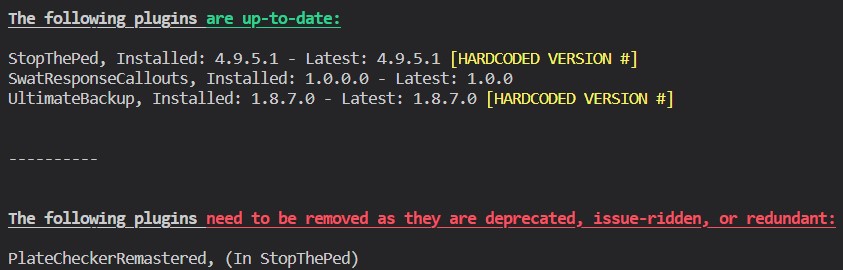
This is 2 and a half hours of gameplay? That's pretty impressive with LSPDFR. No fix here. Aside from this:
-
See the description here darkvypr.com/checker "The 'blacklist' array is used to blacklist a plugin which is either weirdly displayed (ie: "APIExample" and such...), or improperly versioned. For some reason, many plugin devs forget to update their assembly versions which causes the script to think that the plugin is outdated, when in reality it might be fine."
-
- You have an out of date RAGENativeUI. Download this zip, open it, then drag RAGENativeUI.dll into your root GTAV folder. https://github.com/alexguirre/RAGENativeUI/releases/download/1.9/RAGENativeUI.zip
-
Download this zip, open it, then drag RAGENativeUI.dll into your root GTAV folder. https://github.com/alexguirre/RAGENativeUI/releases/download/1.9/RAGENativeUI.zip

-
No problem 🙂
-
Hmm. Try getting the default lines from the vehicles.meta in your update folder, and replacing the ones in your mods/update. Pretty certain this is an issue related to this car.
-
How about meta files/lines or model files, because in your log it says "Exception message: Cannot load invalid model with hash 0xa46462f7". 0xa46462f7 is the hash for policeold1.
-
Have you modified your policeold1 slot?
-
You can edit vehicles that UB uses in the Grand Theft Auto V\plugins\LSPDFR\UltimateBackup\DefaultRegions.xml file. There should be some tutorials around on how to add addon cars into UB
-
You need to download RAGENativeUI.dll. Download this zip, open it, then drag RAGENativeUI.dll into your GTAV root. https://github.com/alexguirre/RAGENativeUI/releases/download/1.9/RAGENativeUI.zip Next, follow these two:

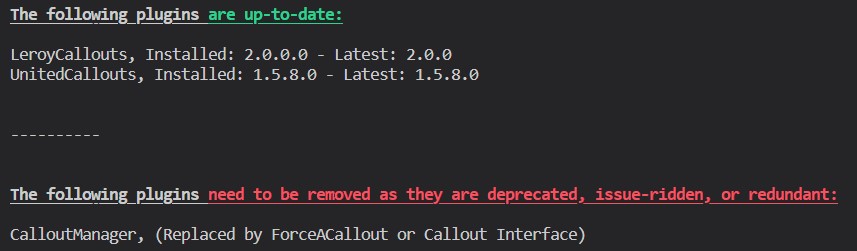 Are you using LML or ScriptHookVDOTNET? Also yes, try installing that -- it couldn't hurt.Just saw your DM. Go into your lspdfr.ini and change "Main.DisableBlipHandling" to true. Let me know if this fixes one of your issues.First try this: Download this zip, open it, then drag RAGENativeUI.dll into your root GTAV folder. https://github.com/alexguirre/RAGENativeUI/releases/download/1.9/RAGENativeUI.zip If that doesn't work rename your mods folder to "_mods", and try to launch.This will run perfectly. You should be able to handle quite a bit of plugins, and likely NVE or any other graphical mod if you really wanted to.Download this zip, open it, then drag RAGENativeUI.dll into your root GTAV folder. https://github.com/alexguirre/RAGENativeUI/releases/download/1.9/RAGENativeUI.zip Also, follow this:
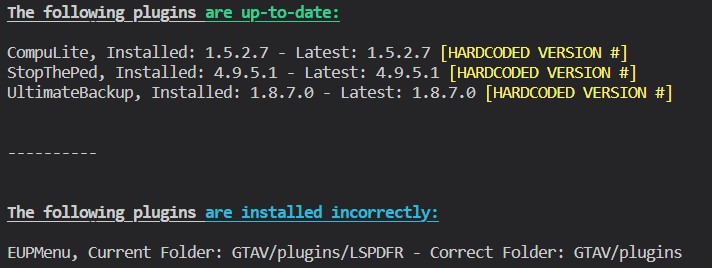 Go into Grand Theft Auto V\plugins\EUP\settings.ini and bind MenuToggle to any key. Key names can be found here: https://learn.microsoft.com/en-us/dotnet/api/system.windows.forms.keys?redirectedfrom=MSDN&view=windowsdesktop-6.0You have quite a few issues. First: ⬇️ Install This: ⬇️ Then This: Download this zip, open it, then place RAGENativeUI.dll in your root GTAV folder. https://github.com/alexguirre/RAGENativeUI/releases/download/1.9/RAGENativeUI.zip ⬇️ Then This (MAKE SURE TO INSTALL ZPHDEVS.COMMON) : Next, follow this:
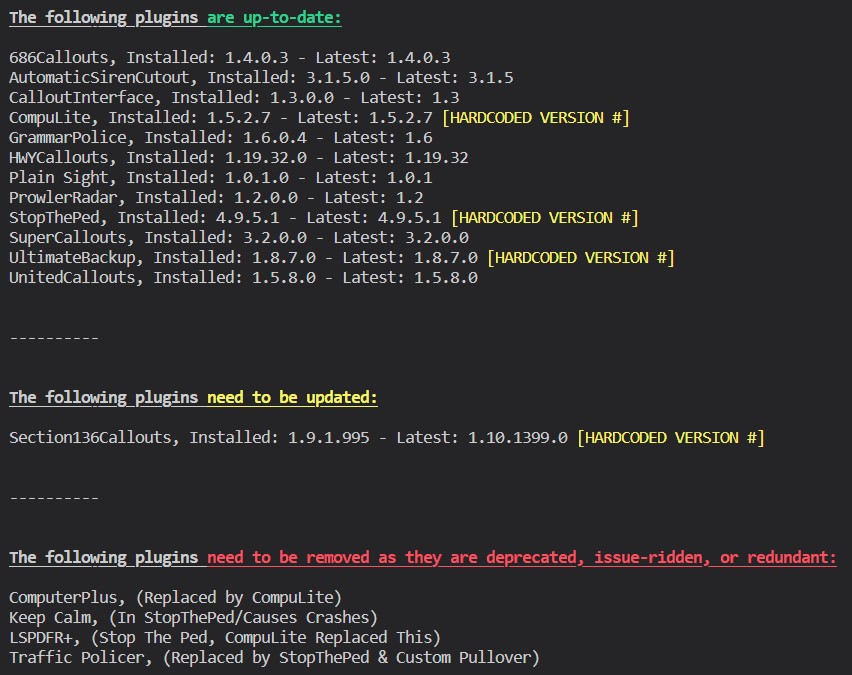 Possibly. Does your game crash while playing anymore?Try launching normal GTAV, then when it gets to the main menu, launch RAGE. Send the log of when your game crashes while you're playing.