


TreadRed
Members
-
Joined
-
Last visited
Everything posted by TreadRed
-
Try starting rage, press the settings button in general tab set threslhold to 30000 in advanced setting make sure nothing is checked in game settings>command line switches, make sure the only things checked are Directx11 and Forced Windowed Mode.
-
It depends on where they get installed. If they are installing over the belts already equipped on the officers, then you shouldn't have to do anything. If they are installing in a different location, then you would have change the drawable in lspdfr>data>outfits.xml. I believe component id 6 is for the belts, you would need to know what number its installed in. You can do this by searching for it in your apartment when changing clothes, on you have the drawable (and texture if applicable) then you would go through and update that xml. id 6 will be the 6th component down, then go through the drawables
-
Did you update Ultimate Backup today? If so you would need to redo that step.
-
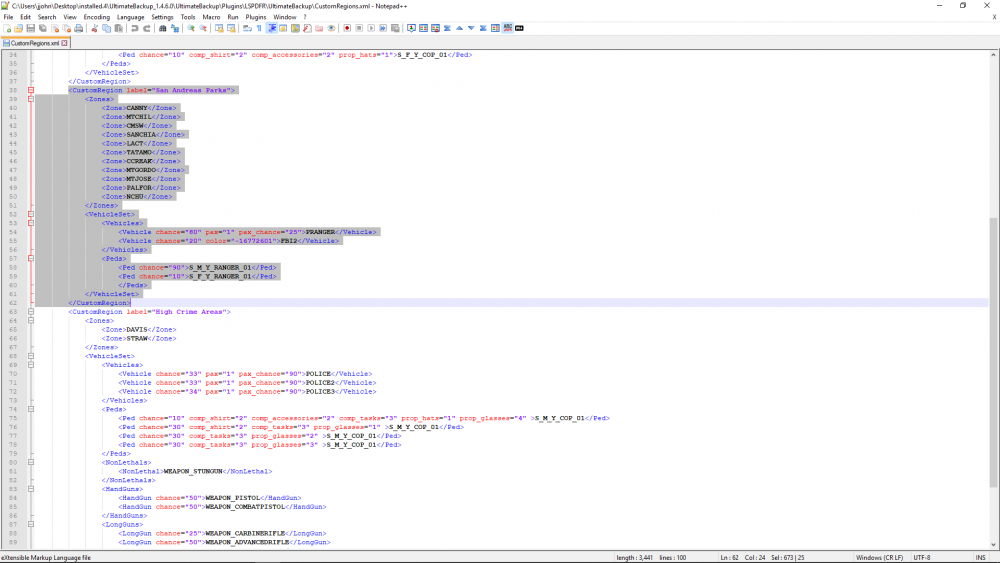
If your using ultimate backup to call for backup then you need to remove the park ranger from the CustomsRegions folder in plugins>lspdfr>ultimatebackup>CustomsRegions. Remove the part highlight in this SS.
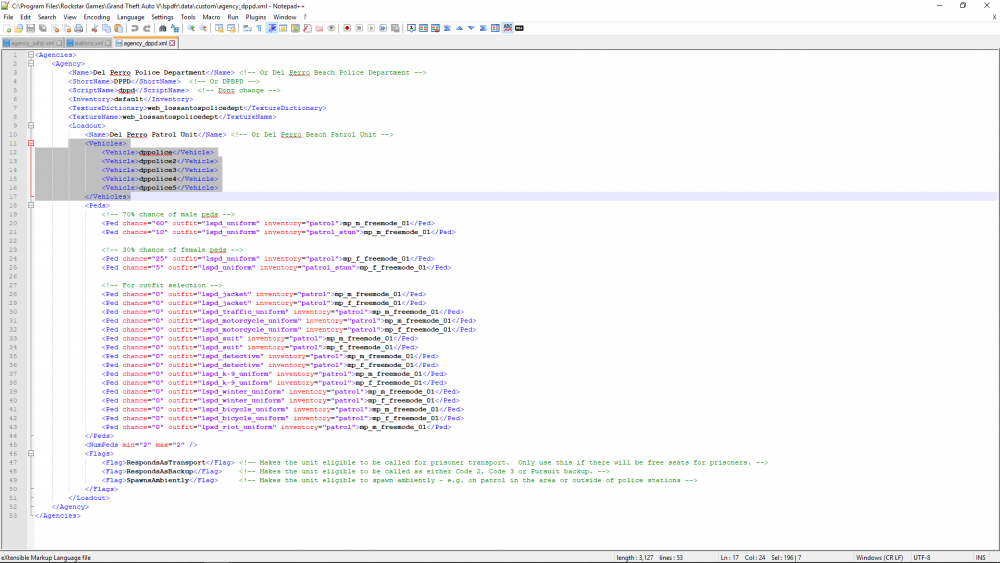
 It sounds like you downloaded an agency.xml file that requires eup, put it in your lspdfr>data>custom folder and you don't have eup.sheriff3 and sheriff4 would have to be added as addon vehicles, and at that point you could name them whatever you want. And any vehicle you add, so be it named sheriff, sheriff3, or grapeseedsheriff. The name you add it as would go in the agency you want it in, like he explained in the SS you quoted. Here is a SS of my agency
 no f's, and remove the heading on drop off positionIt didnt go to your gta 5 directory and look for RagePluginHook (textdocument) and open it here. Click choose files when your typing in the text box here, its on the bottom of the boxIDK I don't have steam.updating to the latest version of gta might fix your problemcan you play the game to post a new crash log, thanksyou need to include the whole log please get the one from Grand Theft Auto V>RagePluginHook (textdocument)Does gta5 launch on its own>?Why don't you have a playgta5.exe? if you validate files should add it back in. validating will probably overwrite any mods I see you already tried that. More than likely you playgta.exe file is quarantined in your antivirus.
 You need to have semicolon for the heading <DropOffPosition>-1627.36, -1012.10, 12.67; 140.18</DropOffPosition> <GaragePosition>-1613.30, -1028.05, 13.15; 48.79</GaragePosition> <GarageSpawnPosition>-1612.84, -1036.61, 12.70; 319.87</GarageSpawnPosition>
- 195 comments
- 24 reviews
-
-

- 1
-
Its has to have a suffix, rename it like so, inventory_custThat's why you crashing I bet, delete that file, add this one in place of it. inventory_eup.xml That's the one from the eup download.inventory def not supposed to be lol, atleast not without a suffixOk, im pretty sure that's the issue, but before you remove it you can try to play game again and when it crashes post the new file it produces, Ill see if its the same reasonDId you add a vehicle metas and carviations? could have made a typo, go take a peek and seewell somethings not right with it


Account
Navigation
Search
Configure browser push notifications
Chrome (Android)
- Tap the lock icon next to the address bar.
- Tap Permissions → Notifications.
- Adjust your preference.
Chrome (Desktop)
- Click the padlock icon in the address bar.
- Select Site settings.
- Find Notifications and adjust your preference.
Safari (iOS 16.4+)
- Ensure the site is installed via Add to Home Screen.
- Open Settings App → Notifications.
- Find your app name and adjust your preference.
Safari (macOS)
- Go to Safari → Preferences.
- Click the Websites tab.
- Select Notifications in the sidebar.
- Find this website and adjust your preference.
Edge (Android)
- Tap the lock icon next to the address bar.
- Tap Permissions.
- Find Notifications and adjust your preference.
Edge (Desktop)
- Click the padlock icon in the address bar.
- Click Permissions for this site.
- Find Notifications and adjust your preference.
Firefox (Android)
- Go to Settings → Site permissions.
- Tap Notifications.
- Find this site in the list and adjust your preference.
Firefox (Desktop)
- Open Firefox Settings.
- Search for Notifications.
- Find this site in the list and adjust your preference.