
unitedOrange66
Community Team
-
Joined
Everything posted by unitedOrange66
-
1. Is that vehicle ELS compatible? 2. Do you have a config XML file in ELS - pack_default for that vehicle? The name of the config XML must match the name of the vehicle you're using.
-
The truth is, there are two different modes for activating lights. The first one is <LstgActivationType>auto</LstgActivationType>, in this mode, ELS will be turned on and off when pressing "J" without cycling through different stages. And the second one is <LstgActivationType>manual</LstgActivationType>, in this mode, pressing "J" a total of three times will fully activate ELS. You can change the lighting mode in .XML settings for any ELS vehicle.
-
Or, you are missing textures and half of the map is missing. You have to elaborate on "not loading the map." What do you mean by that? Can you describe the issue in complete sentences with details?
-
Where were you spawning the K9 partner? Meaning were you in an open space where there was nothing above you, or were you standing under a building structure, like a roof, or bridge? As far as I know, to properly spawn a K9 partner or a police partner via UB, you have to make sure there's nothing above you, and you're not too close to anything. Or else they will spawn inside a building, or under the map. In this case they might fall from the sky while trying to teleport to you.
-
Did you install any mods until a couple of days ago? If so, the suggestion above is a decent advice to solve this issue. Because "glitches" like this won't happen if nothing is changed.
-
The reason why you have that is because Del Perro station location is misplaced. Are you using a custom MOL mod for Del Perror station?
-
Unfortunately you can't do that with UB. I recommend Automatic Roadblocks, it allows you to customize roadblocks and barriers used for roadblocks.
-
1100 is still considered a high value. If you want to decrease the lighting intensity, you should try 500 below instead.
-
Make sure "Ambient.DisableEscapedSuspectEncounter" is set to "true" in lspdfr.ini.
-
 I removed this plugin after I found out that changing keys in .ini does not work. From what I can recall when testing this plugin, this was my config for the controls: HazardKey = OemPeriod LeftBlinkerKey = OemMinus RightBlinkerKey = OemPlus BlinkerModifierKey = None EngineKey = Oemcomma EngineModifierKey = None
- 444 comments
- 16 reviews
-
 Confirmed it was More Groe that causing this "bug" with better EMS. Sorry for the inconvenience.
- 781 comments
- 85 reviews
-
I wanted to mention the same thing here, changing keybinds in .ini has no effect in-game. Can I post a suggestion here? Can you add an option to disable the prompt "hold F when exiting the vehicle to keep the engine running" in future updates?
- 444 comments
- 16 reviews
-
Can I post a bug report here? The plugin fails to detect which wound is the cause of death, even with a clean headshot; so in the EMS incident report, the wound is always "unknown" regardless of the injury type. This screenshot below is just an example, this bug occurs with every incident, not just once or twice. I'll run more tests and ensure this isn't caused by other scripts.
- 781 comments
- 85 reviews
-
The camera position issue in the garage is caused by "AxonSignal" plugin. It is a known bug reported by me. (check the plugin description)

-
I believe radio stations are disabled for emergency vehicles in all GTA games by defualt.
-
Can you switch to texture b and c in game? Sometimes for certain EUP clothing items, textures will not load correctly in OpenIV, but it will work in game.
-
Make sure there's no "Motor Unit" listed in your entire Angency.xml, and Agency_eup.xml if you have one.
-
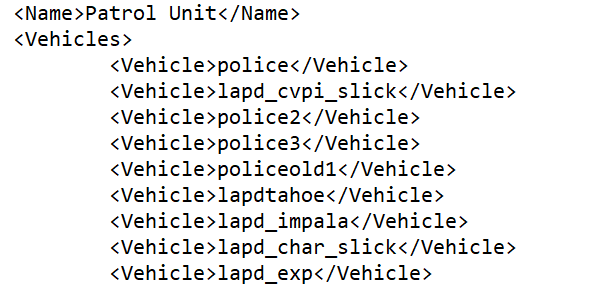
Add additional units to Agency.xml and Angency_eup.xml, under existing units:
-
You can buy an external storage SSD with at least 1GB, and transfer your current LSPDFR copy to that SSD. Install GTA V on your new PC, rename it to "Grand Theft Auto V - original," then transfer the LSPDFR copy from that SSD to your new PC, and place it in the same directory where you installed your unmodded GTA V.
-
 After the update, it keeps saying CPD broadcastify ID(37361) is invalid and refuses to stream it: https://www.broadcastify.com/webPlayer/37361
- 637 comments
- 51 reviews
-
 The odd thing is it only happens with your callouts, as someone else mentioned earlier. 😀
- 1,008 comments
- 63 reviews
-
😂 I might be wrong, the red/blue flashing circle is created by LSPDFR. But still, normally when you accept a call or ignore it, the red/blue circle will disappear on the map. But for some of your callouts the red/blue circle stays on the map permanently. Here's an example, jump to 33:27 in the video. Also, notice that the blip marker for cars or peds does not clear out upon ending the call.
- 1,008 comments
- 63 reviews
-
The red/blue blip was generated by this callout. There was no active pursuit so it wasn't "LSPDFR pursuit behavior," therefore we can't "end" it. I've noticed this bug for other calls included in this pack as well, if left unanswered, the red/blue flashing blip remains in the area where the call was created.
- 1,008 comments
- 63 reviews
-
Honestly it's pointless to explain something to someone who, first, doesn't read anything carefully before asking questions that have already been answered; second, not willing to apply critical thinking skills or try to figure out how to solve the problems on their own.🫠
- 637 comments
- 51 reviews
-
-

- 1
-
-
I got a creative idea, but I am not sure if this is practical in terms of coding: Add a Xscanner UI on the screen, similar to PoliceSmartRadio UI, it indicates the current Xscanner status(on/off), with which broadcast is currently playing.
- 637 comments
- 51 reviews
-
-

- 1
-