thegreathah
Friends of LSPDFR
-
Joined
Everything posted by thegreathah
-
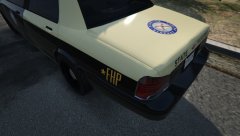 yes please shhhhhhhh :P
 -
-
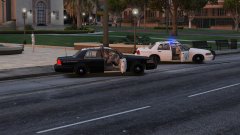 Beauty!
 -
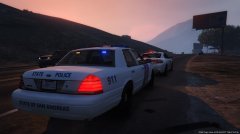 Looks great!
 -
I know what you mean... it's my second week back.
-
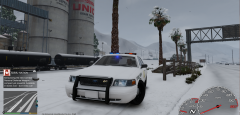 LOL me too, took me about 10 tries then realized the "0" was not numpad "0"
 -
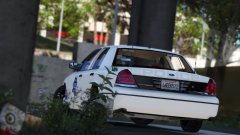 https://www.gta5-mods.com/vehicles/1999-ford-crown-victoria-police
 -
 AWESOME! Can't wait! good work!
 -
 I love that Idea, those county textures are pretty sweet!
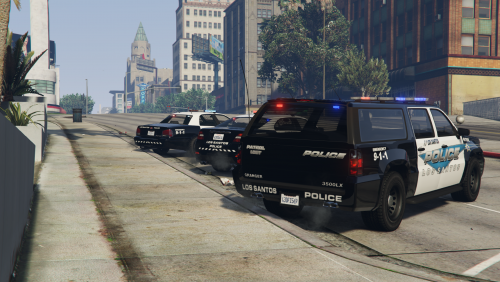 Looks awesome, been looking forward to these! Thanks! update: omg the cvpi looks incredible. Thank you!
- 6 comments
- 4 reviews
-
-

- 1
-
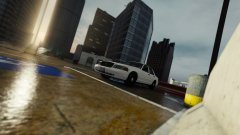 Oh my! Nice shot btw!
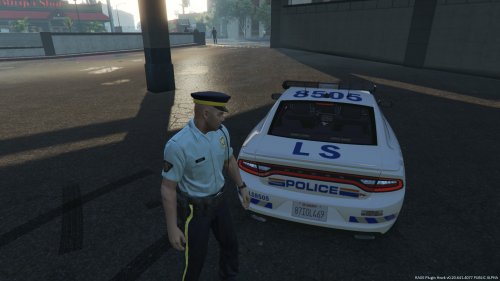 much better!
Love it, good work bro! Will you be releasing these skins? They are beautiful!
much better!
Love it, good work bro! Will you be releasing these skins? They are beautiful! Good, Better that you fixed it. One or two suggestions: link the original models so people can find them easily. Also in credits all the authors of the custom mapped vehicles should be named and the instructions should be in a readme file inside your .rar file. Other than that, looks good.No problem, just wanted to make sure everyone saw this.You should probably release this in the downloads section, not the forums. In order to do so click create on the top tool bar, then click file upload. it will allow you to upload all of this into a page in the downloads. :) These look really good by the way!
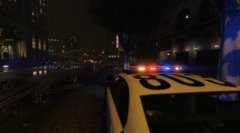 OH MY GOD. Just freaking amazing. Will be using this 24/7.
.thumb.jpg.de7f1035a55b4bef2a807d574fb7ae3c.jpg) Ahh, I tried those out and they had all sorts of problems lol
Ahh, I tried those out and they had all sorts of problems lol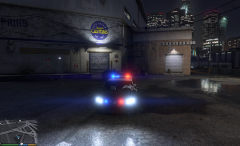 You spoil me :P
What Peds are you using? They look cool.
You spoil me :P
What Peds are you using? They look cool.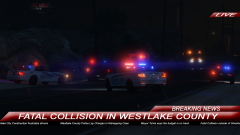 Great picture! Lovin those skins too.
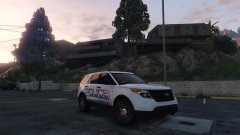 *cough* Lundy *cough*
DUDE, WOW. You have me hyped. I've never liked the SUVs in GTA V. Your model may make that a thing of the past :)
*cough* Lundy *cough*
DUDE, WOW. You have me hyped. I've never liked the SUVs in GTA V. Your model may make that a thing of the past :)



.thumb.jpg.de7f1035a55b4bef2a807d574fb7ae3c.jpg)