


thegreathah
Friends of LSPDFR
-
Joined
Everything posted by thegreathah
-
I saw someone using one already.
-
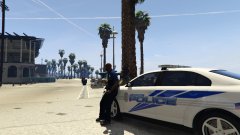 Oh sweet
 -
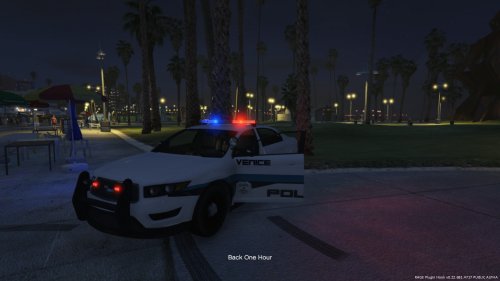 Adds a Police Interceptor Livery based upon Venice Police Department of Florida. Lt.Caine's Interceptor is required. http://www.lcpdfr.com/files/file/8329-v-interceptor-default-type/ PLEASE PM ME FOR SUPPORT Future Plans: Add Stanier with an old VPD livery based on CVPI
 -
-
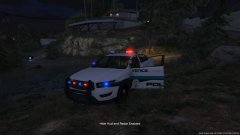 Skin I'm Working on based on VPD of Florida
 -
If you are running steam: Go to "properties" and then in there hit "verify integrity of cache". It will first find all the files you have changed and then replace them with the originals.
-
-
-
![[WIP] Los Santos County Police Skin Pack](//s3-gallery.int-cdn.lcpdfrusercontent.com/monthly_2015_08/small.2015-08-19_00009.jpg.bddfb4533d96d863b7648eeb550bd90b.jpg) This looks good dude!
This looks good dude! -
-
-
-
-
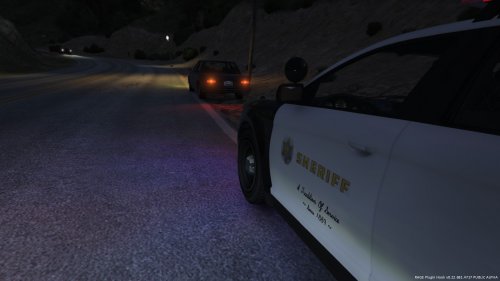 Oh that's good. Sorry, that's nothing I can fix. It is simply how the model works as the pattern is set for a stanier and not an interceptor :/
- 14 comments
- 1 review
-
-
This is a livery for Lt.Caine's Interceptor YOU NEED HIS FILE FOR THIS TO WORK:http://www.lcpdfr.com/files/file/8329-v-interceptor-default-type/
- 14 comments
- 1 review
-
-
-
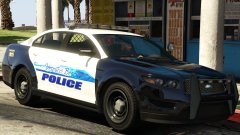 Looks good so far.
 -
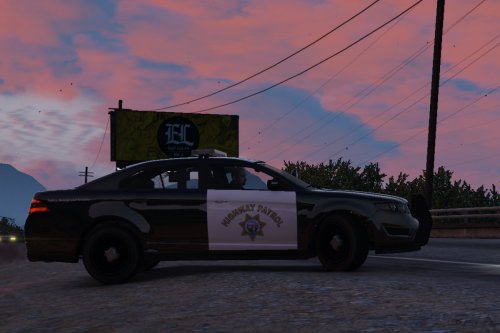 Very good. Just one bug: there seems to be a corona in the middle of the windshield.
- 27 comments
- 15 reviews
-
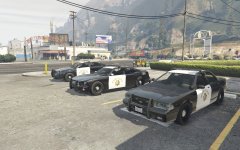 YES!
YES! -
 I've pulled her over multiple times. Proceed with caution. Talks way too much about Alaska and guns.
 -
-
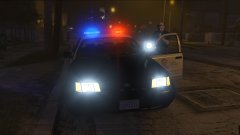 Sweet! That spotlight looks awesome!
 -
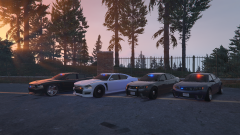 Cool. I think they look really good and people would appreciate the upload. So many car mods are so shoddy and unfinished yours looks much better. Just my two cents. Thanks for the update. Waiting impatiently to use these :)
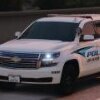


![[WIP] Los Santos County Police Skin Pack](http://s3-gallery.int-cdn.lcpdfrusercontent.com/monthly_2015_08/small.2015-08-19_00009.jpg.bddfb4533d96d863b7648eeb550bd90b.jpg)


