
Starmix
Members
-
Joined
-
Last visited
Everything posted by Starmix
-
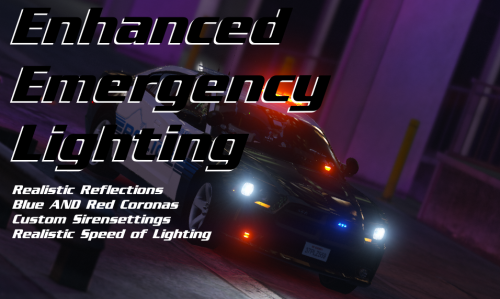 I swear i've got bad luck with this game, CHP Mega Pack didn't work for a while and for some reason this doesn't work for me. Crashes after around 5 minutes, I know it's this because I replaced the file with the original and played for 30 mins. I suppose for now, I'll just stay away from these mods even thought they look so cool :(
- 149 comments
- 33 reviews
-
 Everything about this mod is just amazing, I mean, seriously! Game changers for me are the fact that you don't have to hold a button for Yelp/Priority tones and the fact that I can now limit the CHP siren to use only Wail and Yelp! Even without the UI, this is really, really good.
- 851 comments
- 108 reviews
-
-

- 1
-
-
Install Radiance V over it.
-
Albo1125, apply directly to the Plugins folder.
-
Maybe it's because you aren't signed in. I think this is the replacement for the captcha's perhaps, and may only affect visitors since they're more likely to be bots than actual members.
-
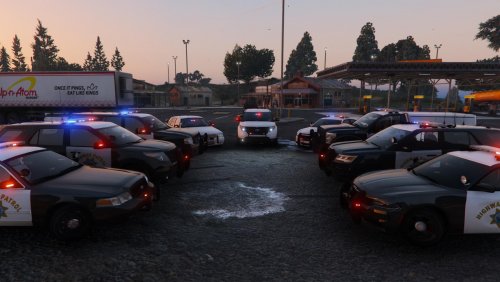 A second addon? Sure. CHP Vehicles in Wanted Stars http://bit.ly/CHP_WANTED_STARS1_0 Changelog: 1.0: - Initial Release.
- 501 comments
- 104 reviews
-
I have released an update for my addon for this pack. Optional CHP Siren for CHP Cars only http://bit.ly/CHP_SIREN1_3 Changelog: 1.3 - Should actually work with the police4, fbi, fbi2 slots now. - Redone parts of the documentation. - Redone installation process.
- 501 comments
- 104 reviews
-
CPU: Intel i5-4460 @ 4.36ghz RAM: 16GBs 1866mhz DDR3 MB: ASUS Z97-AR GPU: Gigabyte Geforce GTX 960 4GB OC @ 1.5ghz Monitor: A ViewSonic with a really long model name. 21.5 inches. Case: Cooler Master K280 USB 3.0 OS: Windows 10 Home 64bit (Upgrade)
-
You can copy the whole firetruck entry into one of the dlc folder's vehicles.meta and add that flag at the end. No guarantees but that should work.
-
Are you sure your liquid cooler isnt dead? Did you install it?
-
Install the game normally. By DLC, if you mean mods, you should be able to transfer them over. Good luck with your new PC.
-
This is an issue with the ReloadAllPlugins command. Checking each plugin individually makes it work. The RagePluginHook Discord has some more information in one of the channels.
-
Certain graphics mods seem to disable these effects. I'm running VisionV and VisualV together and have no skidmarks at all.
-
The images are messed up for me, alongside some profile pictures, but the website itself is loading fine for me.
-
try it out.
-
Well that video showed nothing at all. Make sure your PostFX and Shader settings are maxed.
-
-
I thought it was still built for RPH 17 to be honest.
-
It still works with the latest Ragehook and game version? Wow!
-
For that pack, you also need to install the provided gameconfig.xml file or else it won't work.
-
Another quick update to my addon! CHP Siren for CHP Cars only 1.2 http://bit.ly/CHP_SIREN1_2 1.2 - Updated Credits - Added iansonwheels Alternate CHP Siren (optional, disabled by default) - Added crazytaxi1000's Classic CHP Siren (optional, disabled by default) - Misc. edit's to the documentation. - Revised vehicle sounds for certain vehicles. Should work with 1.1.0 version.
- 501 comments
- 104 reviews
-
-
- 1
-
-
-
This is my computer: http://uk.pcpartpicker.com/list/zZyMZ8 Gets 60FPS when playing with Vision V & Visual V.
-
First off, your on a old game version. Secondly, your aren't on the latest Ragehook.
-