




Yasd
Community Team
-
Joined
-
Last visited
Everything posted by Yasd
-
other than that you can check the gta5 graphic requirements
-
The ram is a little to low, I recommend 16 gb, but it will still run.
-
You are missing CalloutInterfaceAPI, install that in the main gta folder, it comes with SuperCallouts. You are missing Pyro.common, install that in the main gta folder, it comes with SuperCallouts. You are missing Newtonsoft.Json, install that in the main gta folder, it comes with RansomAmbience. Update PoliceMenu. You might want to remove BetterEMS and LSPDFR+, since they are no longer updated and may causes crashes.
-
You can do it however you like, but uploading it to lcpdfr.com would give it more attention.✅🚓
-
Looks nice! Let me know when a free version is available! Then I’m sure your awesome work will get you some supporters!👍
-
-
looks like a mods folder issue, rename mods folder to _mods
-
Yes, it could be true or false. can you please post the ragepluginhook.log again and the lspdfr.ini so that I can check? greetings Chris
-
You are missing scripthookvdotnet3. make sure to install scripthookvdotnet, scripthookvdotnet2 and 3. install it in the main gta folder. https://github.com/scripthookvdotnet/scripthookvdotnet/releases InitialDHud Is wrong installed under gta5/plugins, check the installation path
-
Post the asiloader.log from the main gta folder
-
LSPDFR has a problem with giving your character a weapon. got to the folder gtav/lspdfr/chars, rename it to _chars and take the chars folder out of the lspdfr download and put it to the gta folder.
-
Post the ragepluginhook.log from the main gta folder
-
you are using an older gta and ragepluginhook version and the newest lspdf first response.dll, that doesnt work. Support is given to the newest rph, lspdfr and gta version.
-
post the ragepluginhook.log from the main gta folder.
-
are you using graphic mods?
-
from callout interface: you are missing files that belong in the gta folder: IPT.Common, RawCanvasUI and move callout interface api from gta/plugins/lspdfr to the main gta folder.
-
set the ragepluginhook laoding time for plugins to 60000.
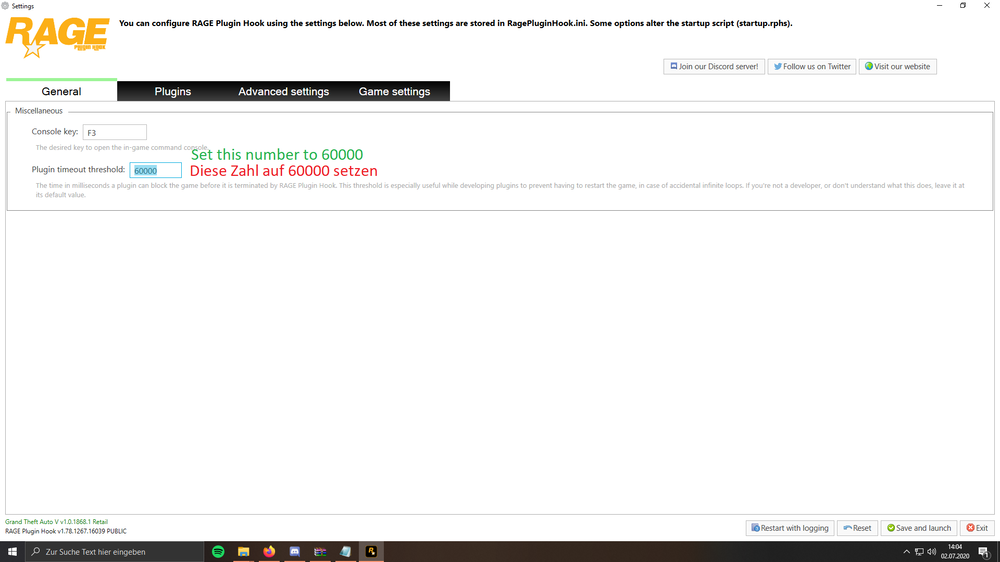
-
i somehow was on the first page of this thread when answering xD
-
do you have a gameconfig, heap adjuster installed? additionally you can install resource manager. https://de.gta5-mods.com/tools/heapadjuster
-
why the f do you keep posting the same error three times and you were already told twice what to do?!?! 1. 2.
-
you are installing it wrong. open the "bin" folder from the downloaded file and then drag and drop all files in the gta folder. hope this helps👍🏽
-
post the ragepluginhook.log from the main gta folder, so i can see your game version. which scripthookv version do you use? for the latest gta version you need ScriptHookV_1.0.3028.0 http://www.dev-c.com/gtav/scripthookv/
-
you said "this appears to work", so what have you done after it works so it doesnt work anymore?
-
You didn’t rename scripthookvdotnet.asi which means it loads stuff in the scripts folder. rename scripthookvdotnet.asi and check, if the error is gone.
-
Post a screenshot of the gta folder And the ragepluginhook.log from the main gta folder would help too



