


Reddington
Members
-
Joined
Everything posted by Reddington
-
Are you positive you placed the ELS XML/VCF that came with the car in the pack_default folder? Your topic has been moved to GTA V Support, this is not LSPDFR related. Please post in the correct location in the future.
-
You're welcome. :)
-
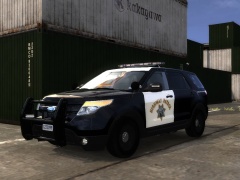 Calling someone lazy isn't slander. Teachers call students lazy, do you hear anyone throwing a fit other than the student who doesn't want to admit it? It's not going to change because it's censorship. We don't allow members to bash each other or be rude, but giving a legitimate opinion and saying someone is lazy is not slander or being rude. If you think it should change, post a topic in the website section and suggest it. Otherwise, lets drop this topic and get back to what we're here for, the picture.
 -
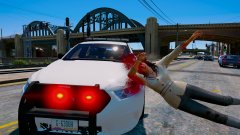 As I said to someone on FB, you're next on my list to run over just for saying that. :P
 -
1) is this BCSO pack ELS? Link to it, please. 2) I don't think you'll be able to use it with EUP. The EUP developer changed the way it's installed, and if I remember right, it no longer uses an EUP folder.
-
From the album: Red's LSPDFR chaos
-
Again, that is personal opinion. There aren't rules against calling a mod author lazy, and there never will be. It may be disrespectful, but if it's not said in a rude way or is a personal attack, you can call someone lazy and say their pack sucks.
-
You're welcome. :)
-
There are plenty of ELS packs both for LSPD and BCSO. You can check out the vehicle models section of our downloads - https://www.lcpdfr.com/downloads/gta5mods/vehiclemodels/ also check on GTA 5 mods - http://gta5-mods.com/ For the LSPD, personally, T0y's Goose Creek pack is one of the best -
-
You're welcome.
-
Hi there, Setting ELSTrafCTRL to false will fix the AI driving off like mad. However, if they are not pulling over for your siren, the vehicle you're using doesn't have the proper law enforcement flags. This could be caused by a few things. 1) In the vehicles.meta, this vehicle does not have FLAG_LAW_ENFORCEMENT or FLAG_EMERGENCY_SERVICE 2) You do not have a carvariations line for the vehicle. or 3) In the carvariations, sirensetting is set to 0. It should at least be on 1.
-
Don't worry, I'll harass Fiskey until he gets one up for all the staff.

-
You're welcome! Let me know if something else comes up. :)
-
Open the .yft of the vehicle you're replacing the texture of. How does the vehicle look in the viewer?
-
Before ELS, no you couldn't, because you wouldn't have a siren. However, with ELS you can change the namehash to stanier or the actual vehicle name, but the problem is, and I experienced this for myself, when you get into the vehicle, the car radio is on with no way to turn it off except by turning down the music volume entirely. This isn't a big deal, but I don't know what other side affects using that namehash may have, so you're free to give it a try.
-
1) Make sure the texture you're importing has the exact same name as the texture in the .ytd. For example, if the texture is named tahoe_sign_1 in the .ytd, the new texture needs to be of the exact same name. 2) If the vehicles have a +hi.ytd, check to see if there's also a texture you need to replace there.
-
Friendly reminder that everyone is free to their personal opinion. You don't have to like it or agree, but there is no need to attack them over it.. Lets keep it civilized, please.
-
I'm a bit confused as to what you did. By default, BetterEMS uses the ambulance slot, regardless of the vehicle that is in said slot, same for FBI2. Please post your Rage log. This topic has been moved to the appropriate forum. Please post in the correct location in the future.
-
This topic has been moved to the appropriate forum. Please post in the correct location in the future.
-
Or grabbing the common file from the misc section of our downloads.
-
No, because honestly, one isn't needed. It's really simple to do.. Just go into the vehicles.meta, look for the flags, and add a new one in the same way the others are. Here's a normal flags section: <flags>FLAG_HAS_LIVERY FLAG_EXTRAS_REQUIRE FLAG_EXTRAS_STRONG FLAG_LAW_ENFORCEMENT FLAG_EMERGENCY_SERVICE FLAG_NO_RESPRAY FLAG_DONT_SPAWN_IN_CARGEN FLAG_REPORT_CRIME_IF_STANDING_ON</flags> Notice "FLAG_HAS_LIVERY"? That's how you add it. If you need further help, please create your own topic so we aren't hijacking Legion's.
-
Yes. It'd have to be added in the vehicles.meta under the <flags> category.
-
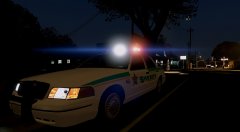
From the album: Red's LSPDFR chaos
-
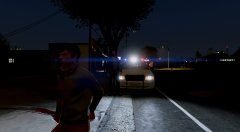
From the album: Red's LSPDFR chaos
-
Good luck. :)


