



BlueLine Vibes
Insiders
-
Joined
-
Last visited
Everything posted by BlueLine Vibes
-
-
 Having a lot of fun with this mod. Well thought out. Look forward to other callouts.
- 166 comments
- 75 reviews
-
-
 Not sure I would tell the people that download this to just go to: Grand Theft Auto V\x64e.rpf\ So here is the correct pathway Grand Theft Auto V\mods\x64e.rpf\models\cdimages\componentpeds_s_m_y.rpf\ (INSTALL FILES HERE) Also encourage people to use the 'mods' folder for safety I think a lot of the modding community are forgetting we have new people here that need help with correct pathways. Surprised that no one bothered to even mention this in the reviews
- 9 comments
- 3 reviews
-
-
 Extremely fun and useful plugin. Makes finding the callouts easy and you have full control over your experience. INSTALL VIDEO:
- 138 comments
- 34 reviews
-
-

- 1
-
-
 Well done bro. Just now found this mod. Stop by the channel sometime and say hi.
- 31 comments
- 17 reviews
-
 Captain14 - I have been making LSPDFR videos for over a year now. I have to admit that you are now in my top 3 favorite car modders of all time. Not only are you cars very detailed and the ELS is spot on, the liveries and on top of that you have a package installer that literally takes 5 seconds to install every car model. Outstanding sir!! 5/5
- 779 comments
- 187 reviews
-
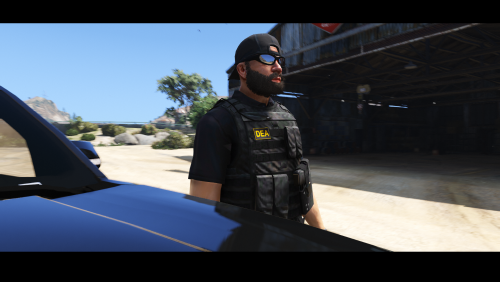 That is not a stupid question bro. This is how we learn, all together. I guess it depends on what you use as a trainer. Currently I am using Simple Trainer https://www.gta5-mods.com/scripts/simple-trainer-for-gtav Its a very nice trainer and a lot of people use it. Simply go to Model Spawning, then to either Body Guard or Ped just depends. Look under the U section and you will look for u_m_m_doa_01 , the cool part about this trainer and I am sure other trainers do this as well, you can go to the Body Guard section for example and select the clothes menu and you can keep hat, remove it, put glasses on, give them weapons etc. Hope this helps. As far as spawning it by model name? You could try u_m_m_doa_o1 see if that works, otherwise use my steps. ~Benzo
- 5 comments
- 4 reviews
-
-
- 2
-
-
 Would love early access.
 -
-
-
-
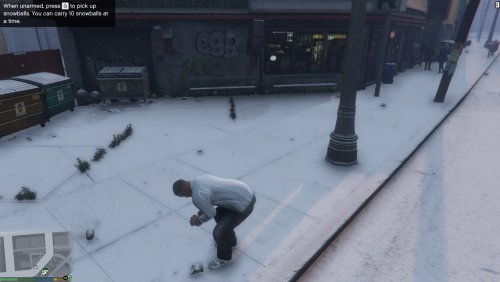 Do you know which particular trainer Kilyin? Mine definately has the ability to change the weather but not the ground cover that I can see
- 85 comments
- 33 reviews
-
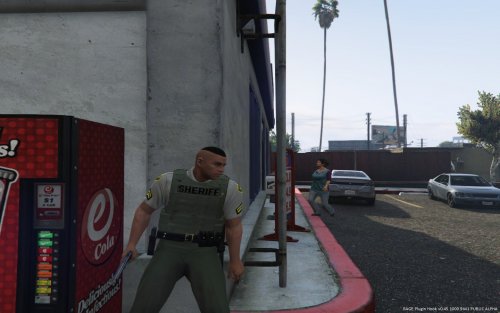
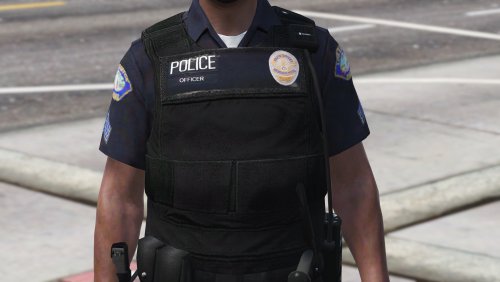 Have no idea why I ended up with a Camo vest and just a tan vest. I installed it into the correct pathway I am sure.
- 14 comments
- 4 reviews
-
-
I enjoy your secondary callouts. I used them in several videos on my channel. Can't wait to see what you have next.
-
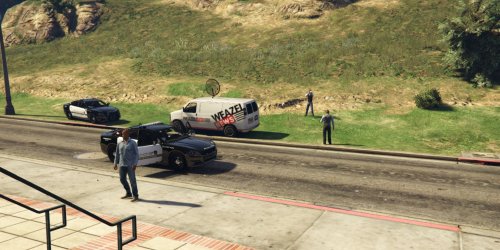
 Fantastic and fairly realistic radar script. I am sure you can only make it better. Already a 5/5 Fun Radar to use. Showcase Video
- 168 comments
- 29 reviews
-
-
- 3
-
-
-
.thumb.jpg.a4a34b706ab065eb1cdc7c8e75034ea3.jpg) Have no idea what most of you are smoking!?! Another fantastic Job by BxBugs123. Feel free to say that you found this review non helpful. If you knew Bxbugs123 and the high quality work he does, then you would know he doesn't jack around with his releases. I love it.
Have no idea what most of you are smoking!?! Another fantastic Job by BxBugs123. Feel free to say that you found this review non helpful. If you knew Bxbugs123 and the high quality work he does, then you would know he doesn't jack around with his releases. I love it.- 30 comments
- 28 reviews
-
-
- 2
-
-
-
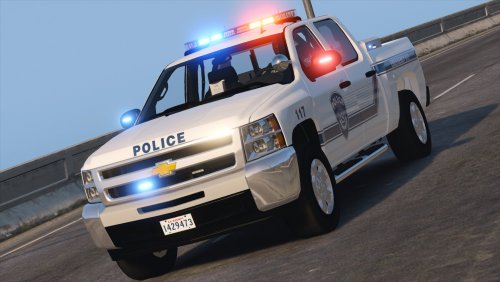
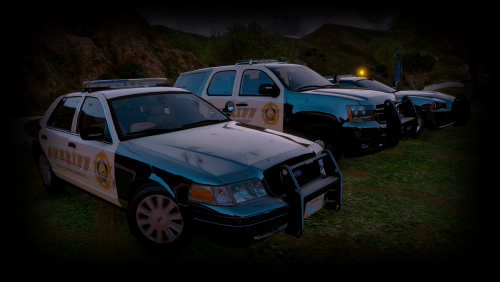 Very nice indeed Captain14. Love the models, the lighting, the simplistic approach to the installation process. 5/5 Keep up the great work
- 445 comments
- 108 reviews
-
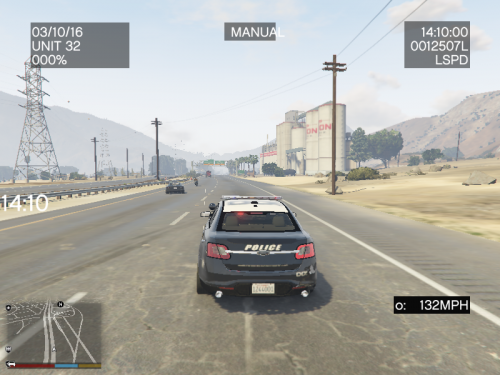 A decent Plugin when on streets and in certain city atmosphere. However, on the highway it causes the opposite side of the freeway to try and pull over all at the same time as the side I am on as well. This causes almost like a parting of the red sea on both sides of the highway.
- 528 comments
- 42 reviews
-
-
- 1
-
-
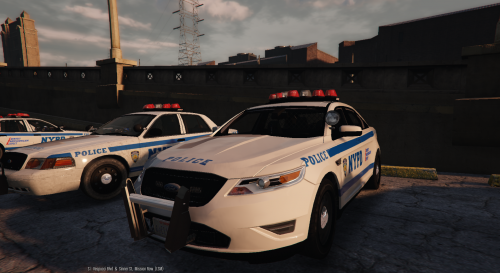
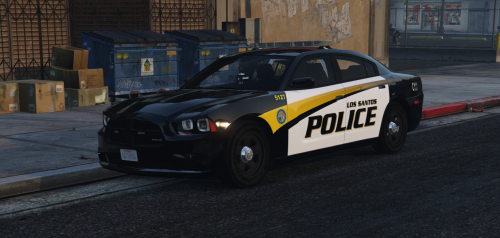
.thumb.png.63a9dd2c9aeb24c87bf6ae187716cdfa.png) Fantastic looking, even during the day time. The night looks spectacular. 5/5 nice job!
Fantastic looking, even during the day time. The night looks spectacular. 5/5 nice job!- 27 comments
- 10 reviews
-
 Ahhhh dang sorry man. I had never reviewed it and used it off and on. All good. Definitely deserves the 5 star mark it was just the performance thing which I am sure you are working on.
- 247 comments
- 45 reviews

.thumb.jpg.a4a34b706ab065eb1cdc7c8e75034ea3.jpg)
.thumb.png.63a9dd2c9aeb24c87bf6ae187716cdfa.png)
