cp702
Friends of LSPDFR
-
Joined
Everything posted by cp702
-
Don't underestimate their military, but you're right about China not wanting to attack the US. Though, the exact same thing could be said the other way around: there is no way the US would attack China. One of the best parts of globalization: trade links prevent wars.
-
That's normal. Most cars are off, because there are no lights or sirens on, say, the Faggio. What's odd is that Police is active. You ARE using ELS cars, and can't turn on lights with J, right?
-
To try to alleviate confusion: There are two things that control chance: overall probability and chances. The pseudocode is this: if (random() < overallProbability) spawn(); spawn() will spawn a car if able (it will *not* spawn if there are more than 5 spawned cars that still exist, or if it can't find a car to despawn in 5 attempts). The "chances" value controls the chance that a car will spawn, relative to the chance that other cars will spawn. So, if you set one car with 1 chance, and the other with 4, the one with 4 will spawn 4 times as often as the one with 1. The sum of the probabilities for each car to spawn in a tick is the overall probability. This can't be greater than 1; to prevent spamming, there is at most 1 car spawned per tick. So, what do you mean by 60% chance? Each tick, there's a 60% chance that HWP1 will spawn?
-
Post ScriptHook.log.
-
 Can you send me the texture, and I'll see if I can get it to work?
 -
What's wrong with it?
-
There's no good way I've found to make it work. They do different things. The chances is used to randomly select a set from the list, in such a way that one and only one set is selected. The key properties are: If A has twice the chances of B, then A spawns twice as often as B The probability of *some* spawn occurring is constant. Given these constraints, I'm pretty sure this is the only way to do it. The Response is just deciding a yes/no question; this is much easier.
-
-
-
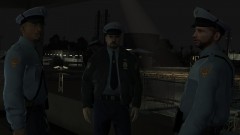 You could even just remove the badge entirely, and instead have some sort of pin (like a 9/11 pin, for example). @DerangedSomali: It's actually kinda hard to get a non-LCPD patch to appear right. Essentially, the area normally occupied by the LCPD patch is MUCH more precisely mapped than the rest of the model. That's also why: it's hard to put "POLICE" on the back of a coat, it's hard to put a badge on the strooper, etc.
 -
The front of that seriously looks like a CAD.
-
That's the sort of thing that's really easy to say when you're not in the situation. However, these are teenagers, and they may not realize that there are many people who want to help them out. Instead, they may think that there is no way out of the bullying.
-
IIRC, rextex128 shows off mods he finds, and is perfectly willing to give them to people who ask.
-
The solid red and blue lights on the lightbar. They don't flash at all; they're just on. If it makes it clearer: The very, very old LAPD setup had 2 "tin can" lights. In each one, the front was a bulb in a red lens, the back was a bulb in a yellow lens. When the lights were switched on, the yellow lights in the back flashed (slowly), while the red lights in front turned on and stayed on (as if they were lamps). Those are pretty much the California requirements: one solid, non-flashing red light, and flashing yellow in back.
-
The 4shared version was a special version to let you set the chance of an emergency response. I'll put it on MediaFire; I didn't know 4shared needed registration now. I just didn't think it justified another update in the DL section; it will be fully integrated into the next update, though. EDIT: Damn it, I just checked, and I think I put up an old version. Newer one en route. I feel REALLY embarrassed.
-
In RL, at least in the US, guards don't carry firearms if they're in contact with inmates.
-
-
-
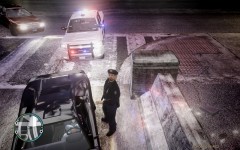 Leather jacket could be an acceptable alternative. It is water-resistant, I assume.
 -
The cars don't necessarily all respond. By default, 30% do. In the DLL I put on 4shared, the user instead specifies the probability of an emergency spawn (in a scale from 0 to 1). You don't need emergency spawns at all; some of my most fun experiences in LCPDFR have involved patrolling SWAT teams jumping into a chase and arresting the suspect at rifle point. The impact of this on your computer really depends on what you want it to be. Use default cars, and there should be very little performance hit. Use low probability of spawning, and likewise. Use ultra-common spawns of 500,000 poly ELS v6 cars doing emergency responses...just make sure to call 911 as you run from the fire consuming your computer.
-
-
The version on 4shared actually has the chance of a response user-specified, so you could do more control. Actually, one nice thing is that I can offload a lot of tough choices onto the INI, (instead of making compromises ), because the idea is to have the most flexibility possible. I think I know how I would implement vehicle exclusion (my term for making sure a certain vehicle doesn't spawn "naturally"). Also, I'm looking to see what I can learn about what syncs in MP. If I could find some unimportant thing, I could maybe change it for 30 seconds at the beginning and use that to figure out who else is using the mod. I have found something else which almost certainly doesn't sync, but if it does, it's awesome and would make this a snap. As it is, though, it just has the ability to quickly suppress and unsuppress it ingame.
-
For more advanced mesh combinations, there are additional steps. First, you need to renumber the mesh you add so it doesn't conflict (or, if you remove a mesh, renumber the other meshes so they have the proper range). Other than that, the biggest issue you're likely to face is textures. GTA doesn't seem to care about the texture you assign in the openFormat. Instead, it matches textures to meshes the following way: uppr_001_a_uni reads as *meshname*_*letter*_*race* (letter acts like the mesh number). If you read my "Ped Texture Discoveries", you saw more detail on this. What does it mean for you? Well, let's say you delete a mesh, renumber, but don't fix textures. What you get is the texture for, say, the long-sleeved shirt being applied to the jacket. This can look really weird, and is definitely not what you want. So, what you have to do is delete the textures for the mesh you removed, and renumber the higher textures. To rename a texture in OpenIV, make sure you're in Edit Mode, open the wtd, and double click the specific texture. Enter your new name. To delete a texture, highlight it and hit "Delete" on your keyboard. Obviously, you have to delete or rename a texture before you can give another texture its name. Also, if you have added a mesh, you need to add textures for it. What you want to do is drag the appropriate textures from OpenIV to some folder (click the name on the left of the wtd browser, and drag to Windows Explorer). They'll show up as PNGs. Renumber the textures by changing the number in the file name. Then, open the wtd for the model you're changing, and drag the PNGs to the window. Hit "OK" for mipmap generation, and you're done. Any questions? Comments? Other ped modelling information? Post below!
-
How do we do stuff with this format? Some stuff should be clear. For example, let's say we want to get rid of the raincoat (uppr_003_u). We just delete that section in the odd. That's all. (in this case, we'd also delete lowr_001_u, because it's the pants that go with the raincoat, but that's a special thing about m_y_cop). Note also that if we instead had deleted uppr_002_u, we'd have to renumber uppr_003 to uppr_002. How do we renumber? We need to change the number in the header and in the textures section. Don't change it in the meshes section. This is key: under no circumstances should you modify the path to the mesh. Now, let's do something cool: adding the white cop head. This is easier than most additions, because the textures for the head are already in m_y_cop.wtd. Here's how we do it: First, export m_y_cop.wdd (the GTA IV rendition, not the EFLC one. If you have EFLC, you can find this rendition in pc/models/cdimages/componentpeds.img; the EFLC-specific one is in the TBOGT and TLAD directories, and while this would work, the textures aren't already there, so it's harder). Next, we need the mesh for the white head. Fortunately, as Custo discovered, TLAD's m_y_prisonguard.wdd is just a modified version of IV's cops. In particular, it has all 3 heads (though it doesn't have a raincoat or short sleeves). So, we want to export that to the same folder we exported m_y_cop.wdd to. Next. open both of the .odd files in a text editor. Find the section called "gtaDrawable head_002_r" in m_y_prisonguard.odd. Copy it into m_y_cop.odd, just before the final closing brace (but after the second-to-last brace). Since it has the right number, all we need to do is change the skeleton. Change it from m_y_prisonguard.skel to m_y_cop.skel. Save the file. We're now done with the openFormats (see how easy that was?) Now, all that's left is importing it back in. OpenIV can do this too. Go to componentpeds.img, and click the "Edit Mode" button up top. Under "New", select "Import openFormats". Browse to m_y_cop.odd, hit OK, and wait for it to finish. Now, double click m_y_cop.wdd to preview it (this specific feature is why I first started using OpenIV above SparkIV). Select head_002_r, and check that it looks OK. If it doesn't, you made a mistake somewhere (you did back up, right?) It probably does, though. If it does, you're done! Launch GTA and see the white cops now patrolling Liberty City!
-
Now that the issues with OpenIV and ped export/import have been fixed, you can edit default ped models. Doing much more than basic model editing is kind of complicated, and requires 3D modeling knowledge. However, there is one very useful thing you can do without knowing 3D modeling: combining different ped meshes. What is a ped mesh? It's a component like head_002 or uppr_001. For example, for skinny cops, the long sleeve shirt is one mesh, and the leather jacket is another. By combining them, you can have cops with only short sleeves and jackets; cops with state trooper pants; state troopers with a regular cop's long sleeve shirt (instead of their weird one); etc. So how does this work? To start with, you need OpenIV. OpenIV can export .wdd files to its own format, called openFormats. Crucially, openFormats are text-based. To export a model to openFormats, first navigate to componentpeds.img (click the arrow next to GTA IV or EFLC, under pc\models\cdimages). Then, right click it, and select "Export to openFormats (.odd)". Make a new folder somewhere, and select it. Then, hit "OK". This folder should look like this: Open the .odd file in your favorite text editor. It should look like this: Each gtaDrawable section represents one mesh. It doesn't contain the actual mesh; all it does is to tell OpenIV about the mesh when you import this back in at the end, so OpenIV can set up the .wdd properly. Let's look at one section of it: gtaDrawable lowr_001_u { shadinggroup { Shaders 2 { gta_ped.sps LOWR_DIFF_001_A_UNI LOWR_NORMAL_001 35.00000000 0.20000000 1.00000000;0.00000000;0.00000000 LOWR_SPEC_001 1.00000000 gta_default.sps LOWR_DIFF_001_A_UNI } } skel { skel m_y_cop.skel } lodgroup { mesh { high 1 m_y_cop\lowr_001_u_high.mesh 0 9999.00000000 med 1 m_y_cop\lowr_001_u_med.mesh 0 9999.00000000 low none 9999.00000000 vlow none 9999.00000000 center 0.00081600 0.07059900 -0.52030600 radius 0.54099200 aabb.min -0.23394000 -0.14672600 -1.00492300 aabb.max 0.23622800 0.28086400 -0.02737300 } } } Seems complicated, right? We don't actually need to worry about most of it. Let's go through line-by-line: gtaDrawable lowr_001_u This is the mesh name. The lowr_001_u tells OpenIV what mesh it's dealing with. The lowr means that this is a lower-body mesh (i.e., a pair of pants). The 001 is the number of the mesh. The rule for these is that they have to be unique within a given type, and range from 000 to 00n, where there are n+1 meshes of that type (i.e., there is lowr_000_u and lowr_001_u; uppr_000_u through _003_u; etc.) Worry about this at the end. I don't know what the _u is; since we're not making our own meshes, just keep it _u if it started as _u (which seems to be clothes), _r if it started as _r (seems to be heads), etc. All you would ever need to change is the number; the lowr_ and _u should stay the same. gta_ped.sps LOWR_DIFF_001_A_UNI LOWR_NORMAL_001 35.00000000 0.20000000 1.00000000;0.00000000;0.00000000 LOWR_SPEC_001 1.00000000 gta_default.sps LOWR_DIFF_001_A_UNI Ignore the numbers. All you need to care about is the LOWR_*_001_* parts. Those represent textures for the model. Now, GTA seems to select ped textures its own way; read my tutorial on ped textures for details. This probably just controls OpenIV's preview of the ped. Even so, you may as well update it when you have to. Again, all you'd change is the number in there. skel m_y_cop.skel This defines the skeleton that this mesh maps to. You want it to be the same as the name of the odd file, but .skel instead of .odd. high 1 m_y_cop\lowr_001_u_high.mesh 0 9999.00000000 med 1 m_y_cop\lowr_001_u_med.mesh 0 9999.00000000 This is the key part of the section. It tells OpenIV where to find the mesh file. In your folder, you should have seen a subfolder called m_y_cop (or whatever). That has a lot of .mesh files inside. The m_y_cop\lowr_001_u_high.mesh is actually literally a filepath for the mesh. OK, this explanation of the file format is done. The next post will have a tutorial to do stuff with these files.