A Stranger
Members
-
Joined
-
Last visited
Everything posted by A Stranger
-
Did you update your mods folder?
-
Rename mods to _mods.
-
Reverted versions on retail cause issues, even with -SCOfflineOnly, which has been patched. Verify your game files and wait for updates.
-
If you're on Retail and don't have a proper, full backup, then no. R* Launcher and EGL are especially good. You can illegal download files but that is 1. illegal and 2. against any ToS and common sense to make the game work. Next time, I recommend a full, complete clean folder of GTA V and once the game updates use it.
-
They're not there for that. They will give the player a health pack and revive downed peds.
-
-
-
You're more than welcome!
-
If you use a trainer, reset the settings in it. Any other scripts you installed recently?
-
You should probably move to LSPD:FR support for this. Anyways, try a clean install of UltimateBackup (.xml's too please). If you have the Trainer setting for "IgnorePlayer" or "IgnoreEveryone" on, disable them.
-
ELS and PoliceSmartRadio are loading entirely separate ways. Does it work before you get a call?
-
Only thing you can do is try a lower gameconfig. (Like the Stock one from here: https://www.gta5-mods.com/misc/gta-5-gameconfig-300-cars) Besides that, you can try and adjust the size in the Heap, but that's about it.
-
Did you install ScripthookV? http://www.dev-c.com/gtav/scripthookv/
-
Please send your RagePluginHook.log.
-
Can you send screenshots?
-
You may want to check the police3.xml and link the car you are using with it. 🙂
-
1. Make sure Albo's MODDING DLC pack is in dlclist.xml (Mods/update/update.rpf/common/data) 2. Make sure the vehicles have their own vehicles.meta and carvariation.meta. Maybe even handling.meta if needed. They're all to be added in the MODDING DLC folder. 3. Make sure the vehicles.meta name actually matches the model file name. (police6.ytf f.ex) 4. If it's a high-poly vehicle you may have to give it some time for it to appear.
-
You need to turn off Traffic Control in the ELS.ini.
-
Please send your RagePluginHook.log, located in your GTA V folder.
-
LCPD:FR is for GTA IV, so I hope & assume you mean LSPD:FR. The "error" you are getting is just a warning which you can click "OK" and then it will launch. If you want to play online, however, you should only do so with a clean GTA V folder.
-
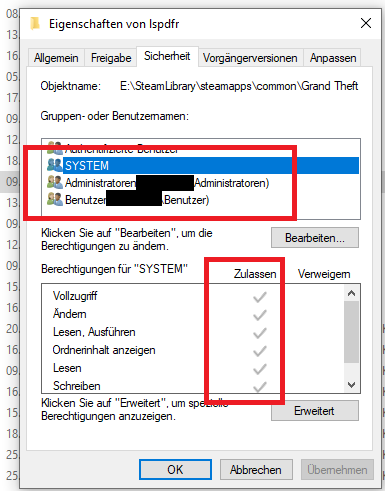
What's your Antivirus? If it's Norton, McAfee or anything the like, remove it, restart your PC and make sure Defender is turned on & working. Then, add your GTA V folder as an exception in Defender. If that doesn't work for you, make sure that your GTA V folder, LSPDFR folder & RagePluginHook.exe have all permissions in the Security tab of their properties. Running RagePluginHook as admin may also help. Reference: SYSTEM, Administrators & your user should have all checkmarks. (Except for Special Permissions) Anything like nVidia Overlay or even AMD Radeon Overlay should be disabled.
-
You are missing files for UltimateBackup or you installed it incorrectly. Go here; https://www.bejoijo.com/post/ultimate-backup and reinstall it.
-
1. Verify your game files. You can't have EUP in both. It should only be in /mods. 2. Check for dlclist.xml in your mods folder. It may have become corrupt or your path isn't proper. Can you send a screenshot of how your /mods folder is structured?
-
Remove Interaction+.
-
If you installed EUP into your mods folder, make sure it is setup properly. To setup your mods folder, simply copy the "update" folder into /mods. This will add all the required DLCPacks. But it will take a bunch of space.