


A Stranger
Members
-
Joined
-
Last visited
Everything posted by A Stranger
-
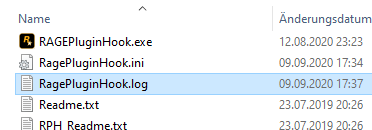
Starte RagePluginHook noch einmal und lass' es crashen. Dann wird dieser .log erstellt. Es ist gut möglich, dass bei dir die Endung ".log" nicht vorhanden ist. Dann ist es einfach nur die RagePluginHook text-Datei.
-
-
Remove in /Plugins/LSPDFR: ArrestWarrantCallout; Code 3 Callouts, Code Red Callouts and WildernessCallouts.
-
Okay. Ist das immer noch das Problem? Falls ja, dann schicke bitte deinen RagePluginHook.log. Ist eine Text-Datei in deinem GTA V Ordner.
-
ELS requires ScripthookV since that is what hooks it into the game. ^From the ELS download page instructions.

-
Looks like you are missing ScripthookV.
-
Do the lights flash or are they stuck? Please send asiloader.log from your GTA V folder and screenshot GTAV/ELS/Pack_default.
-
Try it with the vanilla STP.ini.
-
Try reinstalling LSPD:FR 0.48 manual. Do you have a scripts fodler by any chance?
-
You're welcome. Enjoy!
-
Did you edit the STP.ini?
-
Bitte downgrade nicht. Erstmal, die neuste GTA V version ist 2060.1. Und RPH und LSPD:FR unterstützt das. Also, wo genau liegt dein Problem?
-
He is not missing files, the startup.rphs was corrupted. Rename the LSPDFR folder in /Plugins to _LSPDFR. Let's see if it's an isolation issue.
-
Remove SimpleCallouts and make sure you are using the vanilla keys.ini for LSPD:FR. You should also delete startup.rphs in your GTA V folder, it still has your old, wrongly installed plugins listed, despite you having removed them.
-
Your LSPD:FR plugins won't, but LSPD:FR still does. If it doesn't crash with _LSPDFR; it's one of your plugins. I recommend removing MegaPhone UI; SpeedRadarLite and UnitedCallouts. Then test again.
-
Does it work?
-
First of all, you have a bunch of outdated Plugins, but none of them cause this issue. If you have a Trainer (Menyoo, SimpleTrainer, NativeTrainer) make sure that "Everyone Ignore Player" and "Never Wanted" are disabled. Also; if none of the above worked, remove your Trainer (.asi and .ini file), test it ingame. If it works, you had an issue with your Trainer Settings (.ini) file. If it doesn't work; let us know.
-
It's definitely your mods folder. If you haven't yet, you need those if you installed DLCpacks: Gameconfig; choose 1x Traffic 1x Peds or 1.5x: https://www.gta5-mods.com/misc/gta-5-gameconfig-300-cars Heap Limit Adjuster: https://www.gta5-mods.com/tools/heap-limit-adjuster-600-mb-of-heap Packfile Limit Adjuster: https://www.gta5-mods.com/tools/packfile-limit-adjuster
-
Rename your mods folder to _mods; then do this: Make sure you have all of the requirements installed. If it says you already have them installed; reinstall them to be sure; https://www.microsoft.com/en-us/download/details.aspx?id=48130 http://www.microsoft.com/en-us/download/details.aspx?id=13523 https://www.microsoft.com/en-us/download/details.aspx?id=52685 Then, add your GTAV folder (named Grand Theft Auto V, nothing else) to your Antivirus exceptions. After, reinstall LSPDFR 0.4x manual and RagePluginHook.
-
Open commandline.txt in your GTA V folder and remove everything in it. Save & close. Then; locate the LSPDFR folder in /Plugins and rename it to _LSPDFR. Then launch RPH.
-
Make sure you install this after EUP 8.x.
-
Remove vfs.dll in your GTA V folder, then try again.
-
That is how you update it. You could go and copy the Patchdays over, but that won't make much of a difference.
-
May I ask what you installed with LML?
-
Can you send your log with those ^ installed?


