
Steele1925
Members
-
Joined
-
Last visited
Everything posted by Steele1925
-
 Sadly no. It has to do with the way that the police radio mod is coded. It doesn't play nice with custom audio. Yes I know. Sadly, I've essentially run out of quality audio. If the LSPDFR audio files were structured in a different way, then I could do some cool stuff with this (I.E. making specific officers have specific audio etc.). But, this is where we are. My ultimate goal with this mod was, is, and always will be, to inspire people who are better at this than me to come up with their own ideas and really make something that blows my mod out of the water. That's the goal. I believe I stated this before, but just in case I'll say it again. For the record, I'm not a Credit Hungry guy. I don't care what people use, I just want the community to be creative and have fun. But something to look forward to is this mod here that I'll link. I see promising stuff. Right now, I have it installed, but replaced the current Officer Audio with my own from this mod. Give it a try and show some love and support to @Nameless New Guy! (use the default audio folder that they provide)
- 311 comments
- 39 reviews
-
 Great work here Gump and thanks as always.
 -
I get the notifications because I follow Sam. I don't mind that at all personally.
-
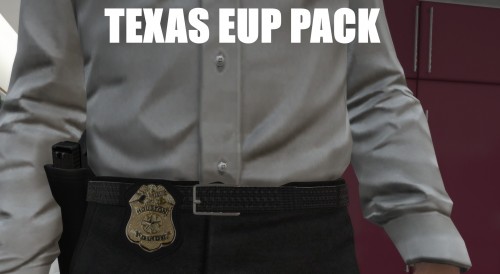 Yeah I live in Montgomery County. I prefer the old uniforms personally. The ones they switched to look too much like Harris now.
- 20 comments
- 1 review
-
None of those files are necessary for this mod to edit, provided you're using the "StandardDispatch/NormalPitch" version. The Custom Pitch is so outdated that I cannot even bring myself to update it. For the standard pitch version (which is the most updated, and works with 0.4) all you need are the following folders ATTENTION_ALL_UNITS CONJUNCTIVES REPORT_RESPONSE s_f_y_cop_01_black_full_01 all the way down to s_m_y_cop_01_white_mini_04 UNITS_RESPOND That's it 😉 , unless you have callout plugins, in which case just add those folders as well.
- 311 comments
- 39 reviews
-
NOTICE: To all who download, LSPDFR 0.4 has changed the audio folder around just a bit. From the download, open the PoliceScanner folder. Now drag/drop the folders from there, into GTAV/lspdfr/audio/scanner Thank you to @Deputybrandt84 for bringing this to my attention.
- 311 comments
- 39 reviews
-
-

- 4
-
-
No problem, go ahead and remove PoliceScanner The other folders are good to go 😉
- 311 comments
- 39 reviews
-
All right, what's inside your gtav/lspdfr folder? Should be (as far as folders go) audio chars data Inside audio should be scanner sfx We'll figure out which folder needs to be taken out (safely).
- 311 comments
- 39 reviews
-
If you're on LSPDFR 0.4 you should no longer have a PoliceScanner folder. It should just be an audio folder titled "Scanner". The readme.txt says the old method, because I haven't updated this in about a year, and with 0.4 they changed the audio folder just a little. Still works as intended, just drop them into Scanner.
- 311 comments
- 39 reviews
-
Ah, right you are. The new location is GTAV/lspdfr/audio/scanner Just drag drop the folders within 😉
- 311 comments
- 39 reviews
-
-
- 1
-
-
Hmm.... Where did you install the folders? Also, was this the very last thing you installed, or did you install a plugin of any kind after this?
- 311 comments
- 39 reviews
-
I went ahead and re-checked the Normal Pitch version. Working as intended, though much louder than before. This is due to the new LSPDFR, and the way that it reads audio files. UltimateBackup however was relatively quiet from what I remember. Therefore, my next best guess is that you have an old plugin's (calloutpack) audio files in gta5/lspdfr/audio/scanner This could have happened if you downloaded my altered pitch version long ago. Just double check the files I've listed as working above, and make sure you don't have any old callout pack files not in the list People (myself included lol) tend to forget to delete those audio files when they delete a callout pack. Believe it or not, even after deleting the plugins, the audio files CAN over-rule the audio from other packs. So always make sure you get rid of the old audio folders from packs you don't use anymore. I hope this helps bud
- 311 comments
- 39 reviews
-
-
- 2
-
-
Hmm... It should work with UltimateBackup out of the box. I used it for about a month prior to the release of 0.4 As always I recommend dragging and dropping the files of B.D.A. over ANY plugin that uses the same files. The only files that don't work as expected with UltimateBackup are the Helicopter files (which really sucks because I love those lol). But if the new UltimateBackup has added new files then I'll be happy to take a look. Just let me know 😉
- 311 comments
- 39 reviews
-
-
- 1
-
-
 I was wondering this too. Just Copy and Paste the url given on the screen, into your browser 😉 . Choose "Direct Download" when given the option.
- 28 comments
- 10 reviews
-
-
If you follow the link I post, it will take you to the LSPDFR 0.4 Support Forums. You can either see if someone else has a solution, or you can post your own topic, and ask for help from the community. Just be sure to let them know which plugins you're using if any, and what you've tried thus far. https://www.lcpdfr.com/forums/forum/920-lspdfr-04-support/
- 311 comments
- 39 reviews
-
Yes it blends just fine. The only folders you need to add to 0.4 are "CONJUNCTIVES", "UNITS_RESPOND" and all of the officer folders from s_f_y_cop_01_black_full_01 all the way down to s_m_y_cop_01_white_mini_04 If you have plugin mods then go ahead and drag/drop those folders as well. But just base LSPDFR 0.4 only needs the folders I've mentioned above. The only one I've tested thus far is the updated "AssortedCallouts" by Albo.
- 311 comments
- 39 reviews
-
Hey just thought I'd point out that after selecting a "Walk Style", if I ever "Frisk" someone, it reverts the walk style back to Default. Thank you for taking the time to read this one
-
-
 I like the Liveries. The only thing I'd change is on the Charger. I'd leave the Trunk and Hood green, as it is, but I'd change the bumpers to white. Other than that, looks good to me.
- 15 comments
- 1 review
-
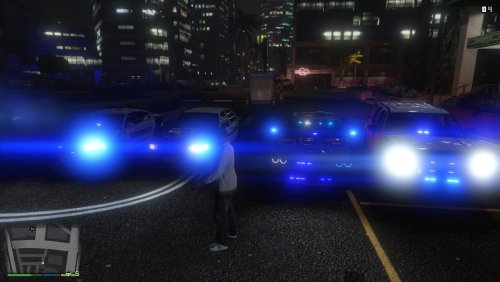 The lights are cool... I just don't know which .xml to choose, for which vehicle.
- 16 comments
- 2 reviews
-
-
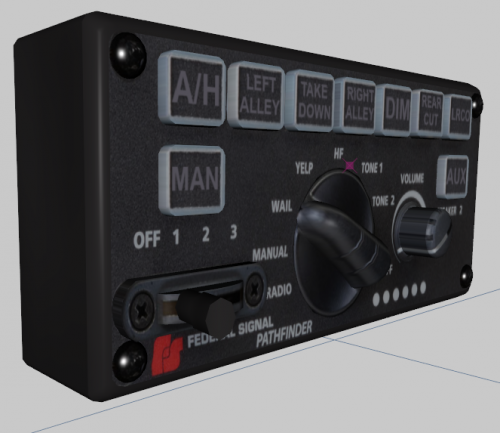
You may enjoy something like this. https://www.gta5-mods.com/scripts/better-cruise-control
-
He's an A.I., who doesn't know that he's an A.I. That's my theory anyway.
-
Okay, now it's just getting ridiculous. There's no way in Hell that Sam's an alien. He's clearly an A.I.