matt1008
Members
-
Joined
-
Last visited
Everything posted by matt1008
-
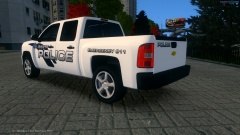 Cool
Cool -
Are you Realsing this
-
-
And I give credit to rockstar games for handling and backup vechile file
-
Do I meassge this person and ask or what
-
Is it okay to upload a backup of vechiles.img and handling.dat with a pack I make
-
'?do=embed' frameborder='0' data-embedContent>> What's a good handling line
-
-
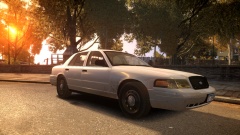 When is this comming out
 -
 That's cool
 -
Looks good do you have any plans to make that a police car
-
google gta 4 crashes after loading els 8 hope this helps
-
 UtilityGuy check your pm
 -
You Realsing this
-
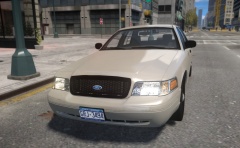 ok looks good
 -
what changes have been made
-
-
-
-
-
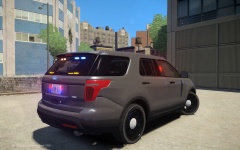 You should release it looks good
 -
Maybe try open iv 2.2.1 that's the one I iuse
-
-
what version of cvip you using ?
-
are you in pc data cd images then models then vechile.img