


matt1008
Members
-
Joined
-
Last visited
Everything posted by matt1008
-
it does not come with a readme soo I guess I don't need handling
-
Do I need a handling line
-
Just a diffretent way to say it
-
Your welcome
-
I mean can I put that police bike replace any police spot because when I downloaded it and it said policeb
-
Here is a video https://m.youtube.com/watch?v=SJxYl51bPyE
-
can I install this police bike in any police spot traffic motorcycle betaon lcpdfr
-
-
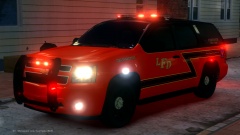 Will you be uploading this
 -
-
-
where can I get a good handling line for this car '?do=embed' frameborder='0' data-embedContent>>
-
This is what I have seen you have to make a new dummy and name it extra_1 then group them together Also check dummies and collision matrials and shaders
-
-
Soo the whole time the game loads and not lest you play
-
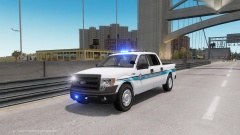 Looks good
 -
Are you realining this and is this els v8
-
Is the truck els v8 you need to see what extras you have then if you don't have a extra named extra-9 then name it that
-
Extra 1 is ok but extra 10 is not
-
Check zmodeler heirarchy
-
Maybe your extras are the same check them
-
I mean the silverado by bxbugs
-
Thanks Sgt.Kanyo
-
Hi I tryed the handling you give me but the truck still flips over when going fast
-
Why did vision v1 update noblackbars get deleted

