





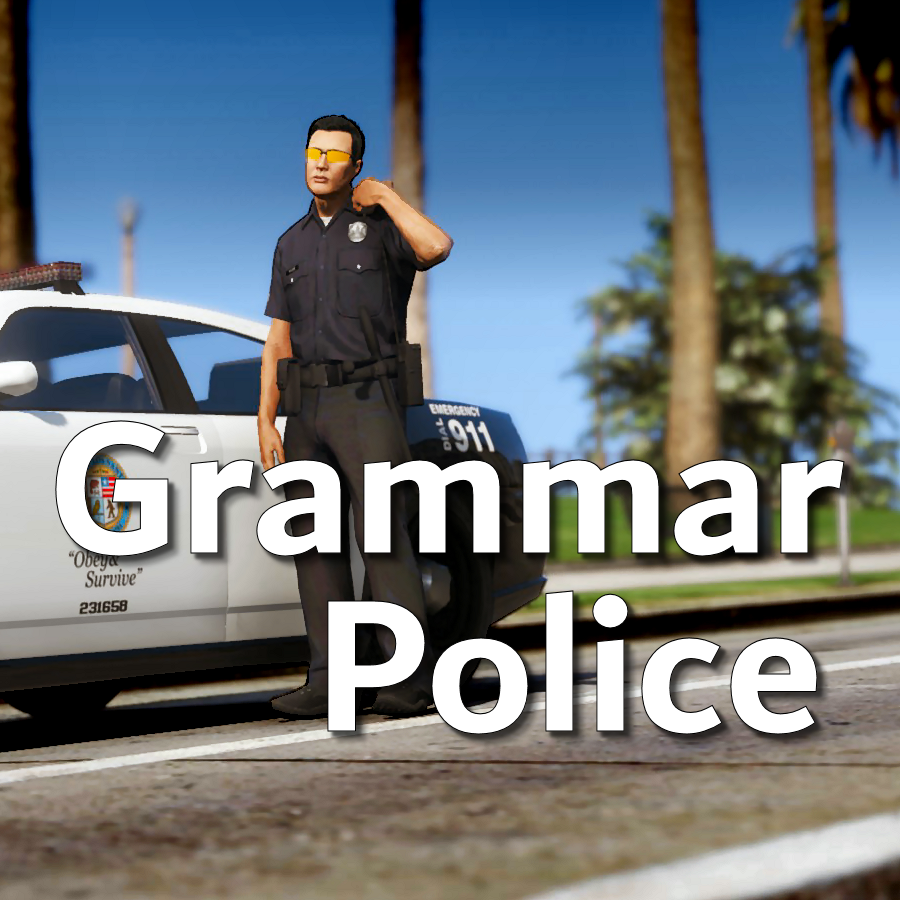
Welcome to Grammar Police! This plugin began as a replacement for VocalDispatch but has grown into much more!
Speech Recognition
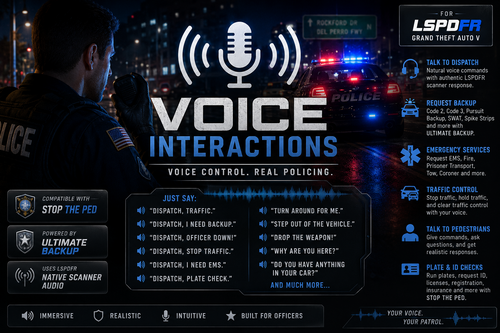
- Issue commands to the dispatcher using your microphone
- Includes a "hold to talk" feature that simulates a real radio
- Supports StopThePed and UltimateBackup out of the box
- Contains multiple sets of "10 codes" or customize yourself
- Request backup, run plate checks, accept callouts and more!
Non-Verbal Interactions
- Use an on-screen radio to interact with the dispatcher
- Also includes a Officer Plugin Status style menu system
- Both systems are fully customizable!
Language Support
- English
- French
- German
- Spanish
Technical Support
- Discord Server: https://discord.gg/AuJCUag
- Unofficial LSPDFR Support Server: https://discord.gg/mJMKAd5
Tutorial Videos
- Installation and Configuration: https://www.youtube.com/watch?v=dogzftjB3ZE
- Creating/Modifying XML Files: https://www.youtube.com/watch?v=H1_wwvzK9hc
Edited by opus49
What's New in Version 1.8.3
Released
Grammar Police 1.8
- Restored player status display on PTT release (thanks OfficialFlipPlayz)
- Restored the "say again" and generic response functionality
- Restored emergency status on panic (thanks L’ère de l’a-paix)
- Hardened radio check to prevent crash when there aren't any results
- Adjusted timings of (non-chest) animations to look and sound more natural
- Invalid callsigns no longer cause a failure but instead fallback to default
- Moved speech engine handling to a separate thread to minimize UI freezes
- Updated the radio check feature and added it to the settings menu
- Fixed bug in felony backup request where it incorrectly saw no pullover
- Detect Dynamic Traffic Stop from CalloutInterface and set status accordingly
- Made configuration loading more resilient, no longer crashing on bad values
- HoldToTalk now defaults to true and should benefit from engine worker thread
- Made the delay between speech recognition and action execution configurable
- Added config option for using the LSPDFR animation when using on screen radio
- Added support for multiple handlers (e.g. UltimateBackup, PolicingRedefined)
- Added command for cancelling backup without ending callouts, pullovers, etc
- Fixed bug with INI where it wasn't allowing the hotkey modifier to be none
-
Added script generated HTML-based speech guides for all languages
NOTE: THIS VERSION REQURES MICROSOFT SPEECH PLATFORM
Microsoft has removed the interface for Windows Speech Recognition in recent versions of Windows 11. Starting with this version of Grammar Police you will need to install Microsoft Speech Platform and the language pack you wish to use:
Instructional video here:
Microsoft Speech Platform: https://www.microsoft.com/en-us/download/details.aspx?id=27225
Language Packs: https://www.microsoft.com/en-us/download/details.aspx?id=27224
Community Translations: https://github.com/Immersive-Plugins-Team/GrammarPolice-Translations
Short Description
Interact with the dispatcher.
See CREDITS.txt in Documentation folder.








.thumb.png.b9e18d9931090871b064059f2c315cf8.png)





Recommended Comments
Create an account or sign in to comment