PhillBellic
Members
-
Joined
-
Last visited
Everything posted by PhillBellic
-
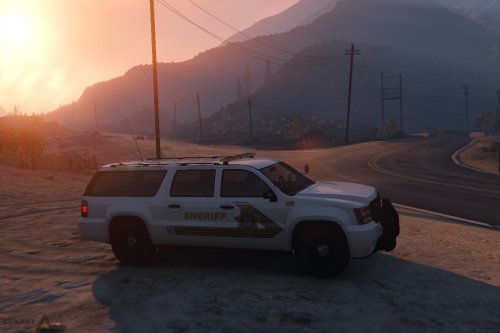
Hmm, that Third Image has a really strong Dukes of Hazzard Vibe to it.
-
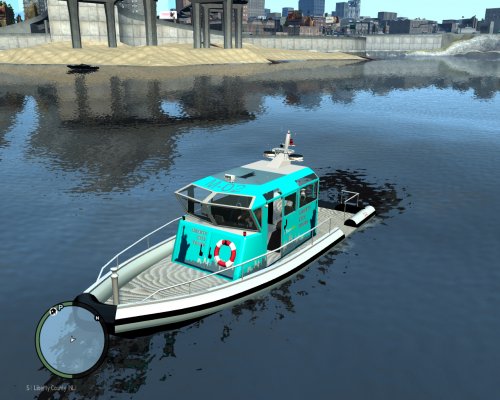 I like it. It's very colourful.
 -
A bit of the old Police Brutality, aye Officer?
-
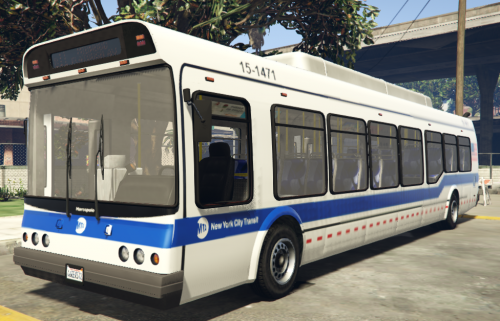 Given the limitations of the Default Texture Mapping, I think you did a great job. I am hoping that the Bus (,and Airport Bus) is UV Mapped in the near future.
- 6 comments
- 1 review
-
Do I look like Ineseri? One of the 'Old Guard'?
-
Am I Popular? LMS next?
-
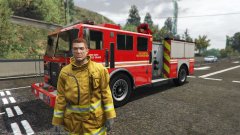 Here's such a Model.
 -
So, no consistency with Lt. Caine/Yard1's Template then? *sigh*
-
Looks good. Whose Template does this use?
-
Beep Boop, ERROR! CAN NOT COMPUTE! A Member of Staff?
-
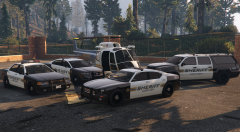 Addition, you say? I hope to see more.
 -
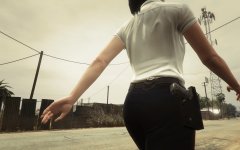 Any more photos? :)
 -
Munificent? You and your big words.
-
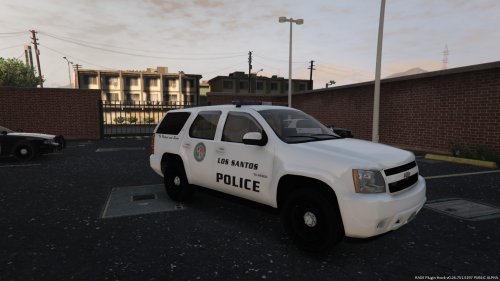 I had to do a Double Take. I thought this was just another GTA IV Modification. Anyway, Great Work.
- 183 comments
- 38 reviews
-
-

- 2
-
-
Please refer to this Tutorial. It will help you immensely.
-
-
The VCF Conversion Guides are in the 'DOCUMENTATION' Folder.
-
-
There's no Conversion needed. Simply Install ELS V8 (removing the Older Version), tweak the Main Files, and you are good to go. I use a few Vehicles designed for ELS V5 myself.
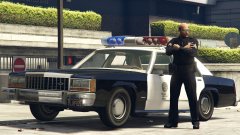 That Cop looks like David Koechner, aka Champ Kind from Anchorman.Happy Birthdate, Yard1.Also, as another Tip, spend some time browsing through the various Archives. It will help you for any future Modding enveavours.