
Carrythxd
Members
-
Joined
-
Last visited
Everything posted by Carrythxd
-
Thats a nice Crown Vic in the thumbnail :D
-
Happy holidays :D Nice vid too! :P
-
Do you have all the files needed? Scripthooks, DSound.dll and if your using EFLC the trainerbogt and trainertlad files?
-
Nice!
-
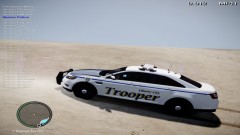 Where do you see a Caprice...? Thats a Ford Taurus dude...
 -
LoL np, and nop. Atleast I havent heard of one.
-
Np, hopefully it works :)
-
If your Trainer is enabled try to disable it. Or if you dont wanna disable the Trainer just disable the Keys. (Keys you can find from the first page if I remember right and the Disable Trainer option from the Second page in the Options menu)
-
Damn! :D Nice one! :D
-
Do you have the Scripthook files that are for 1.0.4.0? Not the newest ones, same for Dsound.dll.
-
-
I think its FAST_2.
-
No.. If you want to have traffic in Clockwork Mount you need to put it there... :)
-
:(
-
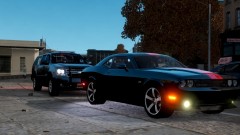
From the album: Carrythxd's Pics [IV]
The Dodge you see in the screen is not released yet. -
Holy shit :O
-
Hehe =) Congratz =)
-
Oh btw, they all should work on IV 1.0.7.0 and EFLC 1.1.2.0. Not sure about older patches.
-
Indeed! :D
-
Would love to see it ingame! :D
-
-
Put the paths.img to TBoGT/pc/data/cdimages
-
I cant wait for this game to be released! :DDD
-
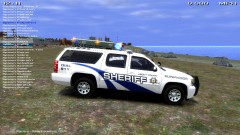 Nice! Thx for the link :D Was looking for an SUV to replace the FBI with =)
 -