
Carrythxd
Members
-
Joined
-
Last visited
Everything posted by Carrythxd
-
Disable your SNT's keys... Options -> Disable/Enable Keys
-
From the album: Carrythxd's Pics [IV]
Spidereon's 2009 Dodge Challenger SRT8 -
From the album: Carrythxd's Pics [IV]
Spidereon's 2009 Dodge Challenger SRT8 -
Damn :o Nice mods!
-
There Ive gathered some useful mods to use with LCPD:FR, there you can also find vehicle packs and police car packs. Also uniforms, weapons, sounds etc... mods for your GTA IV/GTA EFLC.
-
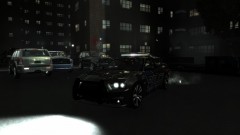 Damn o.O Is that released yet or when will it be released? Or will it remain as private?
 -
That is one nice Mondeo you got there! Also very nice vid :D
-
No problemo :) Glad I could help you :)
-
Oh yea its from GTAForums, Ill try that ingame for sure :P
-
Well it did fix the taxi bug.. Did you try ikt's TrafficLoad?
-
Try Chikamru's Real Traffic, thats the only traffix fix that works for me.
-
Yeap, it doesnt work very good tho. If you turn the car it disables the cruise control.. Also when it does that it gives your car a nice little boost...
-
Theres a option in Trainer for it.. Cant remember the shortcut tho :s
-
http://www.gta4-mods.com/misc/chikamru-real-traffic-f14716 http://www.gta4-mods.com/script/trafficload-f9780 Try one of those.
-
-
^ Agreed lol But nice vid :P
-
-
^ Yeap, a Xbox 360 wired controller... Tho some ppl say that a PS3 controller works too but Id recommend to buy a Xbox controller for PC, its alot easier.
-
Try to find a new dsound.dll, if I remember correctly there was a topic about dsound.dll at GTAForums
-
-
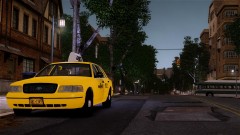
From the album: Carrythxd's Pics [IV]
Policefanatic's Ford Crown Victoria NYC Taxi -
Nop, never seen him lol
-
Thank you for the links :)
-
Hahahahaha :D Also I would recommend to use a handling line for the car you have: And another thing, you have a link for that Chevy? :P
-
Alright :) Lets hope it works :P