



Keith.
Members
-
Joined
-
Last visited
Everything posted by Keith.
-
This is going to be tricky as the model doesn't come with a template May I recommend this one instead ?
-
Inspiration. http://www.policecarwebsite.net/states.html
-
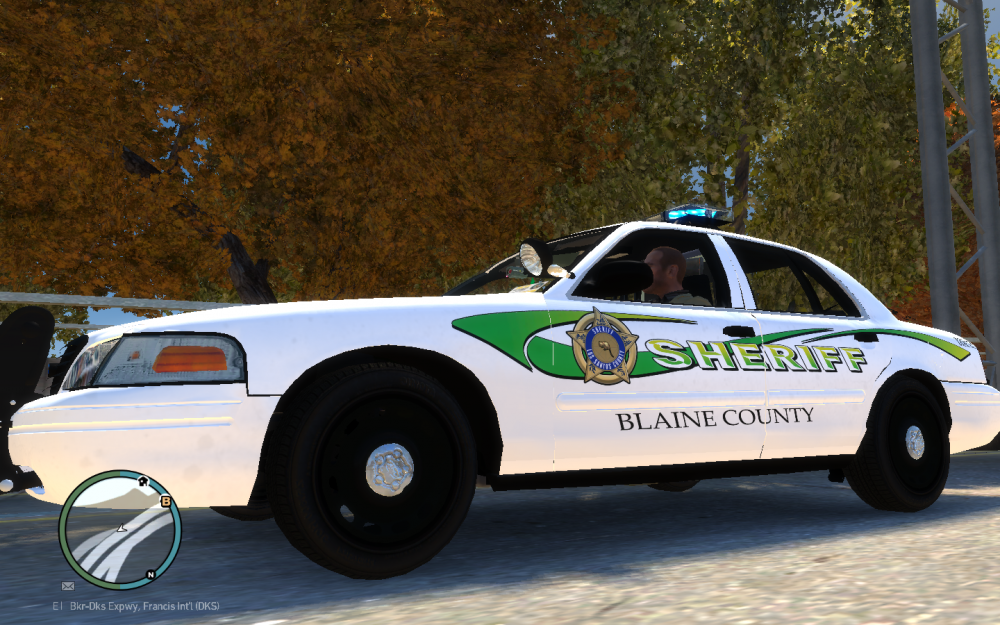
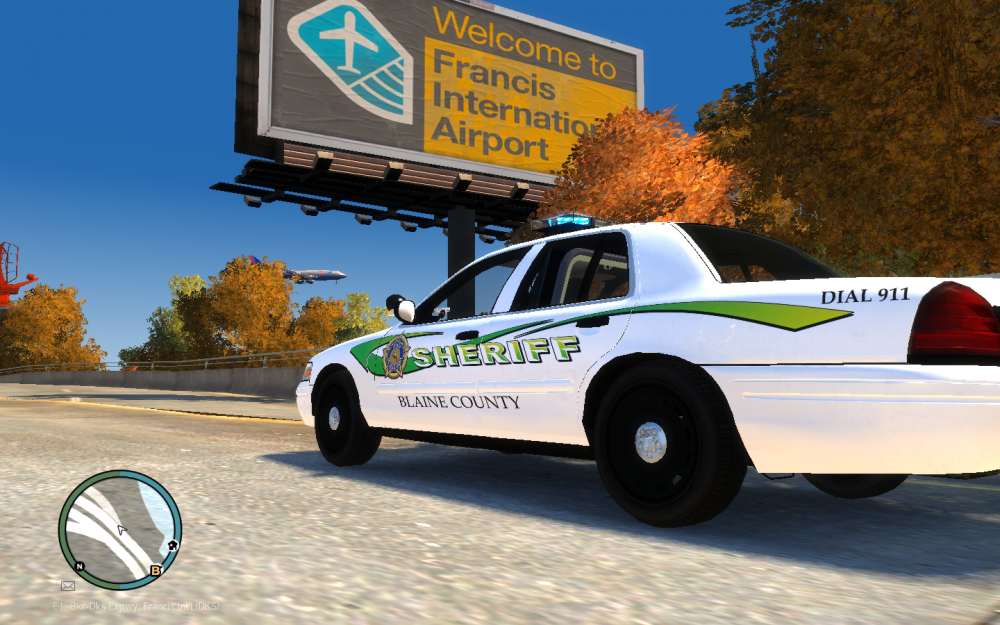
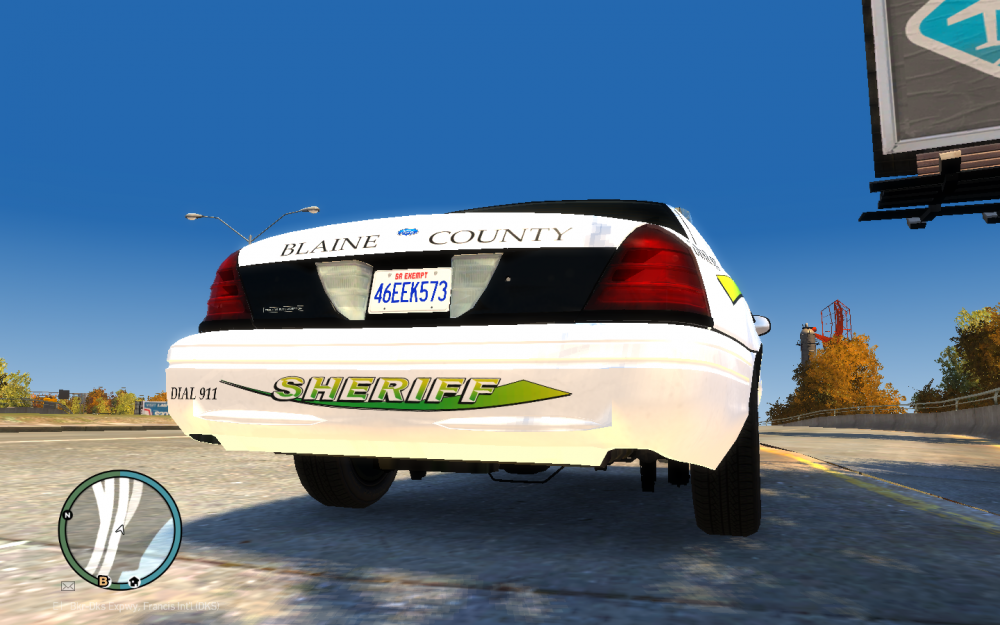
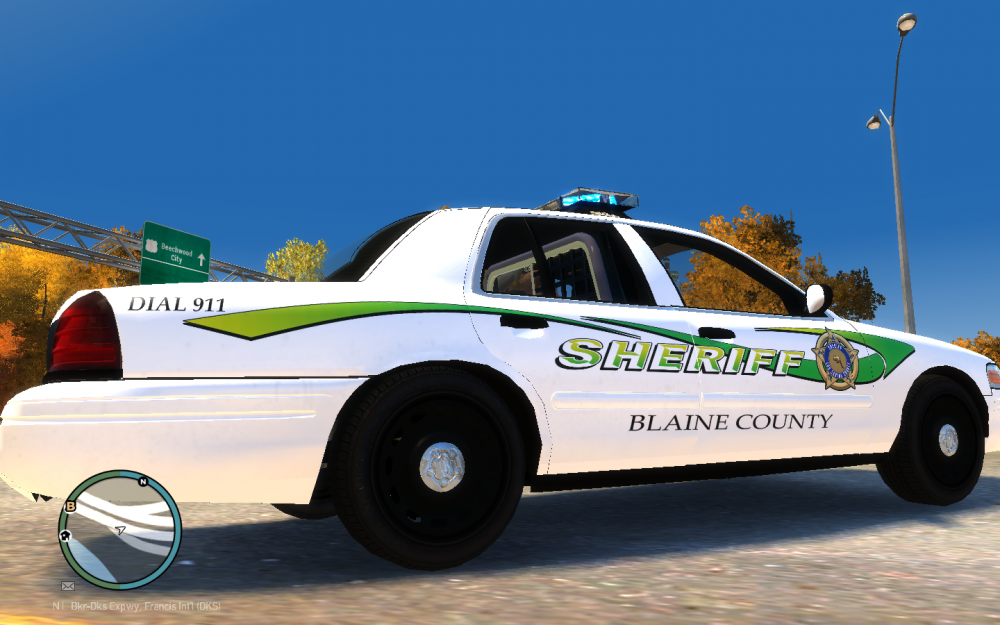
These are from IV because I don't have V installed. Let me know if you want to change anything bud. It'll fit BXBugs' ELS CVPI
-
Extract it to your desktop, open it with notepad, edit it, save it, then replace it.
-
-
 I was having a quick flick through the usual websites and decided to do this one. It will fit the CVPI in this pack Enjoy
 -
OK bud, no worries, I'll finish them up and get them over to you after work tomorrow, It's bed time for me now thanks to a 4am alarm clock :(
-
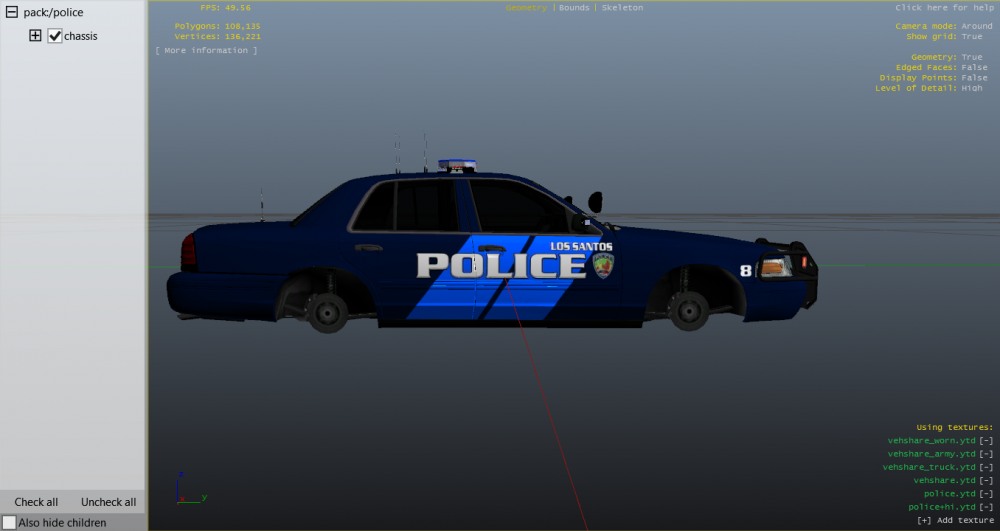
I've got this done mate. Is there anything you want to change before I do the rest ?
-
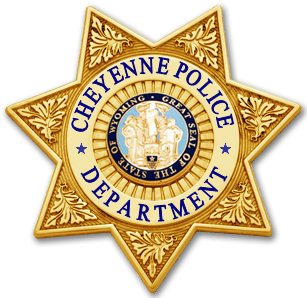 Here's my latest offering. 2 liveries for the Cheyenne Police Department Old and new Here's the model they fit Enjoy
 -
SF Fourche http://www.1001fonts.com/sf-fourche-font.html
-
These are going to save a lot of people a lot of time
-
Have you got a link for the model ?
-
I'll give this world 20 years and it will be completely destroyed
-
From Whelens site http://www.whelen.com/install/142/14219.pdf
-
 The font looks like Helvetica or Coolvetica bud
 -
80's Rover SD1 door decals. And some reference pics https://www.google.co.uk/search?q=80's+met+police+cars&source=lnms&tbm=isch&sa=X&ved=0ahUKEwigupj-6cLRAhVLBcAKHUq5Co0Q_AUICCgB&biw=1371&bih=767#imgrc=JJti92rXh-iqUM%3A
-
Here it is bud.
-
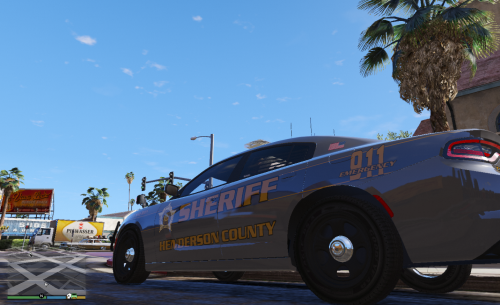 This was requested, so here it is. Made on a clear and pale gold background. Clear background will naturally spawn in white, but you can change the colour with your trainer ( if it allows ) Here's the model. Enjoy.
 -
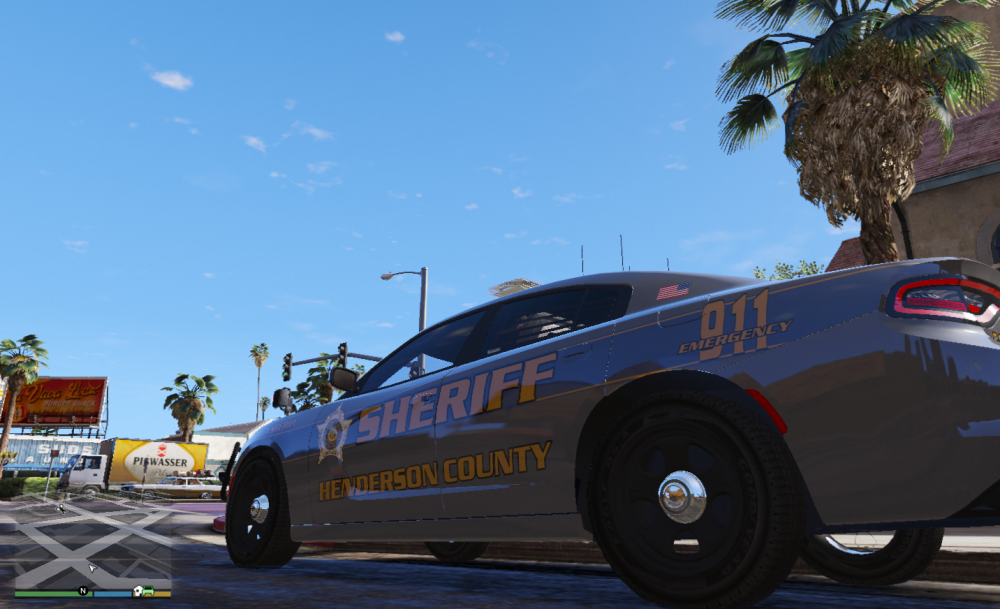
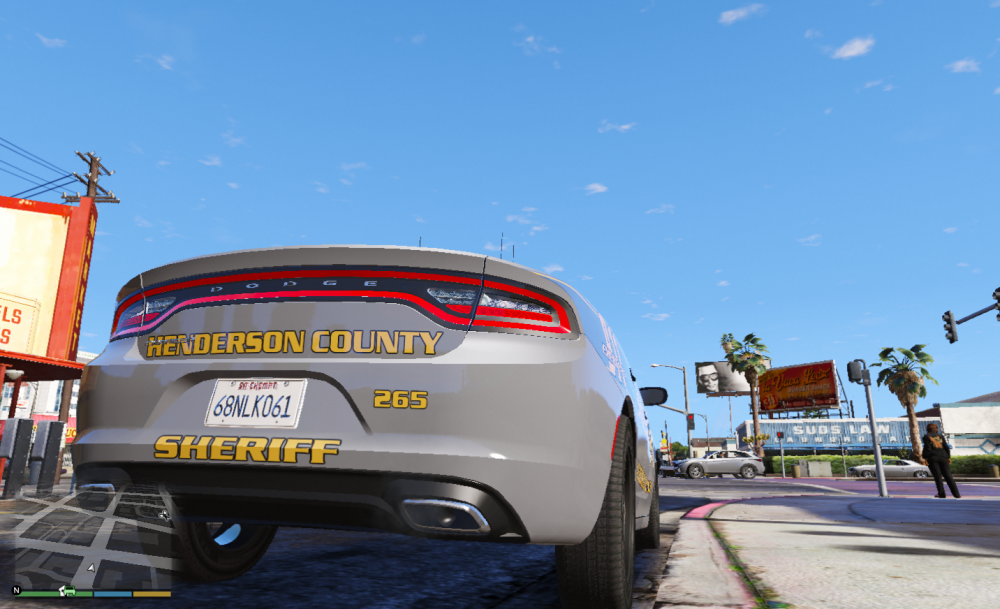
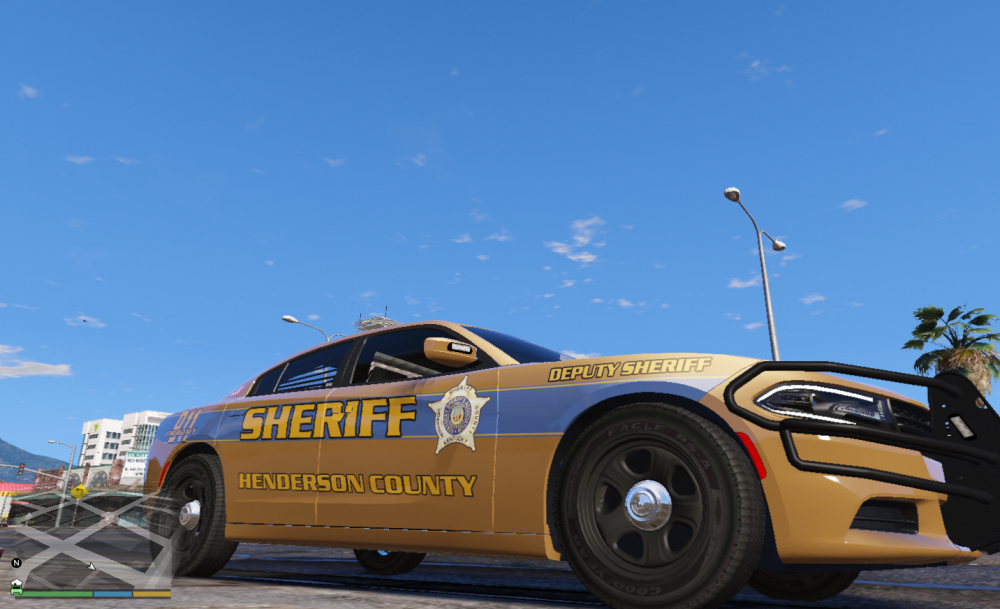
I made these on a clear background and a pale gold background.
-
Leave it with me.
-
 The only reason I didn't 5 stars is because the controller can't be disabled. The buttons interfere with other mods. Other than that, top work as always.
- 2,686 comments
- 236 reviews
-
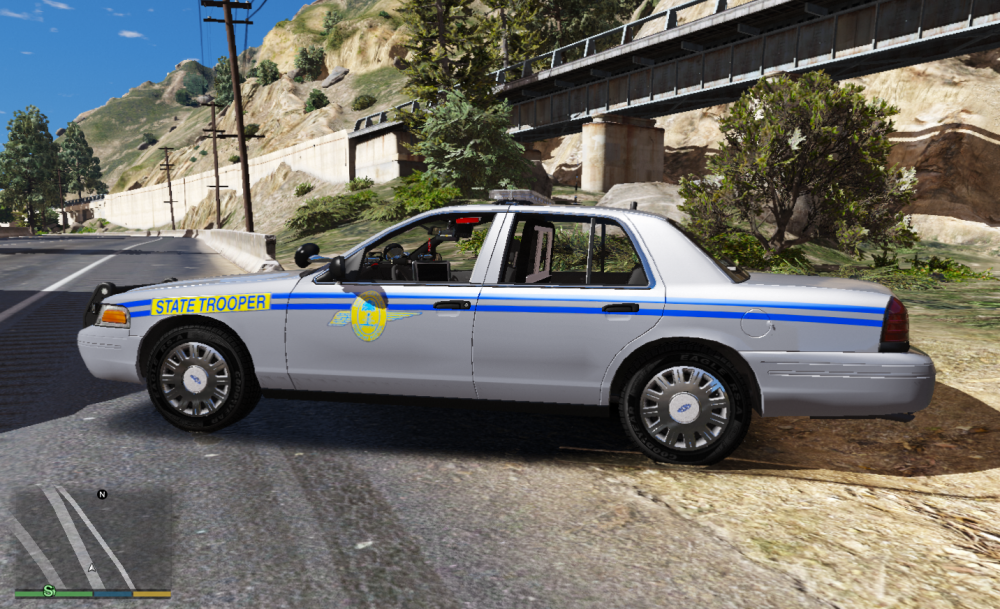
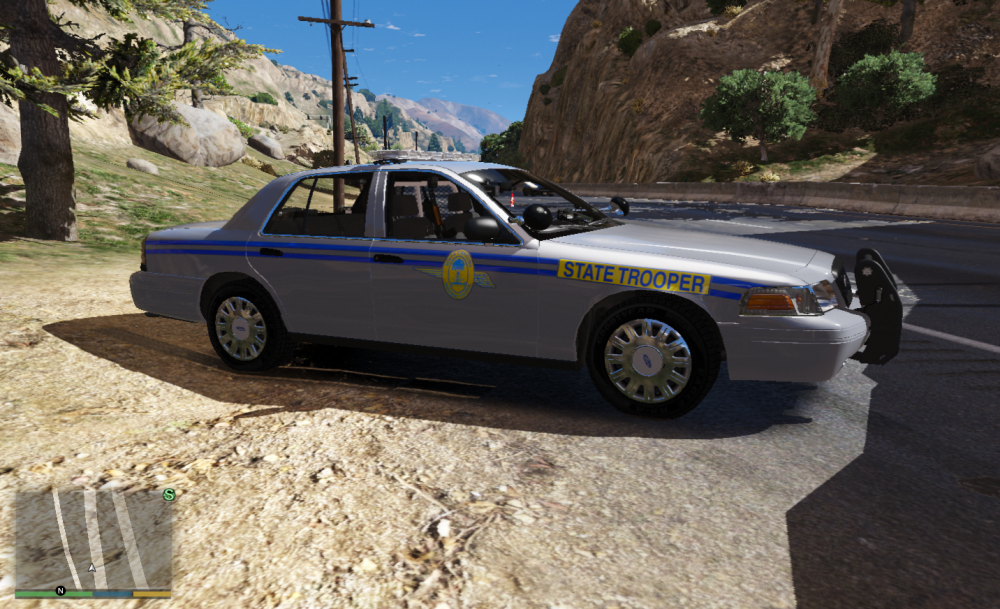
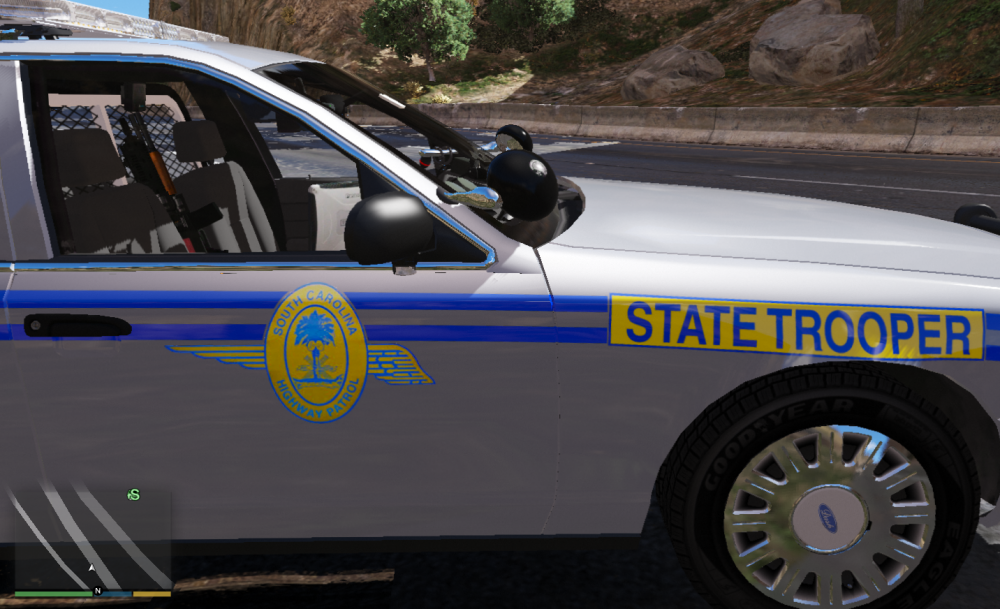
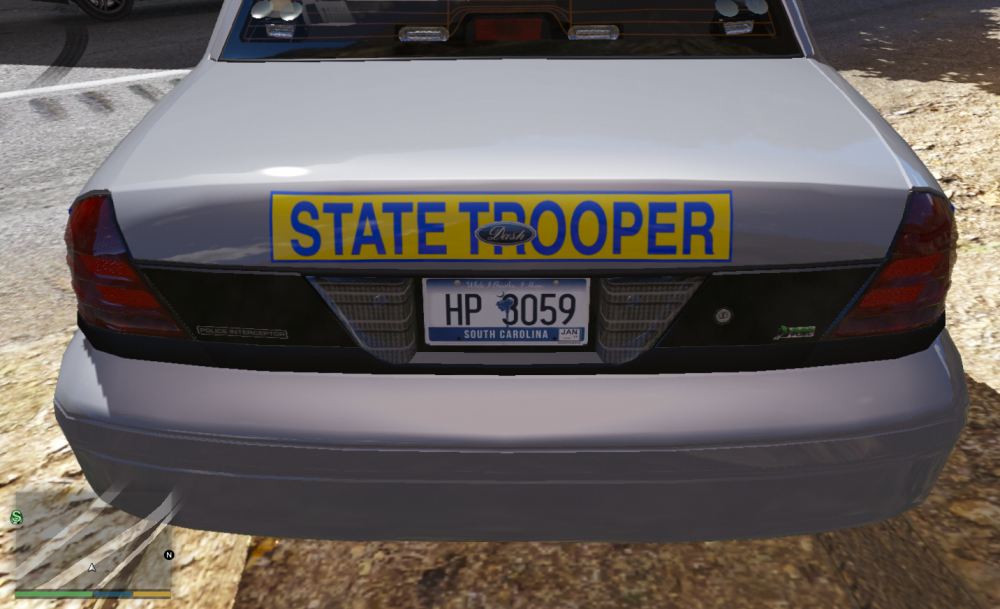
CVPI texture done for this model http://www.lcpdfr.com/files/file/13898-2011-crown-victoria-cvpi-19l-els/ Using this wheel pack http://www.lcpdfr.com/files/file/13899-crown-victoria-police-interceptor-wheel-pack/ Any good to you ?
-
I've uninstalled my steam ( and all my games ) by mistake. I've reinstalled them now, but GTA IV will not start with any mods installed. I can put my road textures and cars in, but as soon as I put ELS, LCPDFR or my trainer in the game wont run, ( even as admin ) all my computer security is turned off but still no luck. With no mods in, it runs fine. Any ideas anyone?
-
-
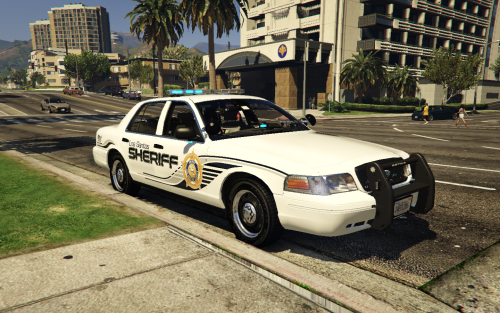 I made these a few days ago with the intentions of releasing them, but never got round to it. But here they are now for you to do with as you please. These can be edited to fit virtually any vehicle using Paint.net or any other similar program. You get the side stripes only ( so no wording or badges of any sort ) All are on clear backgrounds, so you can choose your own colour. These are here basically to save you some time when you're making a texture. Picture is for illustration purpose If you do use them and upload them, just a simple nod in the credits is all I ask. I may add more colours in the future. There's 5 to choose from And 2 4096 x 4096 CVPI templates included. Thanks and enjoy







