.png.7d8fc4dae5cc7fb13451d70b8ed27c92.png)
Robbie X
Members
-
Joined
Everything posted by Robbie X
-
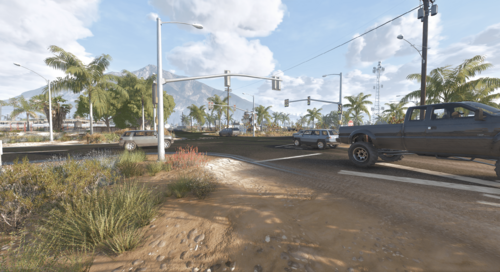 So after testing, the new dlc file Traffic_Light_At_U_Tool_bctls is what causes crashing. When removing it the game will no longer crash.
 -
-
 Patrolling around and i do not see one ambient event... and have verified its installed correctly.
- 19 comments
- 1 review
-
 Looks awsome! where can I get the paid version?
 -
-
-
-
-
 Compatable with new npcai mod? As i see "Naudio" file uses the same as npcai. Thanks!
- 446 comments
- 17 reviews
-
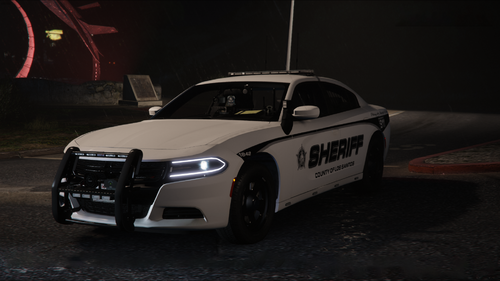
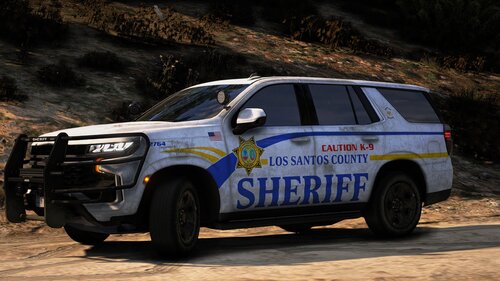 Please make one for dodge charger? thank you! these are incredible.
 -
Pathyway for trafficsignals.meta is incorrect.
-
THANK YOU!!! KEEP UP THE HARD AMAZING WORK! 🫶🏼🚔
-
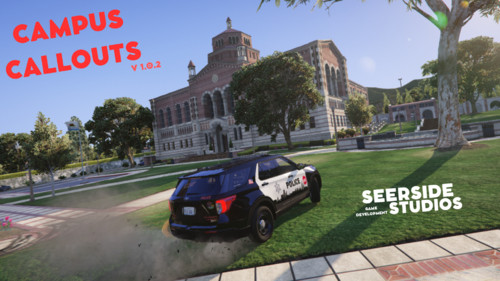 FINALLY something new and interesting 😩😮💨
 -
 What did you edit in the scenarios if you don’t mind saying? I already have one that’s edited and do not want to replace.
 -
 Love this! can you make a simple one to use as well for an alternative? 🙂
 -
 Still clash’s with grammar police, when radio ing dispatch it will just pause dispatch and cannot get a response but when I take your mod out it works again. Please try to fix if possible! really have high hopes for this mod to work eventually 🙏🏻
- 70 comments
- 2 reviews
-
Can’t get this to work for nothing 😞 tried every trouble shoot step and nothing. It’s a shame to I really wanted this to work so badly!
- 70 comments
- 2 reviews
-
-
 Can you not use both download options??
 -
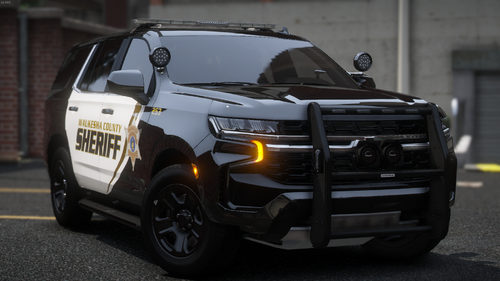 Can’t wait to see the other vehicle skins!
 -
-
Why are you leaving the platform? 😞
-
-
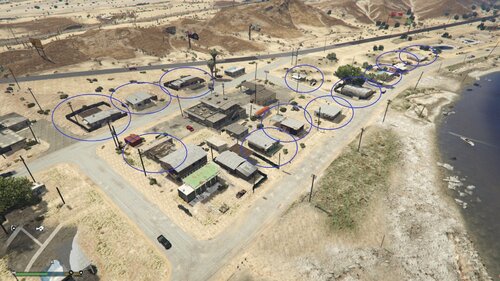 Thank you for this totally agree! however, would it be possible to use without the tree vegitation near the sheriff station?
 -
For the newly added SP version of this, do I still need the original BCSO traffic and lights?
.thumb.png.d13e981c34ef5460e233f67e52e9a0da.png)

.thumb.png.8cef6bf40847c87cdc7f2b84d14bb45d.png)