Yard1
Friends of LSPDFR
-
Joined
-
Last visited
Everything posted by Yard1
-
The C.
-
-
I don't think it's possible, unless you modify the ELS.ini file, but then it will work on every vehicle.
-
-
-
-
-
-
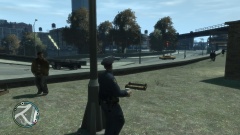 That coffee though.
 -
-
But would those supporters donate 100 million $? Because that's how much GTA IV cost to make.
-
-
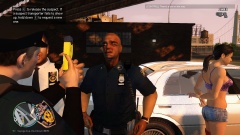 Kill it with fire!
 -
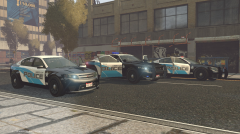 Looking good!
 -
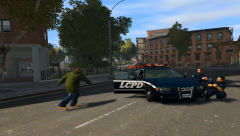 Only the auxiliaries and traffic police can't use guns in NYPD. And no worries, I am not an american too xD
 -
Auxiliaries don't use guns though D: (Nice pic!)
-
A Vapid Police Interceptor from GTA V modified to Non-ELS LSPD/LSSD version. There are 4 LSPD, 4 LSSD White and 4 LSSD Black & White liveries included. Sorry for the lack of screenshots, I deleted the rest by accident. -------------------------------------- Installation: - Use OpenIV to replace the corresponding files within vehicles.img with the .wft and .wtd files provided in this package. - Open the vehicles.ide file in your Grand Theft Auto IVcommondata folder, find the lines beginning with the names of the appropriate models, and at the end of those lines add +livery. -------------------------------------- This download is exclusive to LCPDFR.com. Model provided unlocked - there is no need for my permission when fair credit is given to me and other authors. Made by Rockstar Games, cromchen, F5544, Lt.Caine, Sam, Yard1
- 6 comments
- 1 review
-
-
The LCPD version has been uploaded. Sorry for the inconvenience. Please download again. GTA V Cheval Fugitive converted by cromchen, mapped and modified to a LCPD version by me using parts by F5544, Sam and Lt.Caine. Liveries (LCPD, LCPD Highway Patrol, Alderney State Police, Alderney City Police) made by DLer. Recommended handling: POLICE 1903.0 0.29 85 0.0 0.15 -0.3 0.0 4 0.2 1.0 220 0.5 0.55 0.7 35.0 1.65 0.8 12.0 0.11 0.47 2.7 2.3 2.3 0.09 -0.07 0.025 0.44 2.0 1.0 0.6 0.90 0.0 25000 400010 0 0 (by Sgt.Kanyo) -------------------------------------- Installation: - Use OpenIV to replace the corresponding files within vehicles.img with the .wft and .wtd files provided in this package. - Open the vehicles.ide file in your Grand Theft Auto IVcommondata folder, find the lines beginning with the names of the appropriate models, and at the end of those lines add +livery. -------------------------------------- This download is exclusive to LCPDFR.com. Model provided unlocked - there is no need for my permission when fair credit is given to me and other authors. Made by Rockstar Games, cromchen, F5544, Lt.Caine, Yard1, DLer, Sam, Abraxas, Murphy Screenshots by DLer
- 14 comments
- 3 reviews
-
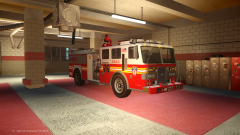
From the album: Skins
Skin by Lt.Caine - my template is almost a complete match. Lights are made by me from stock firetruck lights and Whelen Ultra Freedom. -
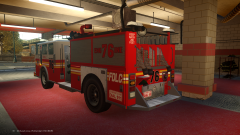
From the album: Skins
Skin by Lt.Caine - my template is almost a complete match. Lights are made by me from stock firetruck lights and Whelen Ultra Freedom. -
It gotta be converted first - I don't know how to convert models :(
-
Here: https://www.mediafire.com/?1dmb8hdp8mu8lyz Replace the lights.dds in a wtd of any car you want, and modify the ELS Vehicle Configuration File like this:
-
It would be great if you can configure it for specific vehicles. Most older ones don't have a chime.
- 42 comments
- 12 reviews
-
It's going to take a few minutes tops. I can make it when I get back home (an hour from now).