
Dozel
Members
-
Joined
-
Last visited
Everything posted by Dozel
-
Then revert reacent changes deleting mods one-by-one. Or you always able to start new mods folder.
-
Renaming mods folder to _mods it's not the solution, it's diagnostic measure, means some sort of problem with your mods folder. Rename _mods folder back to mods and make sure you have these installed: Gameconfig or Gameconfig (choose one) HeapAdjuster Packfile Limit Adjuster
-
Provide new RagePluginHook.log. Renaming mods folder to _mods it's not the solution, it's diagnostic measure, means some sort of problem with your mods folder. Rename _mods folder back to mods and make sure you have these installed: Gameconfig or Gameconfig (choose one) HeapAdjuster Packfile Limit Adjuster
-
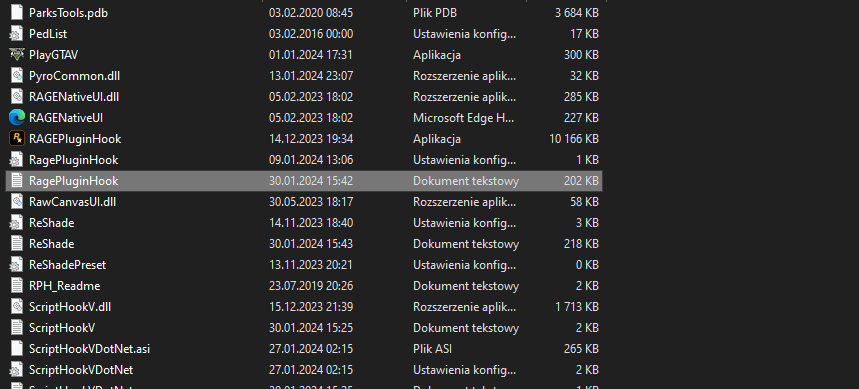
Post RagePluginHook.log, file located in GTAV main folder, not from the logs folder.
-
Huh?
-
It's not the solution, it's diagnostic measure. That means reason of the crash somewhere inside mods folder. Make sure you have this installed: Gameconfig or Gameconfig (choose one) HeapAdjuster Packfile Limit Adjuster
-
Make sure you have RageNativeUI installed and it's up to date. Also remove ALPRPlus (use CalloutInterface or ALPRLite)
-
Attach RagePluginHook.log, file located in GTAV main folder, not in logs folder
-
NOT from the logs folder. It should called RagePluginHook.log, the name should not contain numbers. @Kate.Denson shows you what.
-
Just Drag and Drop RagePluginHook.log file to text box to attach it. Please don't upload a zip archive, it's very inconvenient.
-
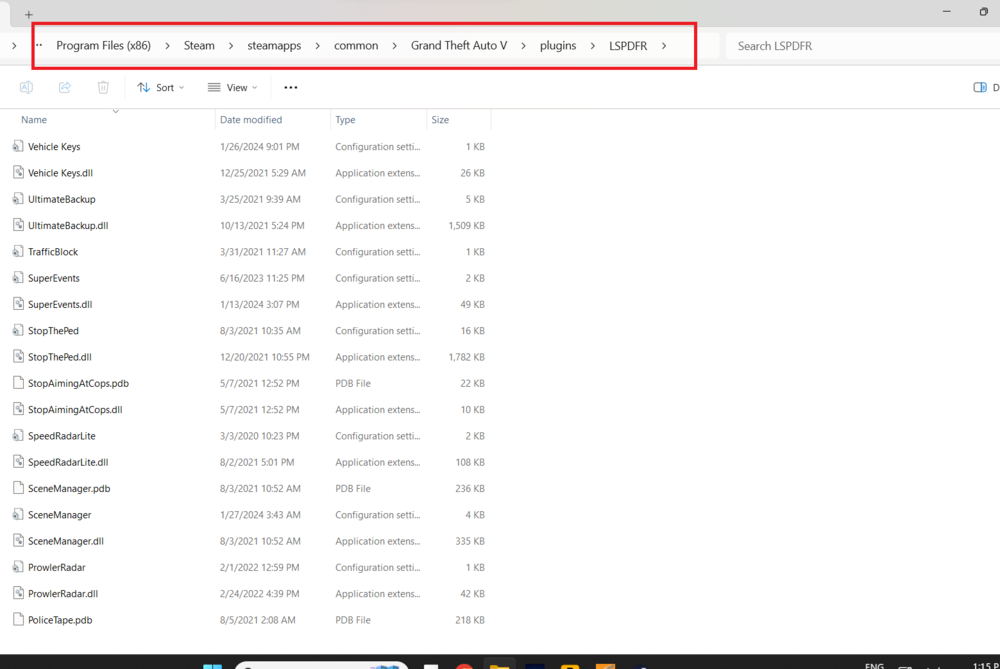
Also relocate CalloutIterfaceAPI.dll and RageNativeUI (make sure it's the last version) from Plugins/LSPDFR folder to GTAV Main Folder. Remove United Callouts for more stable game.
-
Not sure, but it could be becouse game is not complete, try to install 100% save.
-
Rename mods folder to _mods. If it'll help, better start fresh mods folder, if not, verify game files.
-
Remove: Section136Callouts. Also I suggest to remove: AutomaticSirenCutout, OfficerporciPlugin.
-
Update RageNativeUI Also make sure you have IPT.Common installed in GTAV main folder. If not, install from Callout Interface, and all prowided libreries.
-
Yes, it's the right one you need to install. It's build 8757, you have installed build 7800 which is really old.
-
agancy.xml in lspdfr/data folder.
-
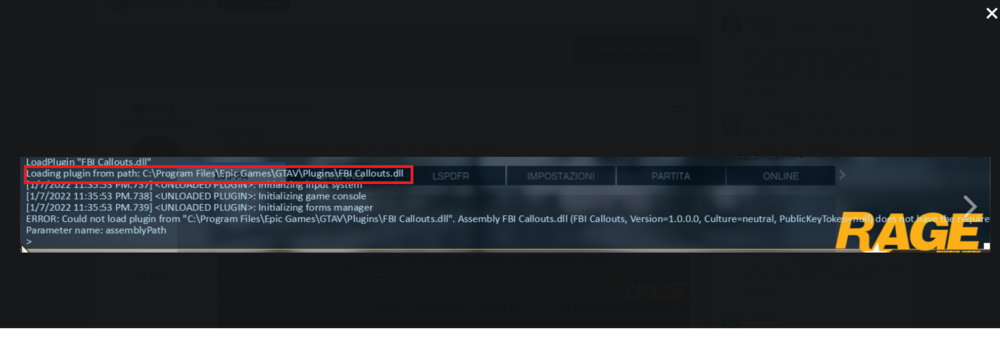
Well I think he could have 2 versions of the game installed. Plugin is clearly loading from default Epic Games directory, but he also has GTA folder in steam directory. Program Files and Program Files (x86) folders is completely different path, so I'm not really sure it's a bug. But to be honest I never ancounter by myself that kinda bug you are talking about.
-
Thanks Chris. Also the game he is launching is Epic Games version, but plugins he showing is from Steam version that's also doesn't sum up.
-
Sound like your game files are corrupted.
-
So even without mods folder your game crashes? Rename dinput8.dll to _dinput8.dll and try again. If you don't have that file, or game still crashes I think your game is corrupted, try load game without RPH and/or verify game files.
-
I suggest you to create new mods folder. Maybe deleting NVE you accidently broke it.
-
-
Are you sure it's correct log? There is no string about you went on duty. Seems like random crash or something broken into mods folder.
-
Still install Packfile Limit Adjuster and HeapAdjuster if you don't have one