(1)(1).png.e989199bea7ac60c357778906642b0cc.png)

Narobic
Members
-
Joined
-
Last visited
Everything posted by Narobic
-
I'll get to that once I finish my list of mods
-
I understand all but 'X' and 'DpadLeft', Just to clarify; do you want to remove Jump, select weapon, radio, and detonate?
-
@Brad Philips Townley I may just be missing something, but I couldn't find a way to achieve the aim function you requested.
-
@Brad Philips Townley I don't know if there's a way to change the aim in vehicle function. I'll look into your request but no guarantees. From what I understand, you can't change the amount of time needed to activate a function. I'm sure it's possible because other controls use it, but I don't know if I can change that manually
-
I wish I could help... I bought the game on steam so I only know how to trouble shoot on there. Try reinstalling both GTAV & RPH?
-
-
Gotcha. I'll get to work on that when I finish my other projects.
-
Please be specific with what you want. None of the sets are an "LSPDFR" version.
-
 Yes. In the .ini you can find the edit key button. This button activates an in-game editor that allows you to adjust the position of the spotlight per vehicle.
- 473 comments
- 73 reviews
-
 Hi there. I'll get to work on that within this week. In the future, however, please put requests in the request forum. :)
- 161 comments
- 23 reviews
-
 I'm not trying to hassle you, I just wanted to tell you that you didn't have to submit a whole new file to change it. You could have just uploaded a new version and edited the original description and title. I like the file. I haven't tried this new one, but I used the old one and it's fantastic. What was the hiccup that you changed?
- 15 comments
- 4 reviews
-
-

- 2
-
-
If you check the .ini file you can find what the key is. I have mine changed from the original so I'm not much help as to what the key is.
- 473 comments
- 73 reviews
-
 GTAV>plugins>LSPDFR>PoliceRadio If you don't have Police Radio installed, then just ignore it :)
- 311 comments
- 39 reviews
-
 Doesn't @Albo1125 already have emergency vehicles as part of his "Hot Pursuits" callout?
 -
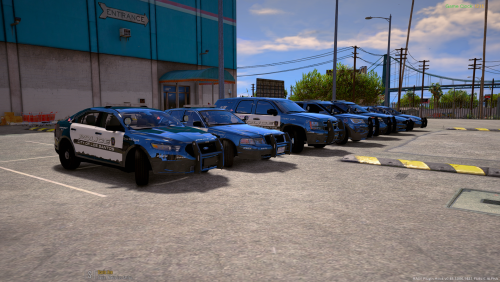 Yes Everyone complaining about crashing: It works fine for me. Run the uninstall package and then run the installer. If it still crashes, make sure that you don't have any conflicting files for the vehicles in other DLC packages (vehicles.meta etc)
- 779 comments
- 187 reviews
-
I can't help you, sorry. But in order for people to help, you have to provide your .ini, rage log, custombackup.xml, and backup.xml files
-
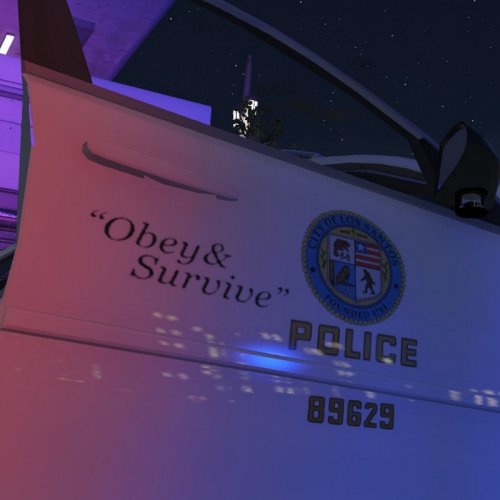 @Beren has already done that on his own account :) Beautifully done, too, I might add
- 11 comments
- 4 reviews
-
-
- 1
-
-
Ignore the double quote. I'm using mobile and it's not the best, LoL... The "Audio Related" folder is for Police Radio. The documentation provided clears this up :P
- 311 comments
- 39 reviews
-
 Hi sir, if you re-download this mod using the blue "DOWNLOAD" button above, you can find the required documentation. If you need further assistance, I'd be happy to help. Just send me a Private Message :)
- 131 comments
- 20 reviews
-
-
- 2
-
-
-
I'll start on that as soon as I get the chance. Thanks y'all
-
That was the video I saw. The one that got me interested. I was still a bit confused, unfortunately. I'll watch it again as it was late when I first watched it.
-
Hi all! I just discovered this today and honestly have no idea what it is LoL I saw the discussion video and thought I'd check it out. I was wondering if someone could give an in-depth sort of description about what this modification does? Excited to find out more about this. The features I saw look REALLY cool!
-
If you want to see the current progress, download the beta version of this vehiclce
-
 Dispatch says "code 99" for traffic stop backup but it's not a code 99 yet...
- 1,081 comments
- 166 reviews