


Lapd Code 3
Members
-
Joined
-
Last visited
Everything posted by Lapd Code 3
-
-
-
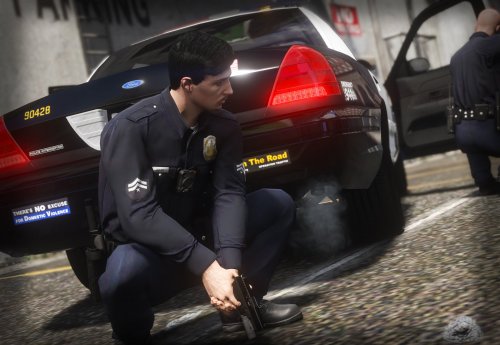 After Reviewing this its worth using for better realistic immersion Thank you @HANAKO
- 12 comments
- 8 reviews
-
-

- 1
-
-
@HANAKOas a fan of your work this is a wonderful thing... perfect for the R* Editor Screenshots
- 12 comments
- 8 reviews
-
-

- 1
-
-
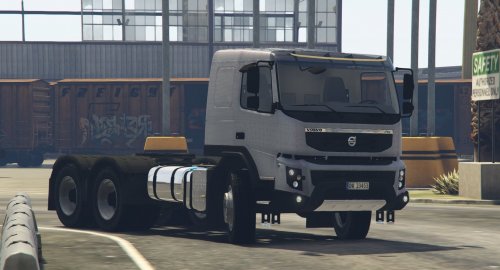 and the semi-Trailers work well with this truck?
 -
-
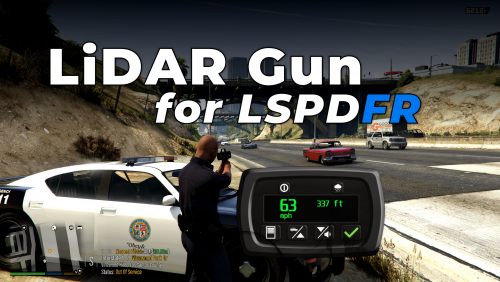 Has noone given @opus49the award for best plugins of the year yet? *Grammar Police *LidarGun *CalloutInterface *Prowler Radar
- 141 comments
- 16 reviews
-
-
-
- 5
-
-
 tom cant seem to join your discord 😞
 -
-
-
.thumb.png.b1762fcd0a667a8a6ac5f8068c8cbb7d.png) SP version it has this one issue where camera view is a little too far ...and i cant seem to load as many people in the truck like in the photo up top
SP version it has this one issue where camera view is a little too far ...and i cant seem to load as many people in the truck like in the photo up top- 28 comments
- 4 reviews
MORNING ROUTINE FOR LOS ANGELES FIRE DEPT STATION 33.thumb.png.bda3c7e2e825b959aaa3644c8634ad0c.png) K9 UNIT ADDED THIS WILL NOW BE A MINI PACK 2 TAHOES 2 SEPERATE DIVISIONS
K9 UNIT ADDED THIS WILL NOW BE A MINI PACK 2 TAHOES 2 SEPERATE DIVISIONS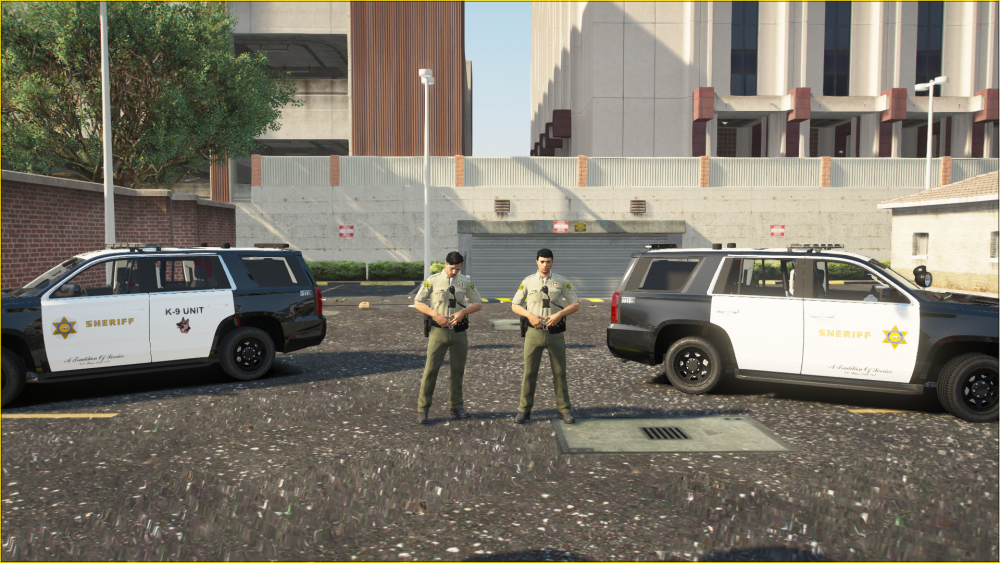 2019 Los Angeles County Sheriff Tahoe Available Soon For Download Currently a W.i.P
.thumb.png.60ef805378235397d01a8ce53da6bb94.png)
.thumb.png.ad08c523a0be59ac0ee9c78598885bcd.png)
.thumb.png.64e63c85f099160d090a16d263207132.png) yes as soon as spotlight is added and ALPR will be added in a future updateCOMING SOON TO LSPDFR FOR DOWNLOAD
yes as soon as spotlight is added and ALPR will be added in a future updateCOMING SOON TO LSPDFR FOR DOWNLOAD.thumb.png.ec65067e2d65dc4601b0b8f93ee926e4.png)
.thumb.png.74f4ae640c4f09666a240bd80f32052e.png)
.thumb.png.a66af7b9590bb1f4249adb247d594e28.png)
.thumb.png.675ab95b230a244b9238d93cd3d39071.png)





.png.48db98e1f3f7746e7c71d404613e1e88.png)
.png.355856c3b9d55570a338834ba19d1f33.png)

.png.7890566d6fc49ca5761245749aac24ff.png)
.png.98a7669e70f200ef37593f792fe51f64.png)
.thumb.png.b1762fcd0a667a8a6ac5f8068c8cbb7d.png)
.png.0e8cb7111cc55f3e426af36ddcf62249.png)
.png.b852c68170f1db11a779d48716d9e8f9.png)
.png.ab95683805ee9e55fe17ce52e27916ec.png)
.png.9ae330f15bd956a3e6ac6ca4609f6872.png)

.png.dd9ccaff10802b604a4cf31694f5fca4.png)
.png.0bc320f4a6041c63e4a230d7af182374.png)
.png.99e5bd4eb064dcfcbdfaf2d3090c9f6c.png)
.png.70ddcffc562021a354e84a24464e2137.png)
.png.e817ad8ad9ea7823d32b736470df950b.png)
.png.4f7dec2a3d0206bbd35cccec0cfeb5f8.png)
.png.1dfaa08ea8c02915226adebdf301ecb2.png)
Account
Navigation
Search
Configure browser push notifications
Chrome (Android)
- Tap the lock icon next to the address bar.
- Tap Permissions → Notifications.
- Adjust your preference.
Chrome (Desktop)
- Click the padlock icon in the address bar.
- Select Site settings.
- Find Notifications and adjust your preference.
Safari (iOS 16.4+)
- Ensure the site is installed via Add to Home Screen.
- Open Settings App → Notifications.
- Find your app name and adjust your preference.
Safari (macOS)
- Go to Safari → Preferences.
- Click the Websites tab.
- Select Notifications in the sidebar.
- Find this website and adjust your preference.
Edge (Android)
- Tap the lock icon next to the address bar.
- Tap Permissions.
- Find Notifications and adjust your preference.
Edge (Desktop)
- Click the padlock icon in the address bar.
- Click Permissions for this site.
- Find Notifications and adjust your preference.
Firefox (Android)
- Go to Settings → Site permissions.
- Tap Notifications.
- Find this site in the list and adjust your preference.
Firefox (Desktop)
- Open Firefox Settings.
- Search for Notifications.
- Find this site in the list and adjust your preference.