Lapd Code 3
Members
-
Joined
-
Last visited
Everything posted by Lapd Code 3
-
-
 nothing i been trying everything i think this was half-assed in the rush to keep up with the updates not his fault but this can happen in the modding world accidents happen
- 650 comments
- 52 reviews
-
-
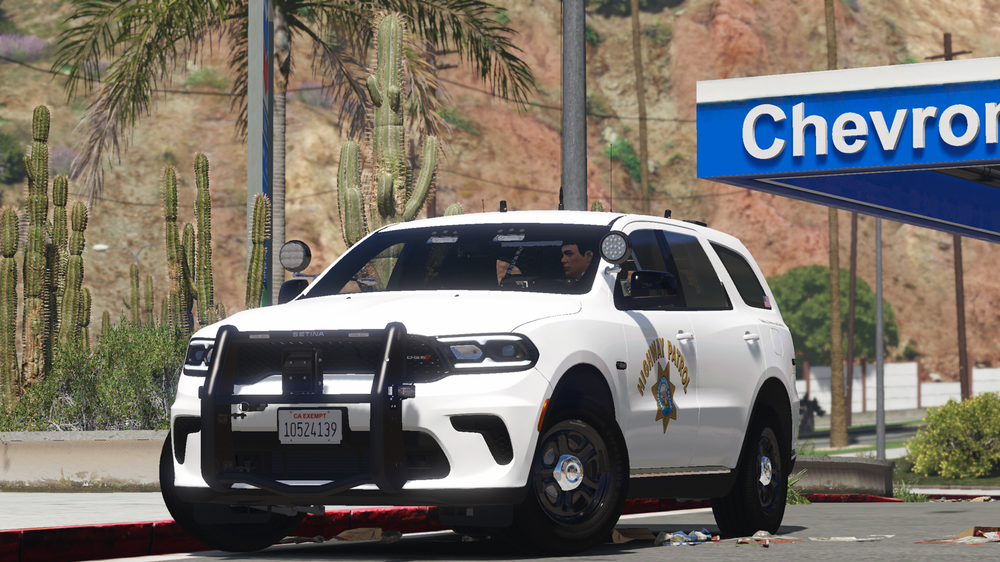
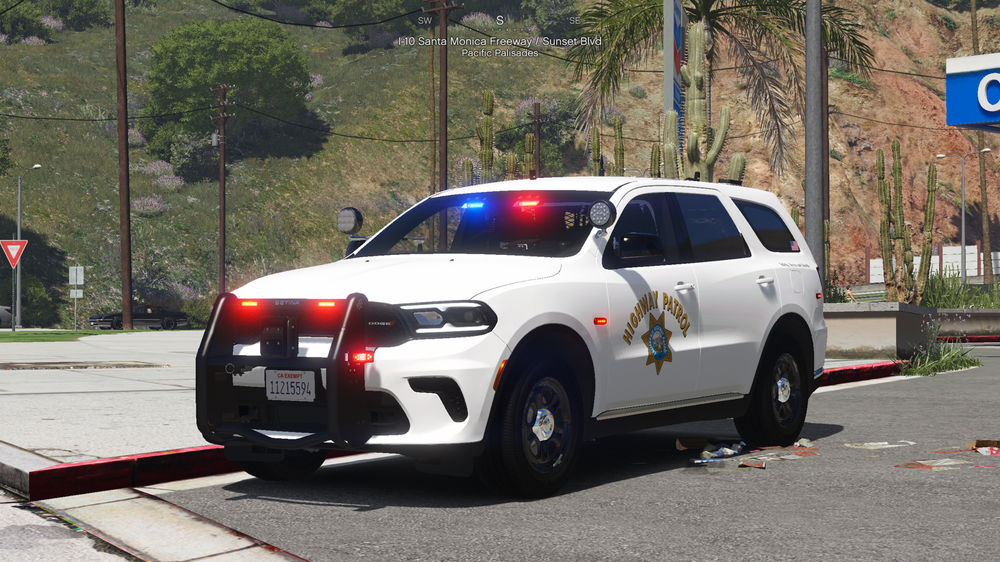
CHP's Newest CVE Durango
-
-
-
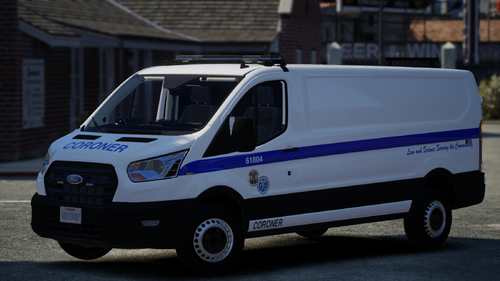 This Model will get an Upgrade didn't understand LOD's at time of built but i do now DW this will get a redesign
 -
 LASD next? would be helpful
 -
 Might be Alex's or mine
 -
-
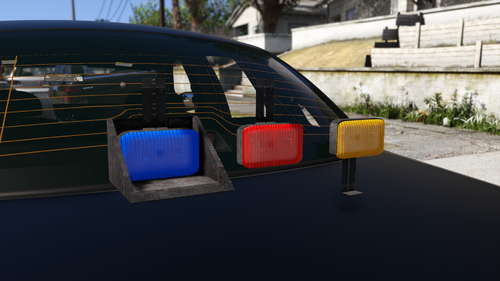 Hanako no longer sells his was told by someone in his discord
 -
-
-
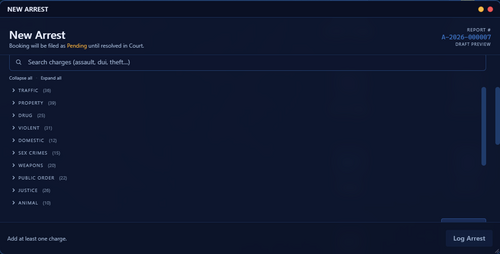 Looks great and lot of variety of charges to choose from
 -
 Simple easy to install fun to use perfect for Cali gameplay Thank you for this
 -
-
-
-
-
-
-
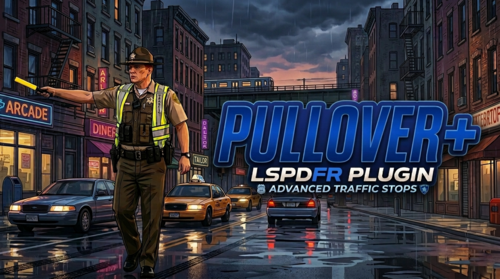 Testing now will give feedback after I'm done. Update : Works fine and Gives a new Meaning to Pull over when stopping on foot saves me from getting hammered by npc cars in the road
- 39 comments
- 5 reviews
-
-

-

- 2
-
-
-
 Bro im using these on my next episode testing them now and pardon my swearing but i fk'ing love em thank you so much for making my game more fun
- 91 comments
- 21 reviews
-
-
- 1
-
-
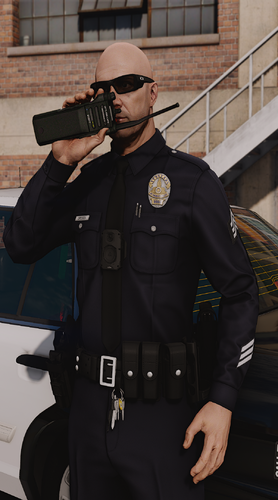 sorry but its not working on my end did place em in the proper paths in oiv but still getting the same boring animations from grammar police
- 77 comments
- 8 reviews