




ScottyTooHotty
Members
-
Joined
-
Last visited
Everything posted by ScottyTooHotty
-
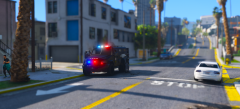 Link to the vehicle? I couldn't find it.
 -
https://gyazo.com/76c77d9306ca13bf1cd2617551c62380
-
You'll be completely fine to update now don't worry.
-
Send me a PM with your email address.
-
To play with the most up to date RageHook (0.41) you need to have the most recent game update. Easiest was to check this is to go into Steam and verify your GTA 5 game files.
-
It should do. Install things one by one and test every time you install something so if it does stop working you can pinpoint whatever you just installed is the issue.
-
Well it's not the game that is recognizing them, it is RageHook. Re-install RagePluginHook and try again. You are on the most up to date RPH and game version yes?
-
@Thumper53 If it says they've been loaded then they've probably been loaded lol
-
I believe this is just to do with the type of lightbar he added to the vehicle rather than making it Orange himself if you get what I mean.
-
Upgrading your RageHook will not effect your actual game files in any way.
-
I am not familiar with the retail version so you may just need to reinstall your game.
-
You need to Press F4, then type 'LoadPlugin' space and then the name of the thing you want to load. It will usually pop up in a drop down menu which you can press Tab and it will automatically enter it for you.
-
 Sorry to hear you're having troubles, simply take the contents of the download (LSPDFR and Plugins folders) and drag and drop them into your Grand Theft Auto 5 directory. Any more help needed then let me know :)
- 329 comments
- 53 reviews
-
Hmm, I'm stumped on this one. This should now go to RagePluginHook's forums and not LSPDFR's. Not their issue.
-
@Israelct @nicktrick92 Both of you verify game files then reinstall RPH.
-
@nicktrick92 Have you re-installed RPH 0.41? Also, did the game actually start to load or just RPH logo come up?
-
@EdwardBoss Do you have the requirements set out in the description?
-
@Thumper53 You have to load them individually unless you've set up your RageHook to load them automatically on start up.
-
Verify your game files via Steam, that will correct any missing files, then reinstall RPH again (as I'm unsure whether or not Verifying game files may alter a RPH file).
-
Code Red Callouts is now compatible with LSPDFR Computer+! It is not required but can greatly improve the experience!
-
I must say that is a very bizarre issue. Have you done any weapon mods or weapon reticle mods?
-
Small Announcement! My callouts are now compatible with LSPDFR Computer+! Computer+ is not required but it does improve the experience! :)
-
My callouts are also now compatible with LSPDFR Computer+!
-
All of mine are set to High. When I'm playing I do feel like quite a few of mine don't come up very often and I do get the same ones over but that's the luck of the draw.
-
Closest thing you'll get at the moment.


