
ToastinYou
Members
-
Joined
-
Last visited
Everything posted by ToastinYou
-
The only other thing I could think of that's causing this is the colors, is there a secondary color normally? If yes then I have no idea. Maybe @Albo1125 can help you when he's not busy.
-
Either the livery need to be set to -1 or 1 or if that doesn't work, are you looking for a heli to join a pursuit or jut sit there? What do you want the heli to do?
-
Thanks ineseri, my bad. I'm just talking about the bugs where reviews mess up, the PM messages glitching, I didn't mean it like that haha.
-
Can someone tag a staff member please it still isn't there after signing out clearing history and cache etc I'd love to be able to Post status updates. I also can't respond to reviews on my plugins.. site bugs are crazy hot this past week unfortunately. @ineseri
-
None of that is there, yes I'm on phone but even on my computer it looks like this:
-
This is gonna sound really dumb but... how do you post a Status Update?
-
Thanks to @Albo1125's LSPDFR API PDF Guide
-
Problem Solved. @fiskey111 public override void Process() { base.Process(); if (myPed.IsDead) { End(); } if (myPed.IsCuffed) { End(); }
-
After I have killed or arrested a suspect, the blip stays behind. Here's basically code from bottom to where blip is created of one of my callouts. Just need to know how I could possibly fix this. Thanks for any help :) Problem solved, read code below if you have this issue to, it may solve it! :)
-
How can I make a Suspect's Vehicle in a Callout be Vehicle Flagged as Stolen? Is this even a thing? Thanks for any and all help <3
-
LSPDFR based plugins go in Plugins > LSPDFR, while others go in Plugins. Should have a ReadMe or say on the Download Page haha (as stated above).
-
-
 I am so frustrated. My mouse won't move, well, it will move but revert straight back to its previous state - and I can't click anything, it just basically forces me to close the game because I can't do anything. Anyone know how to fix this or what's up? I thought it was because I was in fullscreen, so I switched to windowed and it still didn't work. Can someone please help me? Video below. Happens with this mod and PolicingMDT. :( https://youtu.be/dDvwj11u10E
- 1,742 comments
- 172 reviews
-
-
-
-
-
-
-
-
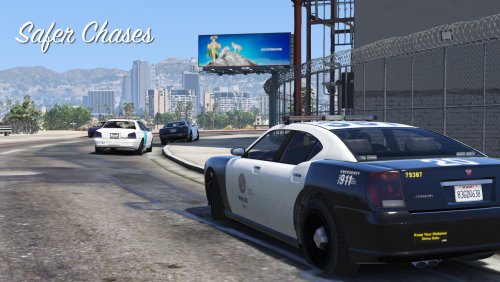 Great idea. Great concept. Love it. Love how it works. Hate how it lags everyone that I see use it. I tried it out and it even lagged my computer. I've seen people with beefy computers have lagging issues when in persuit of a suspect. Somehow needs to be reworked so when in a persuit it doesn't cause any lag or less amounts of lag. Otherwise, great script and keeps the backup in order while persueing a suspect!
- 176 comments
- 46 reviews
-
 No problem! If you would like a more realistic items list for Vehicle Search, I suggest the one I made, called MoreItem's! Just follow ALL DIRECTIONS and it will add a more realistic feel to Vehicle Search! The 350+ Items Add-On is outdated and contains some weird items that either you wouldn't find in a car or that you should be able to see but you can't. Here's MoreItem's:
- 342 comments
- 49 reviews
-
You are running version 2.0.6 which is quite an old version. Upgrade to v2.1.7 (latest) and see how that works.
- 342 comments
- 49 reviews
-
-

- 1
-
-
-
 Could you include this in the new update? The loud alarm is quite annoying so I'm glad you got around to doing this for us :)
- 130 comments
- 28 reviews