
PNWParksFan
Insiders
-
Joined
-
Last visited
Everything posted by PNWParksFan
-
This is an LSPDFR plugin, not a standalone RagePluginHook mod. Follow the readme directions to install it correctly, the DLL should be in Plugins/LSPDFR folder.
-
 OK, if you installed it as a DLC that is fine, you don't need to install LML for that. You do need to install a gameconfig and heap adjuster mod, they are required for any mod that adds new models to the game.
- 299 comments
- 25 reviews
-
Did you install a gameconfig, and did you install the most recent version of LML after the recent GTA update?
- 299 comments
- 25 reviews
-
The current Paleto Bay map does not work on FiveM. However, we are developing an all-new base at Paleto Bay with custom new buildings. More info to come soon!
-
You can use any default boat, helicopter, or plane to play the mod.
-
It is included in my Heli Taxi mod now: https://www.gta5-mods.com/scripts/helicopter-and-vtol-runway-taxi
-
Yes, definitely. Please check out the customization guide which is linked on the download page. You can of course edit the liveries through OpenIV, just browse into the LML folder and find the appropriate model. I wouldn't recommend installing the AW139 (or any of the other aircraft) as separate addon models if they're already added by the coastal callouts pack.
-
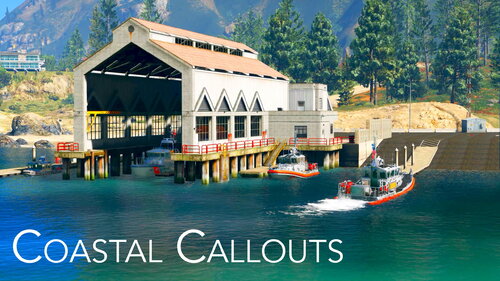 Go into GTA V/Plugins/LSPDFR/CoastalCallouts/ModelConfig/Vehicles.xml. Look for lines like this, and if the model is one you don't want to spawn as backup, change PursuitDispatch and SAR to false: <CoastalBoat DefaultCrewMin="3" DefaultCrewMax="5" Siren="true" HeavyWeather="false" PursuitDispatch="true" PursuitJoin="true" SAR="true">
- 496 comments
- 33 reviews
-
This is a good question, to be honest I am not entirely sure. Sometimes the hoist cable shows up for me in R* editor, sometimes it does not. I have not noticed any particular pattern to it.
- 496 comments
- 33 reviews
-
Reminder that support requests must fill out the support template from the first page of this thread. Requests which do not provide the required information will not receive a response.
-
 Instead of having to customize settings for officer models, police car models, fire truck models, etc. you can use the RequestBackup API. One of the options for the RequestBackup function lets you specify an exact number of occupants in the backup vehicle and lets you spawn it with no tasks (i.e. won't drive anywhere unless you give the driver a task) and at a specific location. You can use this to e.g. spawn in a fire truck with 4 occupants, and it'll use whatever the user's already configured in their backup.xml to spawn the right fire truck model for that area, with the right peds and whatever uniforms they're configured for. I would suggest doing this for any AI emergency vehicles you spawn (fire trucks, ambulances, police cars) as it lets the player control all of the settings without you having to do any extra work to implement it.
- 160 comments
- 20 reviews
-
-

- 1
-
-
As of today the top bar is showing up twice, once normally at the top of the page and again with a sort of condensed mobile header: I checked both logged in and logged out, with and without adblock enabled, same issue across the board.

-
Sounds like you haven't installed the DLC correctly 😉 Please upload a screenshot showing how you installed the DLC, and your log showing the error message.
- 299 comments
- 25 reviews
-
You would need to go into the graphics settings for GTA and set the texture quality to Very High.
- 496 comments
- 33 reviews
-
 The color can be edited if you know how to modify the prop file. The flashing pattern cannot be modified.
- 39 comments
- 6 reviews
-
-
- 1
-
-
-
 Works fine, no update required. Just install the latest RageNativeUI version: https://github.com/alexguirre/RAGENativeUI/releases/
- 781 comments
- 85 reviews
-
-
- 1
-
-
Upload the log Update RageNativeUI to the latest version: https://github.com/alexguirre/RAGENativeUI/releases/tag/1.8.2
-
You need to update RageNativeUI for the latest game version. https://github.com/alexguirre/RAGENativeUI/releases/tag/1.8.2
- 299 comments
- 25 reviews
-
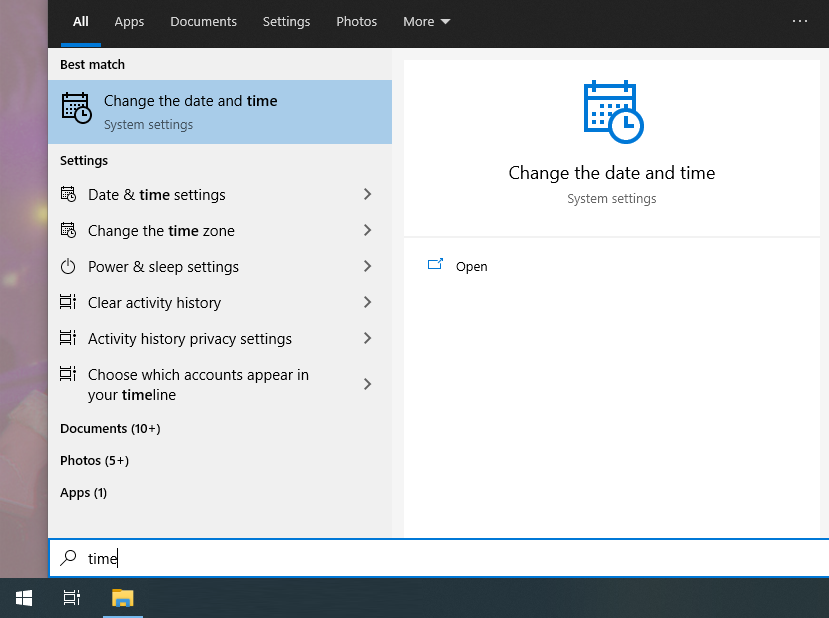
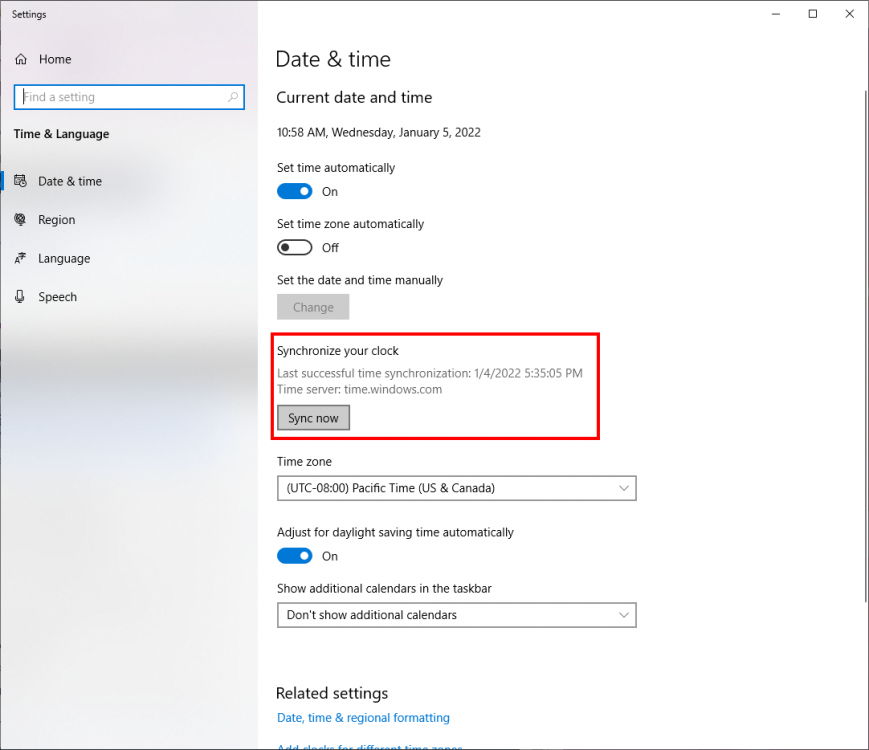
Check your system time. If your system time is substantially off from the real time, the server check will fail. However, the mod will still work fine even if the check fails in this case. If you can't open the menu the issue might just be what key you have it set to use. Double check the INI; by default the key is "]" but you may need to change it if you don't have that key on your keyboard. To update your time, open the start menu and type "time", and open the "Change system date and time" control panel option: Then click the "synchronize your clock" button:
-
Thanks for the report, I will investigate this. Make sure you are not using any sort of "god mode" or something like that in a trainer.
- 781 comments
- 85 reviews
-
-
- 1
-
-
Please install the latest version of RageNativeUI from https://github.com/alexguirre/RAGENativeUI/releases. The version that is included with Coastal Callouts does not work with the latest game version, and I have not had time to update the files yet.
-
Make sure you update RageNativeUI and gameconfig, then everything should work fine.
- 299 comments
- 25 reviews
-
-
- 1
-
-
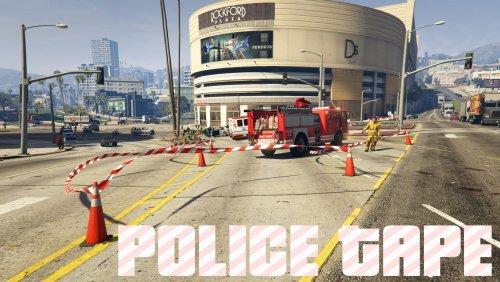
You have installed the LML package, which puts the police tape models in the game. You also need to install the plugin, which lets you actually do things with the models. Check in you Plugins folder to see if there is a PoliceTape.dll in there. Then you need to load your game with RagePluginHook and either select Police Tape as one of the plugins to load automatically at startup, or load it manually from the console in game by typing LoadPlugin PoliceTape.dll.
- 299 comments
- 25 reviews
-