
SuperStumpje
Friends of LSPDFR
-
Joined
Everything posted by SuperStumpje
-
Since it's multiplayer, are you sure the other players have exactly the same vehicle/weapon/ped/etc mods?
-
Never seen it... Guess I'll go disturb the chief then :)
-
I think that's LCPDFR, but I'm not sure.
-
I suppose you could talk to the screen, but other than that I don't think there's a way.
-
Now, I'm not sure but I think Nstockade, Pstockade and the civ Stockade all use the same handling line.
-
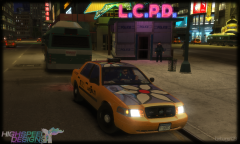 Undercover hippie taxi :)
 -
I'm assuming you just installed it on nstockade as that is the vehicle mentioned in the readme. In the normal game this is a black van. If you go into commons > data and find carcols.dat there is a list at the top with all possible colors. Find a color you like (I'm assuming you want it in white), copy the right line, scroll down to nstockade and replace the line that's there with the one you want. EDIT: made myself a bit more useful. Replace "nstockade, 0,0,8" with "nstockade, 175,177,177," (without " of course) and let me know how it goes.
-
It would indeed be nice if that would be possible. However, with the retarded GTA AI, it isn't really possible.
-
NB, could you maybe add some skins in the style of previously released packs in the download too or would it be too much work? That way It'll be easier to put different vehicles together without them having totally different skins. (IE. the Tahoe from your Chevy pack and the Chargers you're currently working on don't really fit together skinwise)
-
Never ever ever launch from steam as it will not work. Go into your GTA IV directory, find GTAIV.exe (.exe might not be in the name, make sure you don't pick the image as it has the same name) and right-click on it. Then select properties, compatibility and tick Run this program as administrator (not sure what it actually says, my computer is set to Dutch). Then click apply to make it work. Find LaunchGTAIV.exe (.exe extension might not be there) adn do the same thing. Then launch the game by double-clicking LaunchGTAIV.exe
-
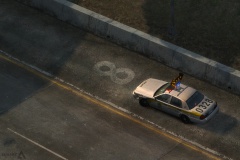 Caine is definitely onto something. Question is, what is it?
 -
Happy birthday! Please send me the leftover cake!
-
Do you have a trainer installed? If so, turn off trainer keys.
-
Try to remove some modded cars. Usually that's the problem.
-
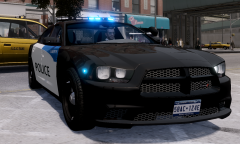 NB: king of vertex placement
 -
I was typing the same when Iconograpthy posted his thing, thus beating me to it. On the internet this is often called ninja-ing for no apparent reason. And there you go! You just learned something new!
-
Ninja'd :(
-
-
You can if you're using V6
-
LCPDFR doesn't spawn random emergency vehicles. I'm assuming you're using TrafficFlow which does spawn responding vehicles, although I haven't seen them driving on the wrong side of the road. I guess it's just the AI being retarded again, so I'd recommend ignoring it.
-
The reason ELS is that dark is because the engine is turned off. If you quickly tab F you should get out with the engine still running.
-
He's talking about EFLC, that's the one for GTA IV. Here's the one you need: https://support.rockstargames.com/hc/en-us/articles/200145386
-
That's the solution to everything in GTA :)
-
Do you have a trainer installed? If so, make sure your trainer keys are switched off.
-