
SuperStumpje
Friends of LSPDFR
-
Joined
Everything posted by SuperStumpje
-
I've seen a couple of ambulance escorts, that's pretty much it.
-
SharpCommand/Reibu made a few sirens, might be in there. http://www.lcpdfr.com/index.php?app=core&module=search&do=user_activity&search_app=downloads&mid=899
-
Do you have ELS installed?
-
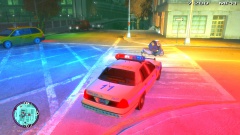 Budget cuts I guess?
 -
Right-click the file, select properties and make sure read-only isn't ticked.
-
Kill it with fire!
-
-
Windows 7 home premium SP something.
-
1) alt+e 2) You can't and no.
-
I never meant it in a serious way, seeing as it is pretty much impossible. That's why I used the small size. But the messy topics are what make this a nice place. It would be boring if everyone was dead serious.
-
Wooh! Someone actually read my entire post!
-
Let's just leave MSA out of this for now. He doesn't need to know everything :) And on a side note, why did I even bother to put in that last line?
-
So I downloaded Lt. Caines Ford E450 ambulance (this one) which comes with it's own ELS settings. However, when I put it ingame it didn't work, so I checked the .ini and found this: // VEHICLE CONFIGURATION FILE (ELS V8.0) // MODEL: E150 AMBULANCE V1.7 // AUTHOR: Lt.Caine // NOTES: N/A Furthermore, a few other lines didn't match the v7 .ini and another few were added In comparison to the original one So, what do you guys think? And please, do not turn this into the clusterfuck most of these threads turn into. It's kind of really annoying.
-
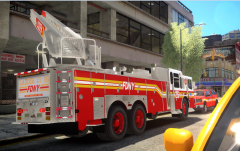 Dat ladder!
 -
What version of LCPDFR do you have?
-
Happy birthday! Enjoy it! PS: if you have any leftover birthday cake, please send it to me :)
-
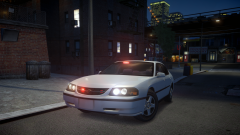 You're right, that does look nice! Where did you get it? *puppy eyes*
 -
I meant the .ide in the ELS folder in your main GTA directory. Right now it probably just contains default_config. If you copy that and rename it, you get a .ide for a vehicle, which I refer to as an individual .ide as I've made one for each individual vehicle. Anyway, god luck with it!
-
All you need to do is create an individual .ide for each vehicle. Go into the ELS folder, copy the default_config, give it a name, edit it to your preferences (I.E. rotating lights, strobes, etc). Then, open ELS.ini in your GTA root folder and edit the line behind File = default_config to whatever .ini you made for that specific vehicle. Example: my ambulance has a specific pattern and reflections so I copy default_config, rename it to ambulance and edit it to my wishes. I then go into ELS.ini and change [ AMBULANCE ] Status = on File = default_config into [ AMBULANCE ] Status = on File = ambulance Hope this helps! PS: Your typing thing can't spell. True fact :)
-
Well, they're definitely up to something, but we'll just have to wait to see what it is and I'm pretty sure it'll be worth it.
-
In order to play online with mods, everyone needs the same mods. The reason the game gives that error normally is because it's loading the details of the original car at the safehouse and not the modded ones. In multiplayer it does the exact same thing, thus making your game give you the digital finger.
-
Switching sirens with ELS v7 is done by pressing "T" by default. Pretty sure it's in the manual but I'm not bothered to check it.
-
EDIT: too lazy to upload somewhere else. Plates were "STOP LOOKING AT MY PLATE" and "Y U FOLLOW ME".
-
For a wireless connection coming from 2 floors below, this isn't too bad!
-
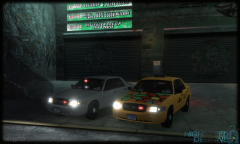 Undercover hippie cab to the rescue!