thegreathah
Friends of LSPDFR
-
Joined
Everything posted by thegreathah
-
 Gorgeous. Good Work bro!
 -
 VERY subtle Lundy LOL
 -
Yeah the converting from IV seems to be pretty smooth graphically. I can't speak from a collision or actual modeling standpoint. Are you planning on working on some stuff?
-
He was one of the good ones
-
I don't think anyone will find a way to make it 100% safe.
-
I would get permission if I were you. Just courtesy wise it would make sense.
-
a few have been seen on the forums. Also in the gallery. I like to check the zmodeler forums as you occasionally get some cool shots of Wip vehicles. I think the light bars really have got people confused as the system for lights is different and hard to learn. As soon as someone truly know how to create good lightbars we will probably see some stuff.
-
not if you hide them well enough or you put more than one on to confuse them. It's still a viable solution: much better than not releasing vehicles.
-
Very good job! Love it
-
 ha. No problem. I hope for the best in your GTA V mods :)
 -
Interesting. I don't think I would mind a vanilla lightbar if you can't figure out the ELS otherwise :P no big deal. Anyway the texture looks soooo good. I was just playing with your GTA IV pack today and I can say I can't wait to see them in GTA V :) Good luck!
-
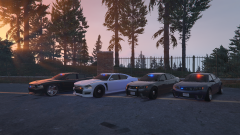 Quick question: when you release these will there be different options for the vehicles you are installing: For example I see that one Fugitive has a Pushbar and Police wheels and the other doesn't. Are those extras within the game or two separate files?
 -
-
That's an excellent idea. Almost a watermark but for a 3d model. You could put it underneath somewhere and in my opinion that would probably cut down on the stealing, while keeping a pleasant appearance.
-
That was *sniffles* so beautiful and so perfect.
-
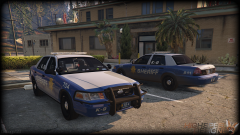 Same reaction here. The level of detail you put into this bxbugs is just incredible. Even the air freshener hanging. Everything is perfect!
 -
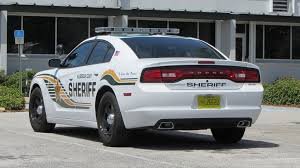
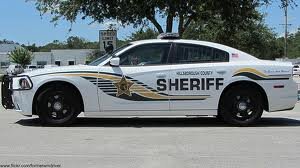
Hillsborough County Florida
-
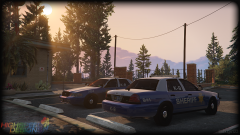 I am. I never BEGGED him to release it. I never said gimme it. I simply stated that I would try my best to protect his work. Lets not throw around childish insults
 -
You are nothing compared to the FHP :P
-
No rush.
-
ok Thanks for clarifying I would personally love if you released it unlocked and would be sure to make sure you were credited with every model that came out. I'm glad you are considering and hope you stick around and provide us with your beautiful work! :)
-
But Oleg has stated that he will not allow for locked vehicles. sooooo.......
-
Yep we have the entire Community team and many modders willing to go unlocked. If they want to leave they shouldn't let the door hit 'em on the way out.
-
He said he will not release an unlocked version. Since versions will NEVER be locked in V one can assume he will never release it. Unless he changes his mind about the modding of unlocked cars.
-
Yes it certainly does. It is part of the community rules on LCPDFR. That's like dangling a piece of meat over a dog and then putting it in your own mouth. Why take a screenshot showing something off if you don't allow people to use it.