thegreathah
Friends of LSPDFR
-
Joined
Everything posted by thegreathah
-
Look in the nvidia control panel and make sure that the power preference is maximum performance. I got this issue literally yesterday and this solved it.
-
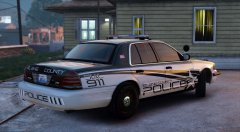 Awesome work man.
 -
Good for him, hope he milks every last cent he can.
-
Thanks for your hard work :)
-
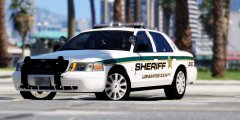 Love it, reminds me of Palm Beach County or Lee County sheriff.
 -
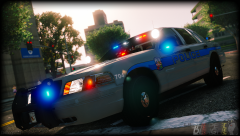 nice pic, now get back to work....
 -
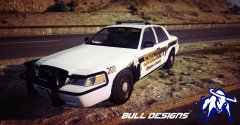 Damn, looks awesome.
 -
 Ok, awesome. Not too worried about the unlocked as long as you make some awesome content with it.
 -
Aweosme, still loving your 2013. Maybe similar lights on this one? BTW; will this be for release or private?
-
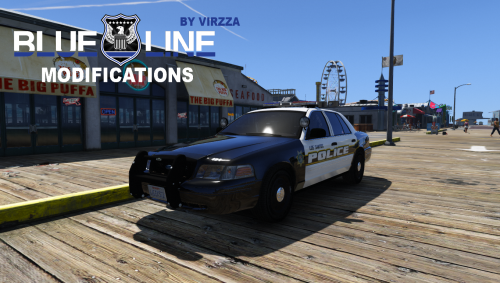 Hey man, seems the hubcap version doesn't include the correct ytd file. It seems to be using the same ytd textures (for the wheels) as the steelie version. The tires turn up black in game.
- 42 comments
- 20 reviews
-
-

- 3
-
-
Looks really awesome.
-
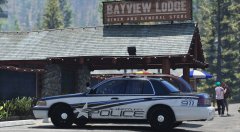 Holy shit, looks really stunning.
 -
Sweet. Thanks man! Awesome car btw! Perfect skin, perfect light setup (I love that those alley and takedown lights that stay on when all the lights in the car are off).
- 42 comments
- 20 reviews
-
-
- 1
-
-
Ahhh. I guess I have to go and install that. Looks beautiful. Should I expect any dip in performance if I install it?
- 42 comments
- 20 reviews
-
-
What ENB are you using? You're lights look much better than mine, and I'm using radiance V
- 42 comments
- 20 reviews
-
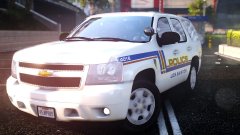 Holy shit. Didn't realize this was in V.
 -
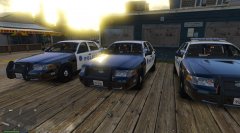 Alright thanks. Been longing for this one for a while now. lol. Nice shot though.
 -
-
So cool! Any idea when we will be getting our hands on the slicktop crown vic?
-
-
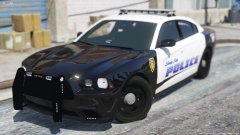 Damn looks really cool man.
 -
 Yes
Yes -
 It's because some of the LODs aren't fully modeled. Don't worry nothing you or Rockstar did.
- 112 comments
- 36 reviews
-
This looks so cool! Good work. Reminds me a lot of the Tahoes in my city.