thegreathah
Friends of LSPDFR
-
Joined
Everything posted by thegreathah
-
I'm having the same issue on a gtx 960. I can't figure out what the problem is... my memory usage doesn't seem to matter, my CPU usage doesn't seem to matter, my GPU usage doesn't seem to matter. Every other game on my system runs like a charm, almost always at 60 fps :/
-
 Looks so good. Can't wait for these skins.
 -
-
-
 I can not wait for this, I already have my sheriff slot and police 2 slot ready for these.
 -
-
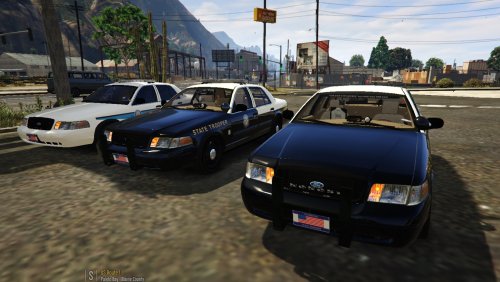 I, honestly, have never seen this setup before. Maybe it's just that my Troop doesn't use them :/
- 60 comments
- 21 reviews
-
-
-
-
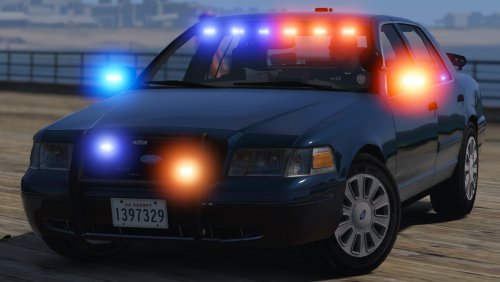 No problem, you were completely in the right here. Keep up the good work bud.
- 70 comments
- 26 reviews
-
It has takedowns. It is the high beam setting on the lightbar. Also : cvpi I'll post a pic in a sec of takedowns
- 70 comments
- 26 reviews
-
-

- 1
-
-
That's a really cool idea! Hope someone makes it possible!
-
Great idea. The Durango (especially the newer ones) look super badass. With black rims it would make an awesome unmarked unit.
-
Dang, this new update looks really awesome! Can't wait for that CVPI you posted in the forums. Soon all of my CVPIs will be from you :)
- 70 comments
- 26 reviews
-
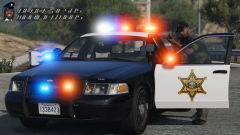 Oh god I love it.
 -
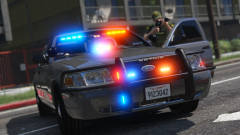 So I heard this wasn't going to be released. Any idea if it will or won't be?
 -
God damn this car is so cool. Perfect light setup and the optional extras are spectacular.
- 70 comments
- 26 reviews
-
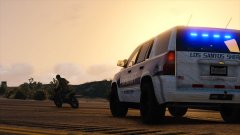 Ya got some dirt on that Tahoe there pal.
 -
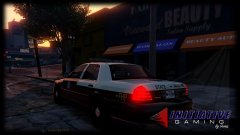 OMG those gifs. Thank you so much for this! I live in Florida and see these everyday. Looks just as great in game!
 -
Love it! Can't wait!
-
-
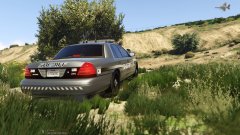 Thanks.
 -
From the album: thegreatHAH's Screenshots
-
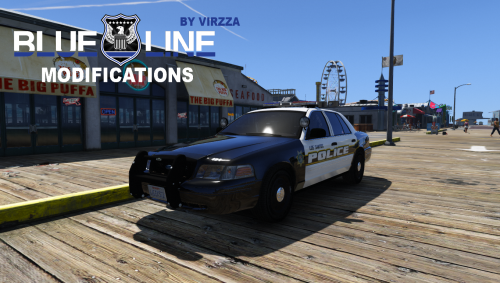 Use the zip file in the comments above and import the textures into the ytd Download the zip file in the comments above, then import all the textures of that file into the ytd.
- 42 comments
- 20 reviews
-
-
- 1
-